Sponsor a role on Indeed
You can communicate directly with candidates from within Spheric using the Messages tab in the applicant card.
Spheric allows you to distribute roles to Indeed and sponsor them directly through the Indeed Employer portal to increase visibility and applicant volume.
Before sponsoring a role on Indeed:
- The role must already be published in Spheric
- Indeed must be selected as one of the job distribution channels
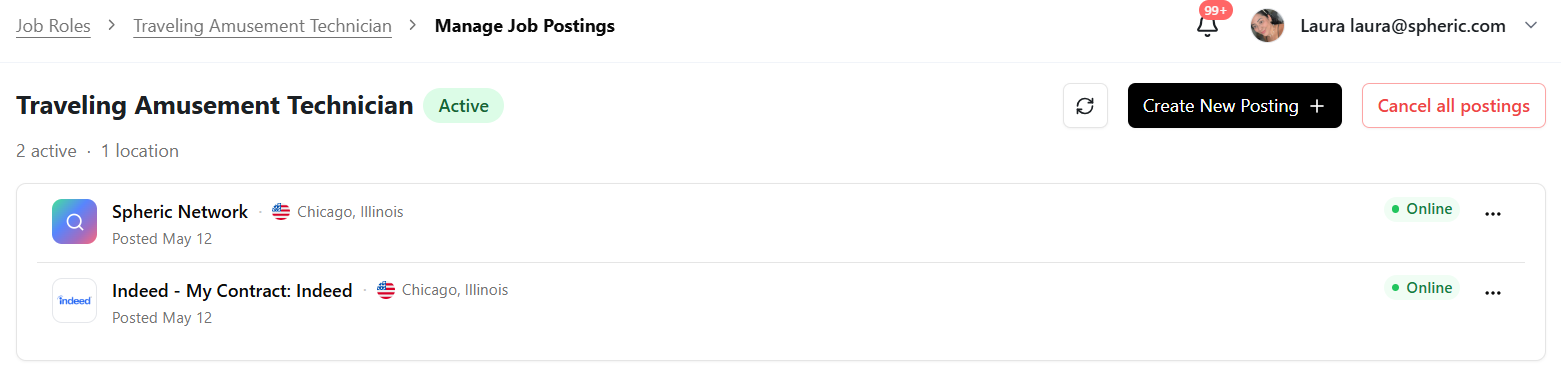
Publishing timeline
Once your role is published from Spheric, it may take time for the role to appear on Indeed.
According to VONQ documentation, this process may take up to 48 hours.
However, based on our experience, roles usually appear within:
- 30 minutes to 1 hour
How to sponsor a role on Indeed
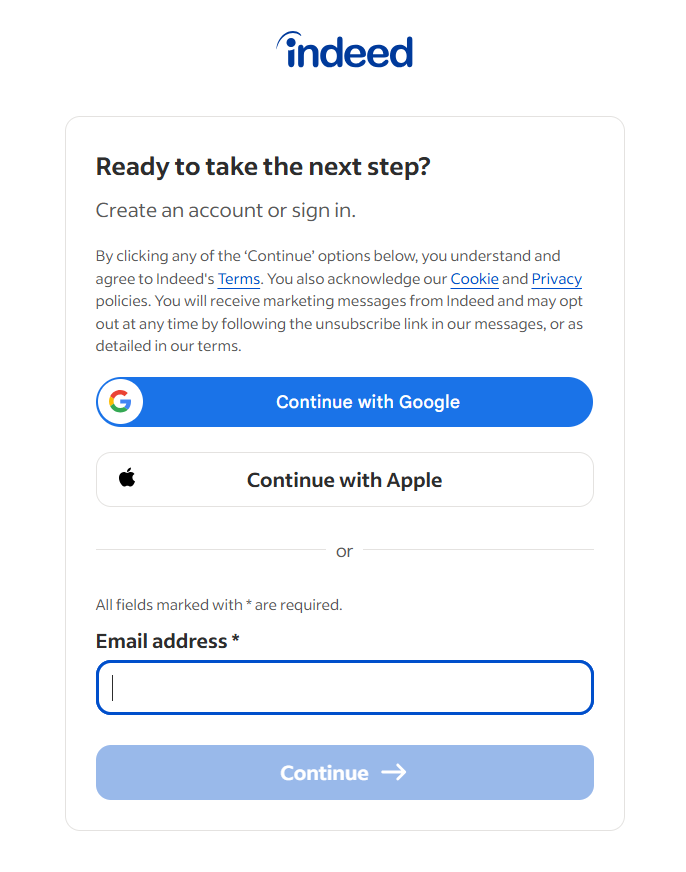
1. Open the Indeed Employer portal
Go to the Indeed portal for employers and sign in to your account.

2. Locate your role
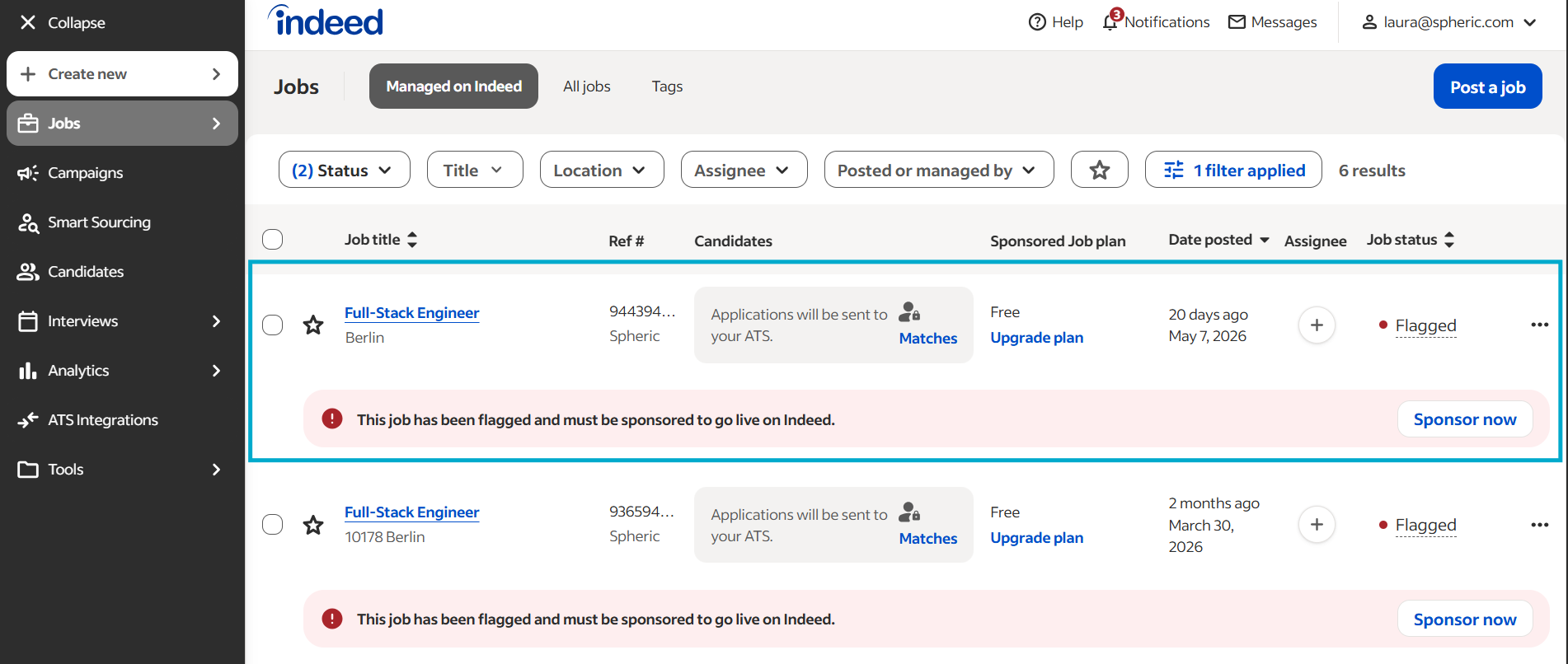
Find the role that was published through Spheric.
Once the role appears on Indeed, you’ll be able to manage sponsorship options directly from Indeed.
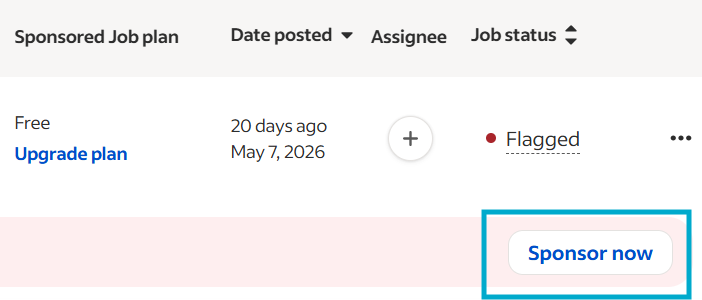
3. Click “Sponsor Now”
Open the role and click Sponsor Now.
4. Select your sponsorship budget
After clicking Sponsor Now, Indeed will take you to the sponsorship setup page where you can configure how your sponsored job will run.
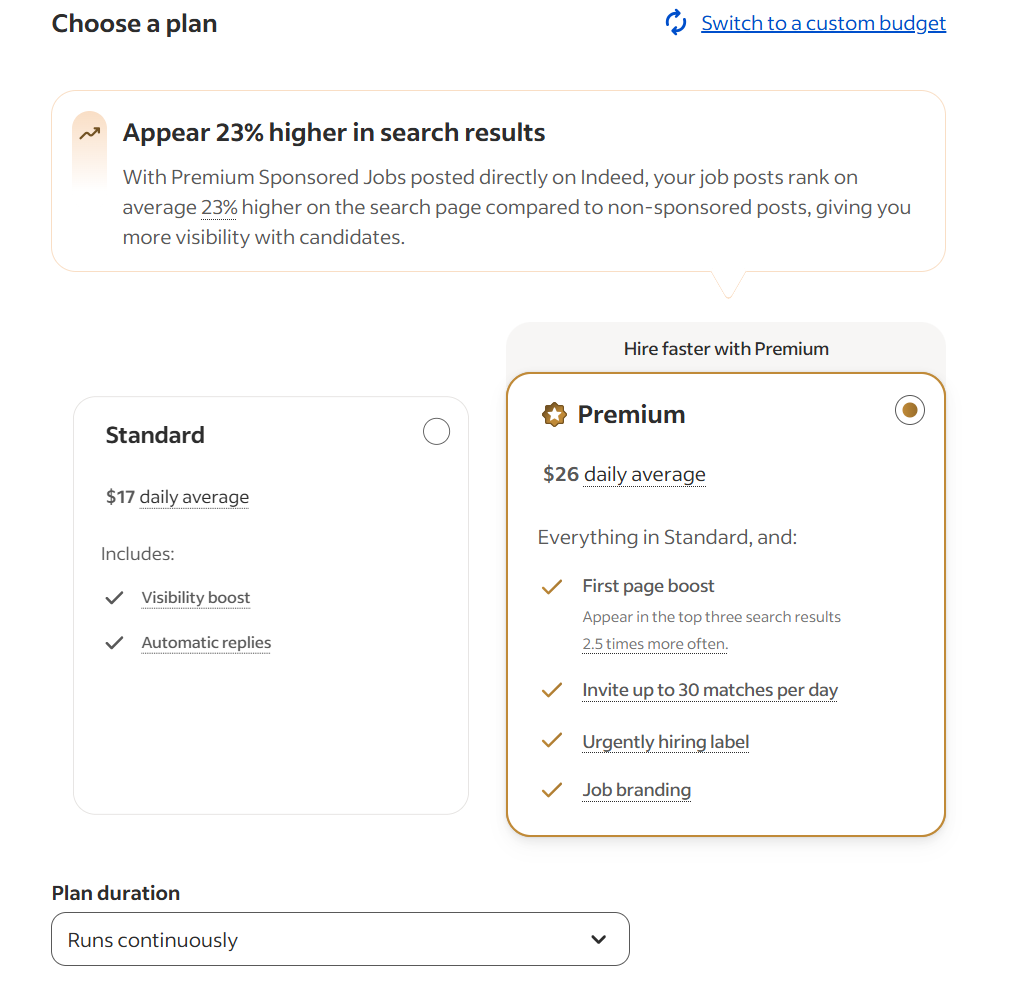
Here’s what each section means:
Estimated applicants
Indeed provides an estimate of how many applicants you may receive based on your selected budget and job market conditions.
This number may vary depending on:
- Role demand
- Competition
- Location
- Budget amount
Daily or monthly budget
This section allows you to choose how much you want to spend sponsoring the role.
Your budget directly impacts:
- Job visibility
- Candidate reach
- Estimated applicant volume
Higher budgets generally increase exposure on Indeed.
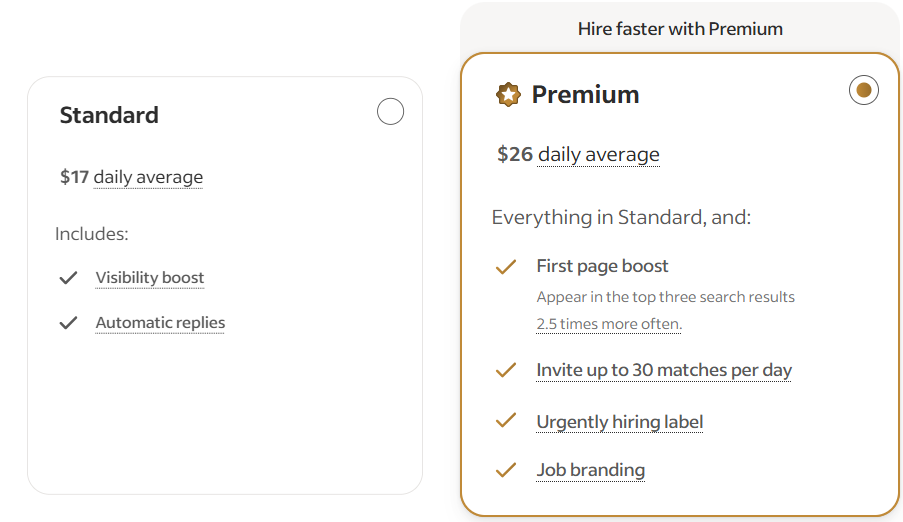
Switch to a custom budget
Indeed may also provide the option to Switch to a custom budget.
This allows you to manually define your own sponsorship amount instead of using Indeed’s recommended budget suggestions.
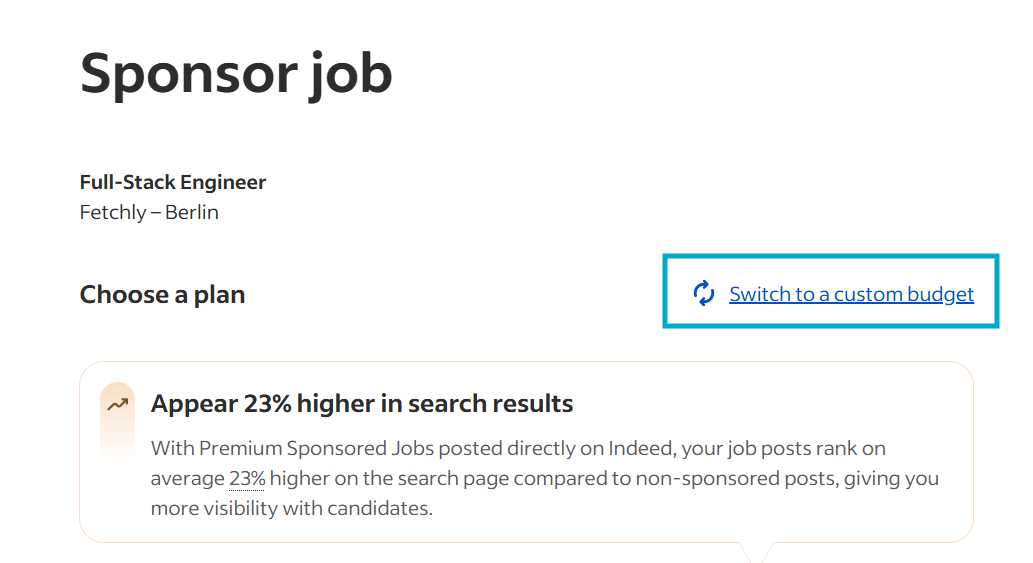
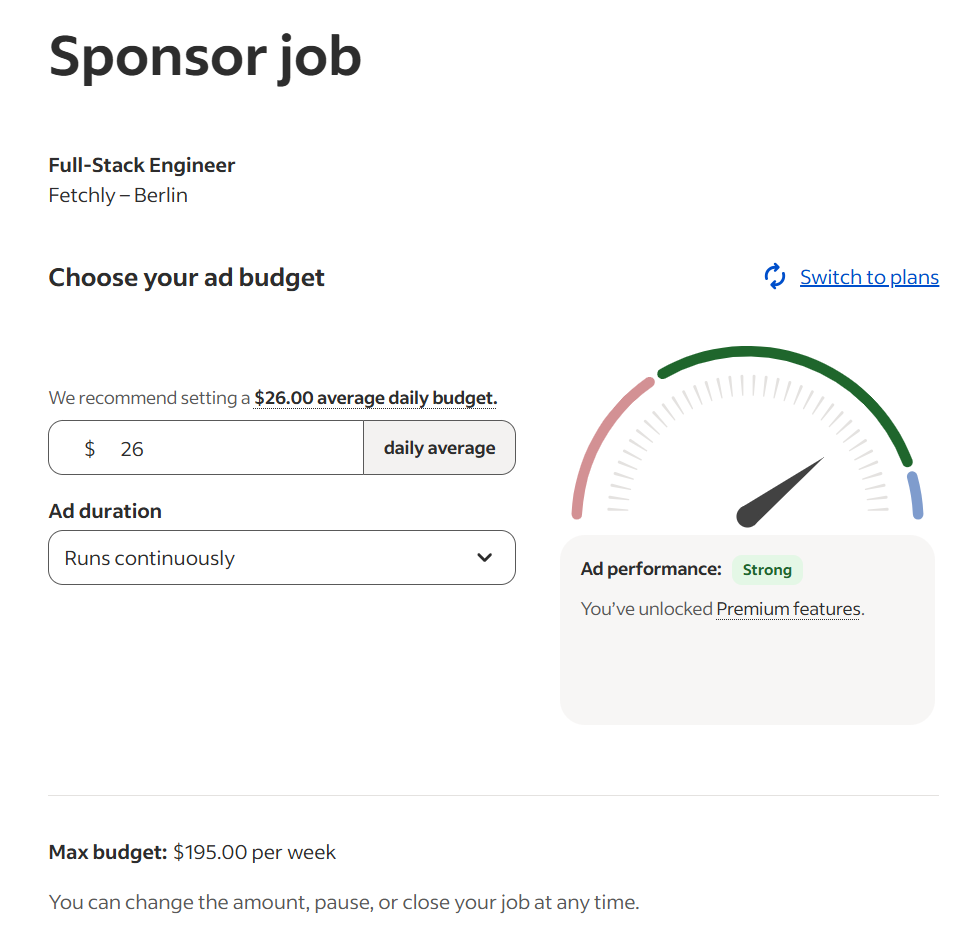
Using a custom budget gives you more flexibility to:
- Control advertising spend
- Adjust visibility based on hiring urgency
- Test different sponsorship strategies
Keep in mind:
- Lower budgets may reduce job visibility
- Higher budgets may increase applicant flow and reach
Indeed may also update estimated applicant projections based on your selected custom amount.
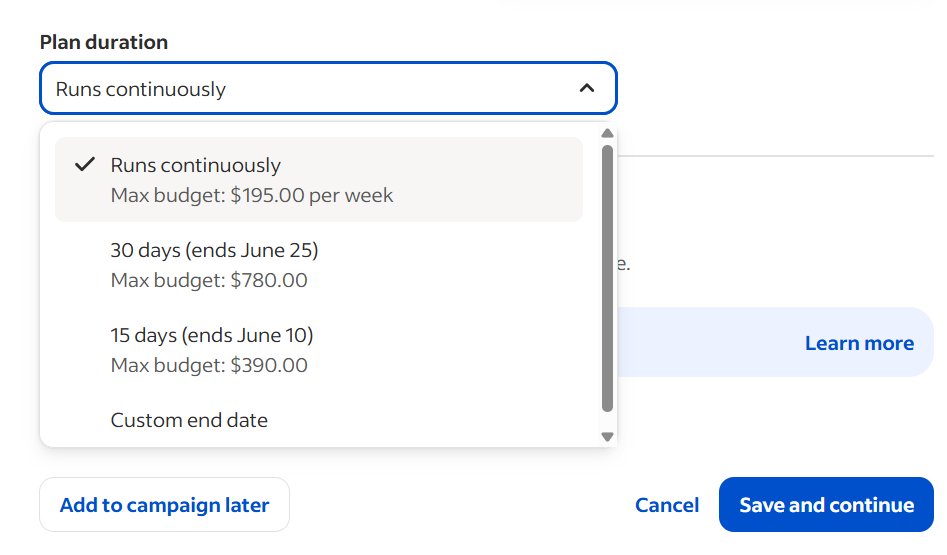
Duration and flexibility
Indeed sponsorships are flexible and can usually be adjusted or stopped later directly from the Indeed Employer portal.
This allows you to:
- Increase visibility when needed
- Pause or stop sponsorships
- Adjust spend depending on hiring urgency
Job performance insights
Indeed may display projected performance metrics such as:
- Estimated clicks
- Visibility
- Applicant expectations
These projections help you decide the most appropriate sponsorship budget.
Payment and billing
Sponsorship billing is managed directly by Indeed.
Charges related to sponsorship budgets are handled through your Indeed account and payment method.
Starting the sponsorship
Once everything is configured:
- Review your sponsorship settings
- Confirm your selected budget
- Start the sponsorship campaign
Your role will then receive increased visibility on Indeed.
What happens after sponsoring
Once candidates begin applying through Indeed:
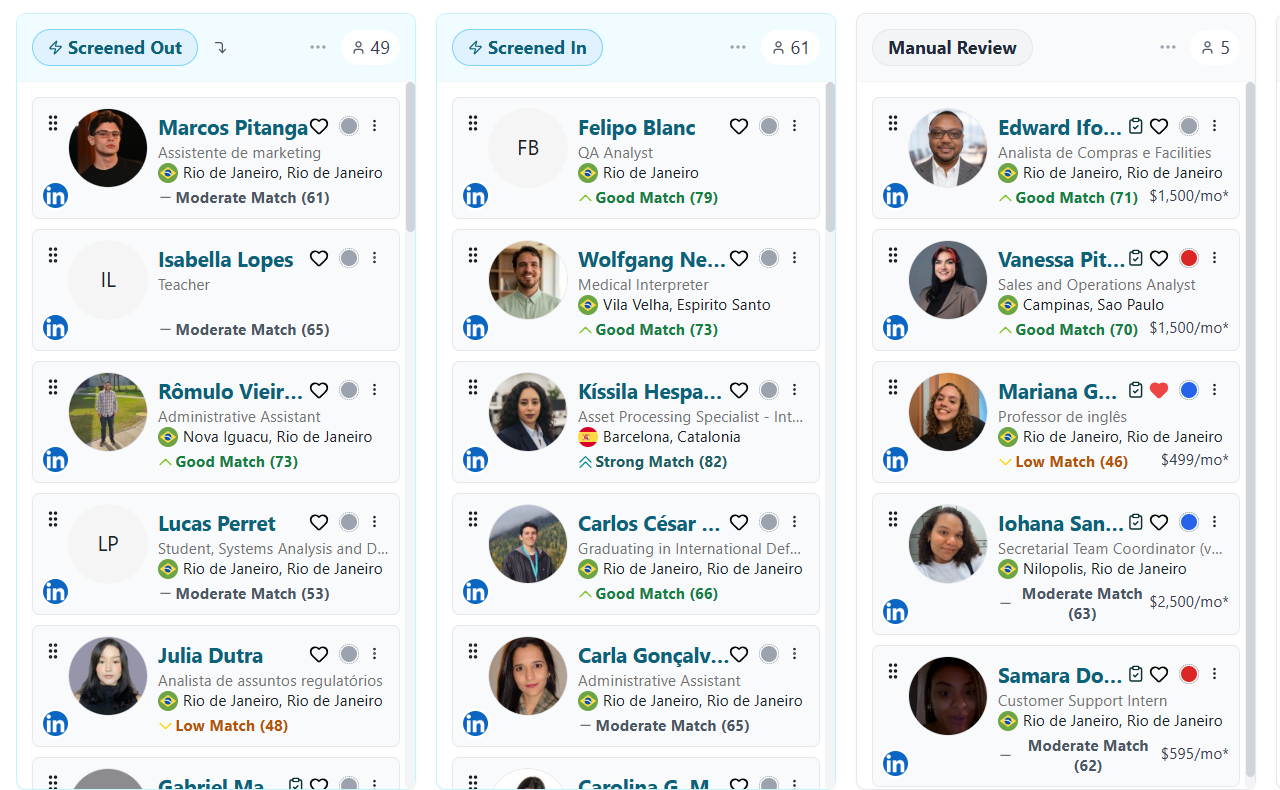
- Applicants will automatically appear inside your Spheric dashboard
- Candidates will continue through your normal Spheric hiring workflow
- AI screening and evaluations will continue as configured for the role
Stopping an Indeed sponsorship
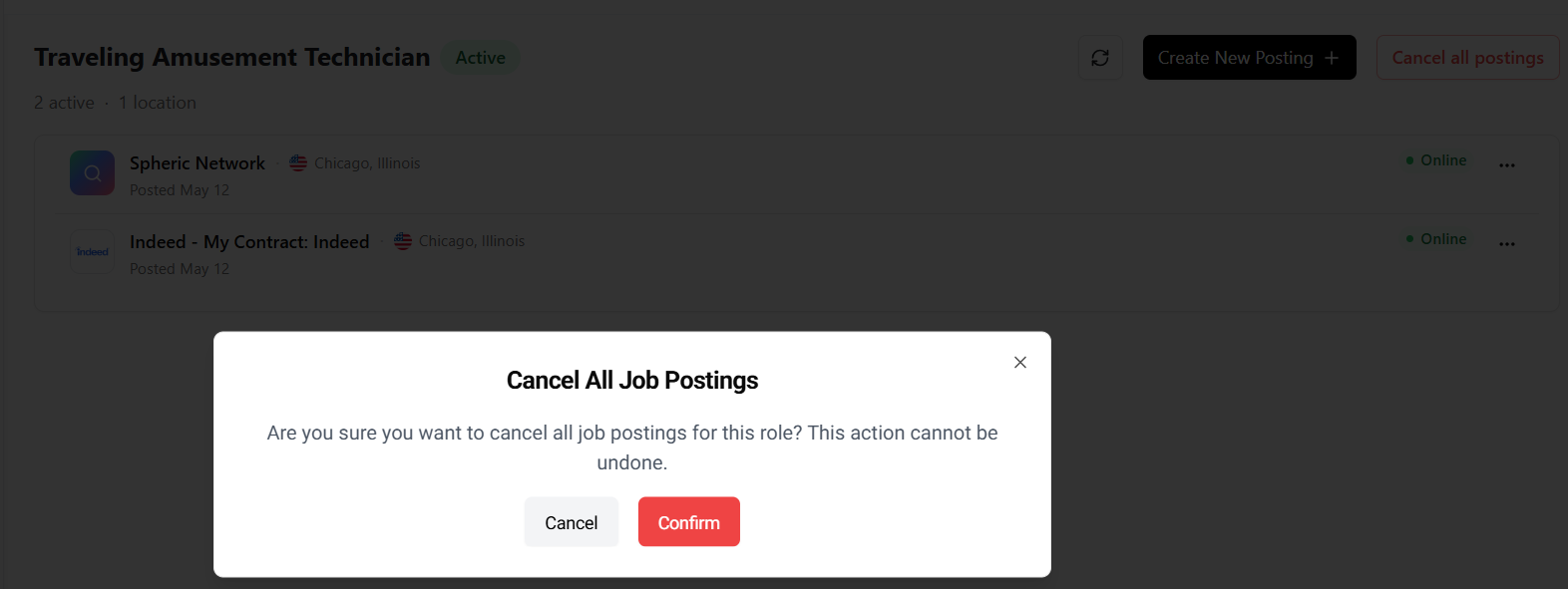
To stop an active role:
- Go to your role in Spheric
- Cancel the active post
To learn more about this, visit:
- Cancel a job post
Important note
Although canceling the post in Spheric usually stops the sponsorship, we strongly recommend also checking Indeed directly to confirm that the sponsorship has fully stopped.
Related articles
To learn more, visit:
- Connect job boards
- Integrations overview
- Cancel a job post
- Spheric plans