Applicant Card
The applicant card is where you can view all relevant information about a candidate in one place. From here, you can review their profile, evaluation results…
The applicant card is where you can view all relevant information about a candidate in one place. From here, you can review their profile, evaluation results, interview responses, and communicate directly with them.
How to access the applicant card
1. Go to your dashboard
Go to: https://app.spheric.com/
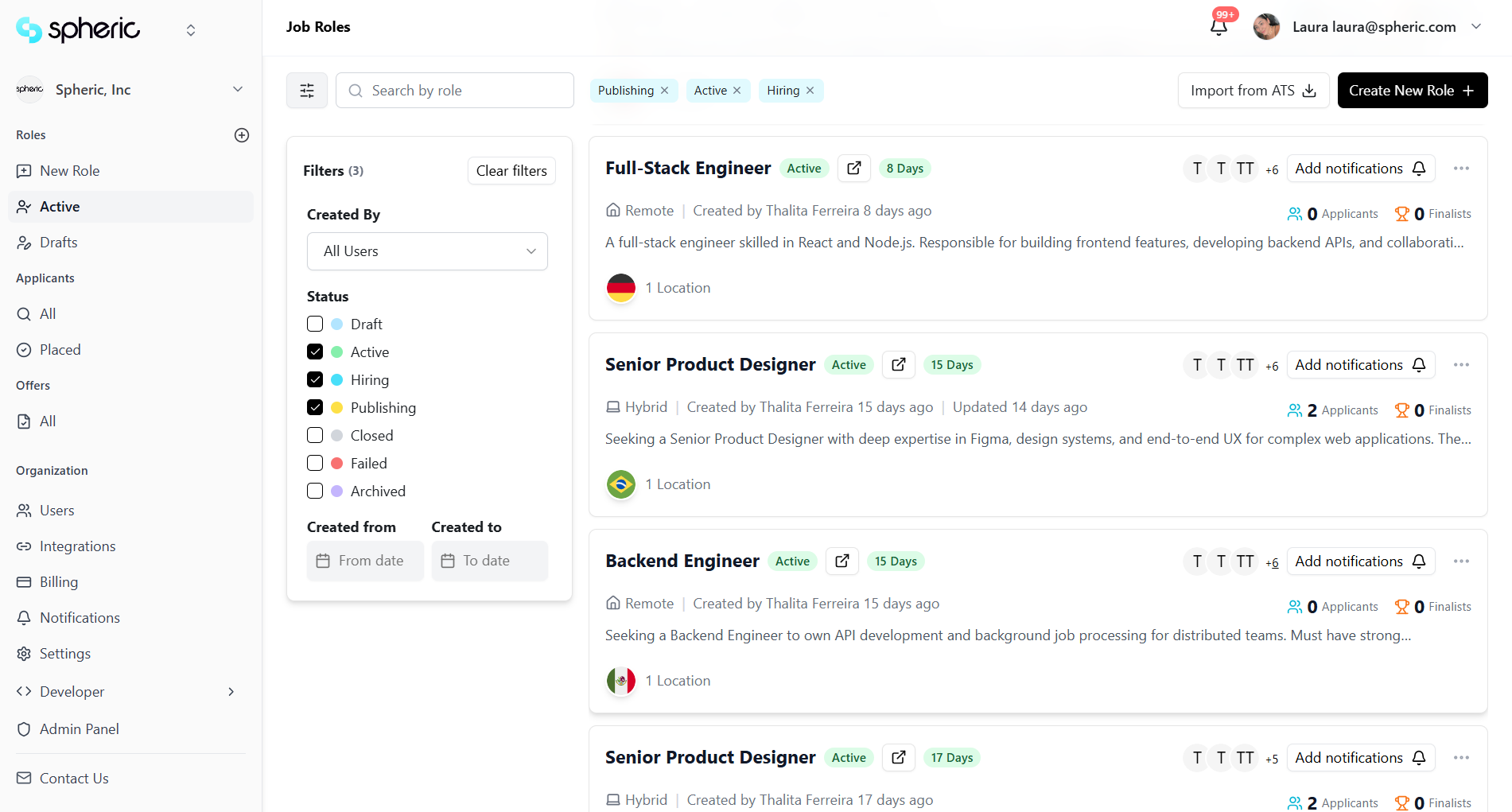
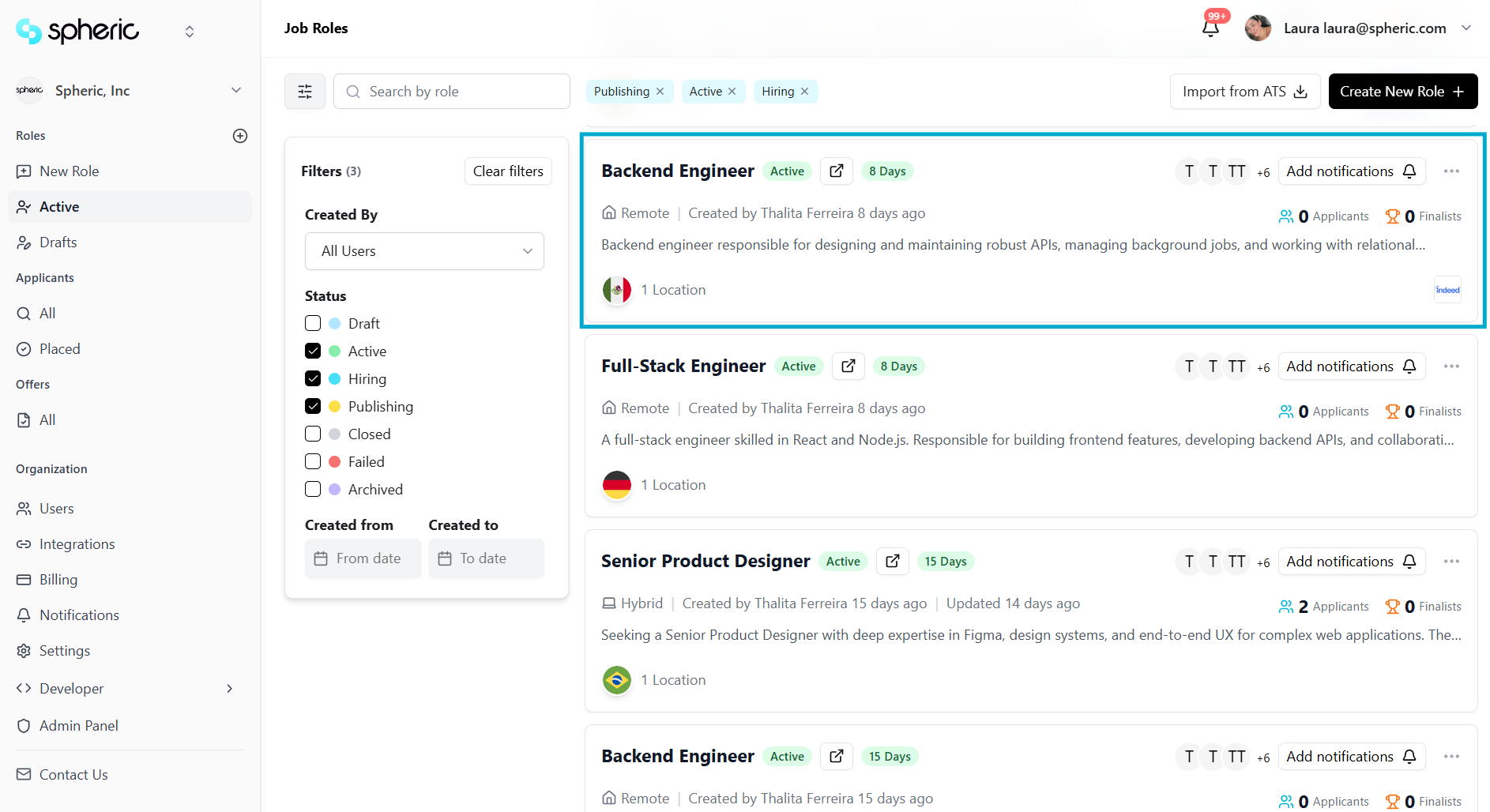
2. Select a role
Click on the role where the candidate is located.
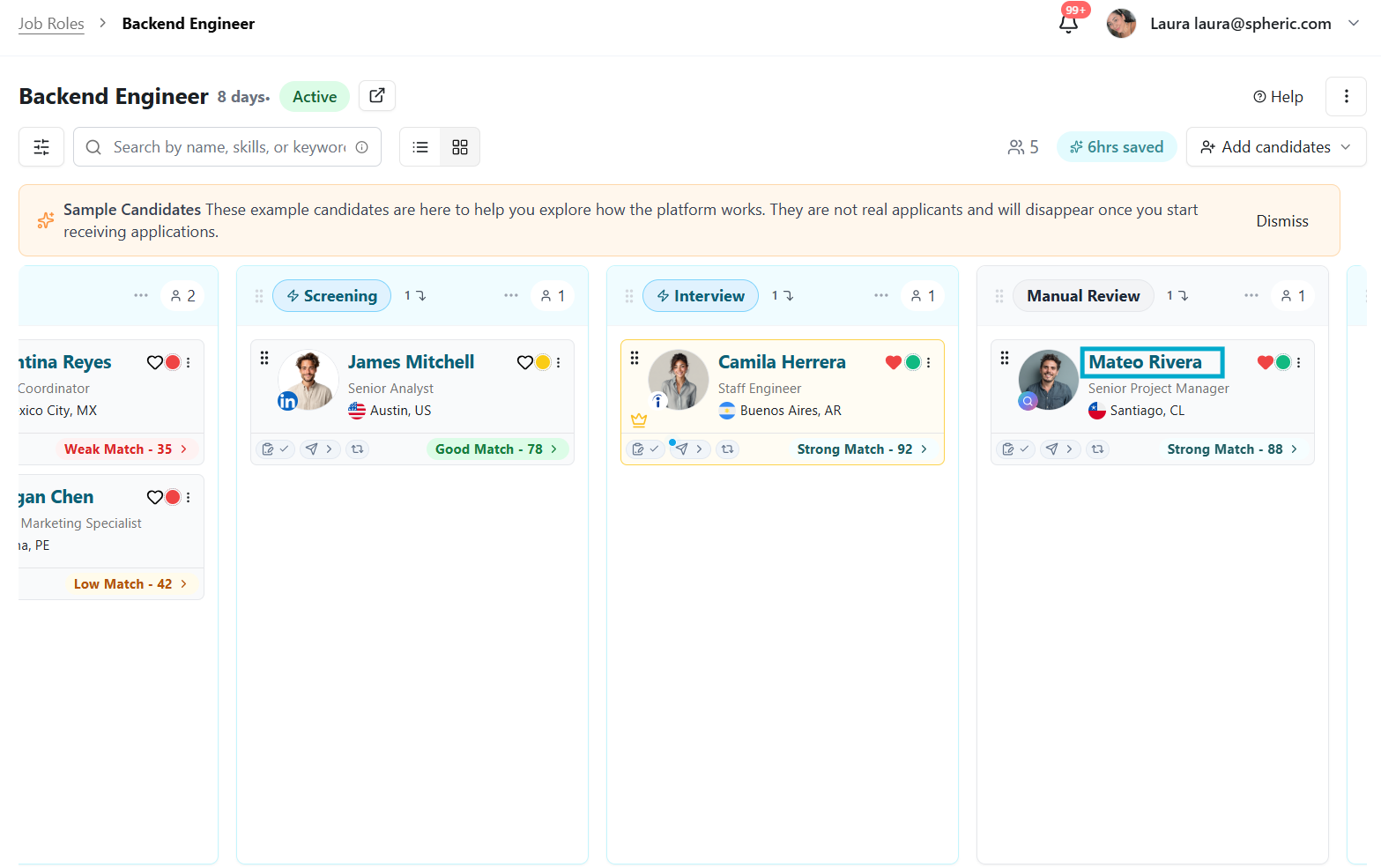
3. Click on a candidate
Click on any candidate card to open the applicant card.
What you’ll find on the applicant card
Each applicant card includes key information such as name and contact details, general profile, resume, thresholds, and evaluation information.
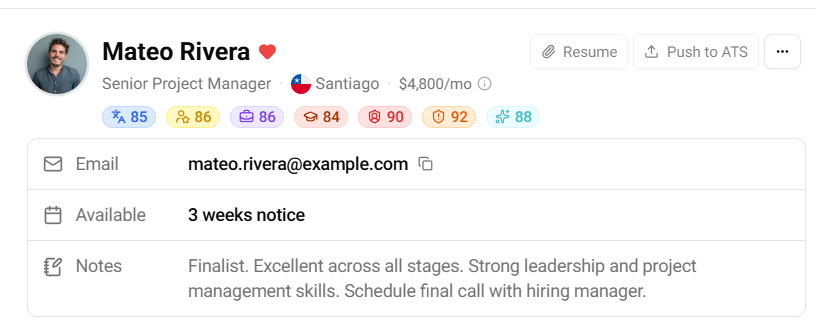
When you click on each threshold, you’ll be able to see the candidate’s score along with a brief summary of their evaluation.
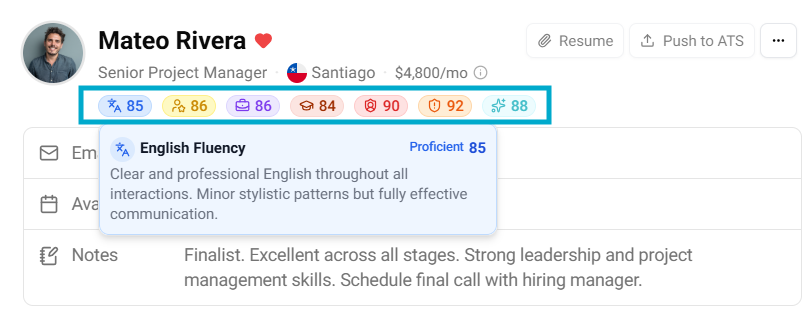
Overview tab
The Overview tab provides a summary of the candidate’s profile and progress.
Here you can find:
- Intake form video, where you can also click on “Show anti-fraud” in the video player to view fraud detection insights. 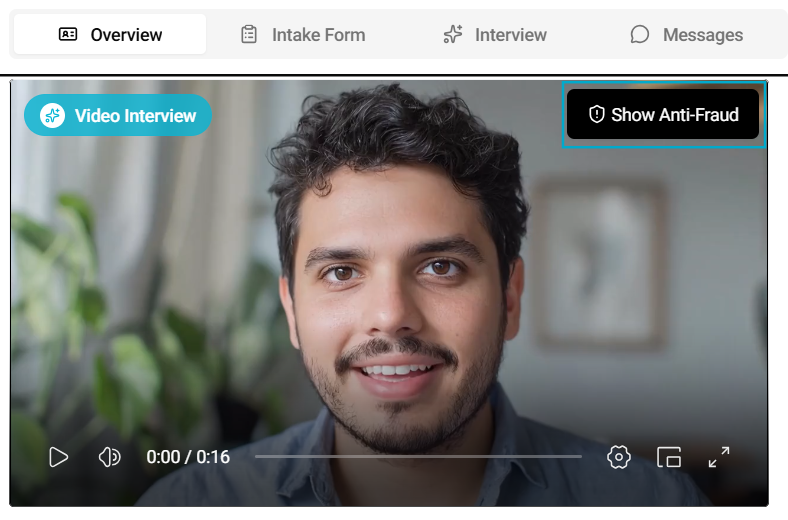 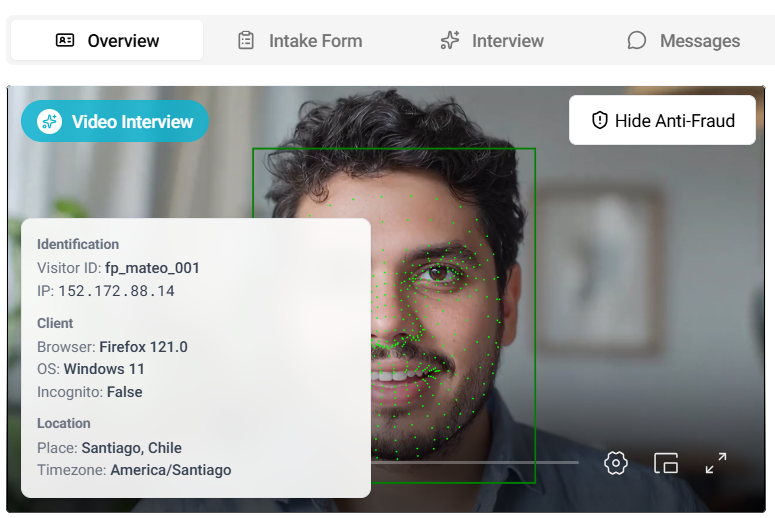
- Education and work experience 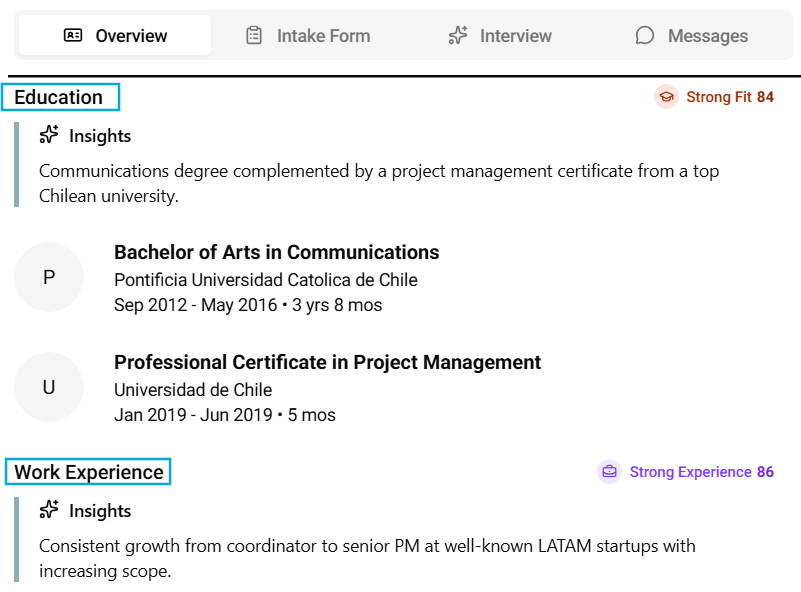
- Security timeline 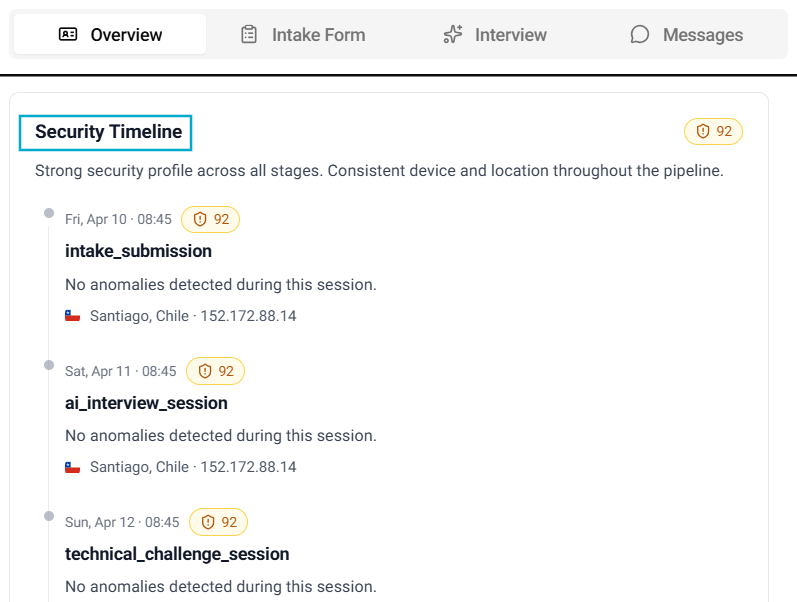
Intake form tab
In the Intake form tab, you can review:
- Candidate responses to the initial questionnaire
- Related evaluation details
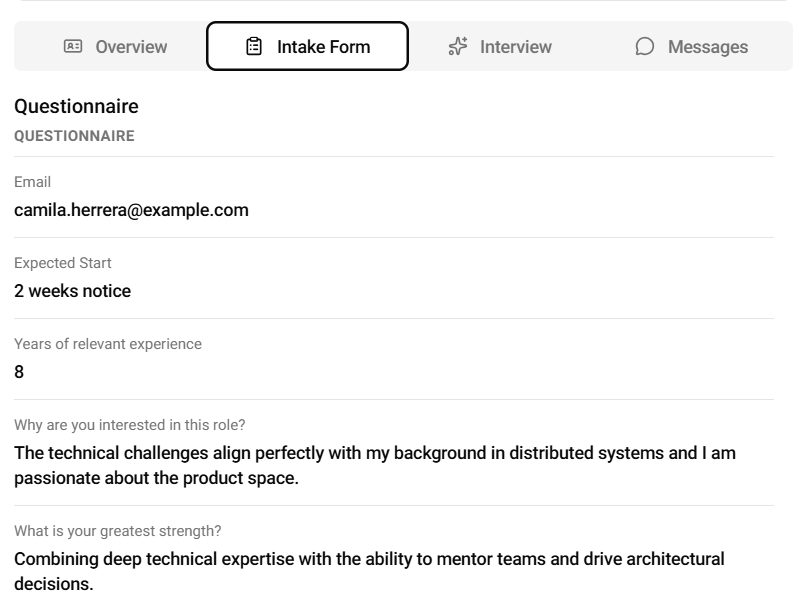
- Security timeline 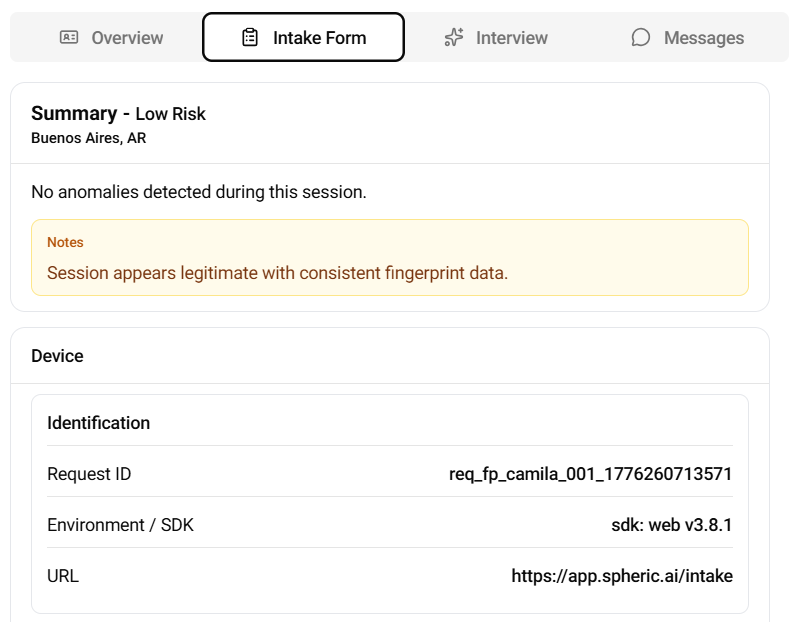
This helps you better understand how the candidate answered screening questions.
Interview tab
The Interview tab contains the candidate’s AI interview or technical assessment.
Depending on the setup, you may see:
- The video from the AI Conversation, or
- The security/interview recording from the technical challenge  This includes monitoring features (such as eye tracking) to help ensure interview integrity. 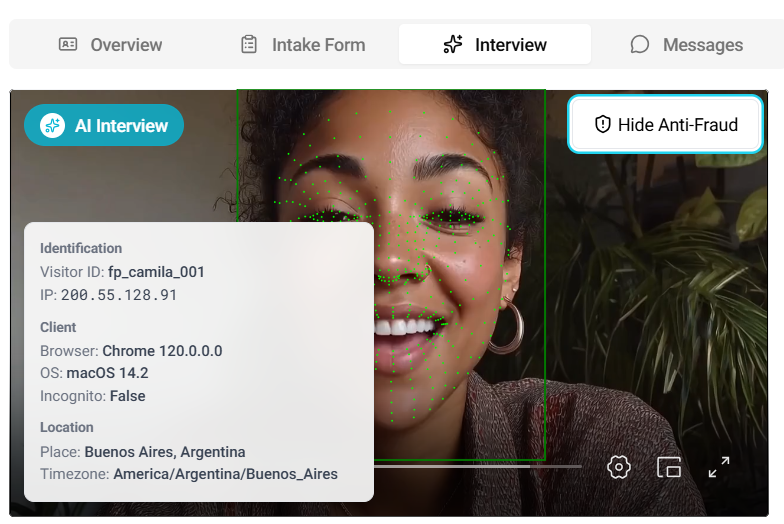
To learn more, see AI interviews.
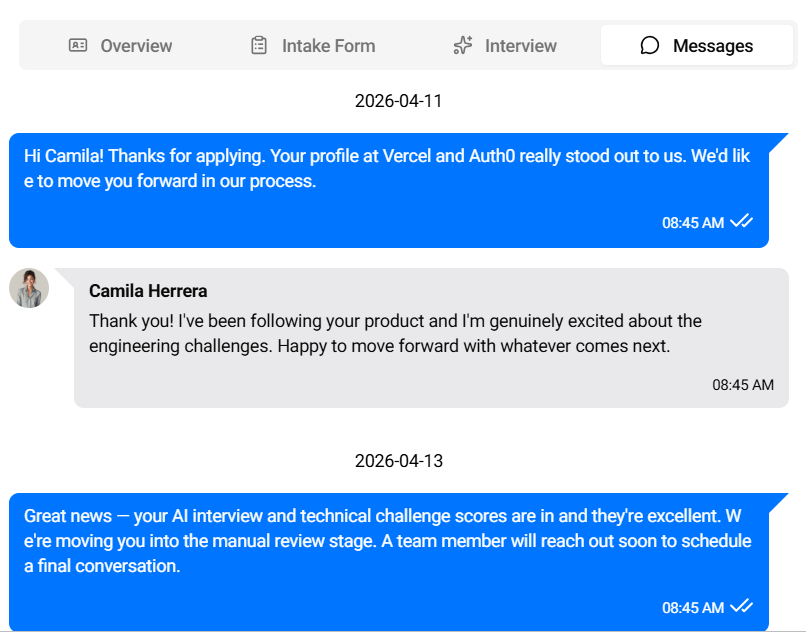
Messages tab
The Messages tab allows you to communicate directly with the candidate.
Here you can:
- View the conversation thread
- Send messages
- Track communication history
To learn more, see Messaging a candidate.
How to use the applicant card
Use the applicant card to review candidate information in detail, compare evaluation results, watch interview responses, and communicate with candidates.