Configure an AI interview
You can configure the AI interview while creating a role. This allows you to tailor how candidates are evaluated during the interview stage.
How to configure an AI interview
1. Start creating a new role
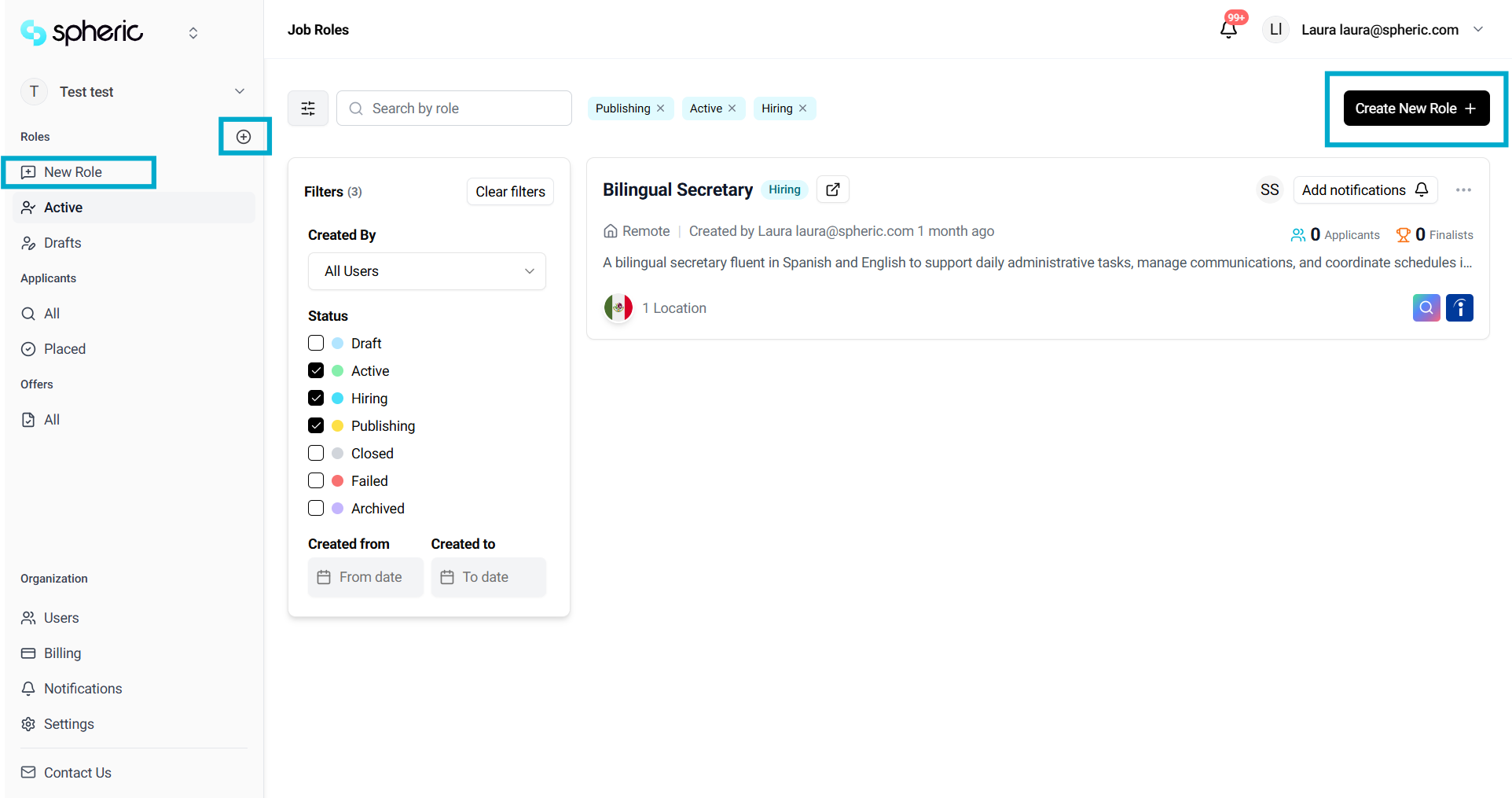
From your dashboard, create a new role.
You can do this by:
- Clicking “New Chat” in the left-hand menu under Roles
- Clicking the “+” icon below your organization name
- Clicking “Create New Role” in the top right corner
2. Complete role setup
Fill in the required role details, including:
- Role title and description
- Responsibilities
- Location and salary
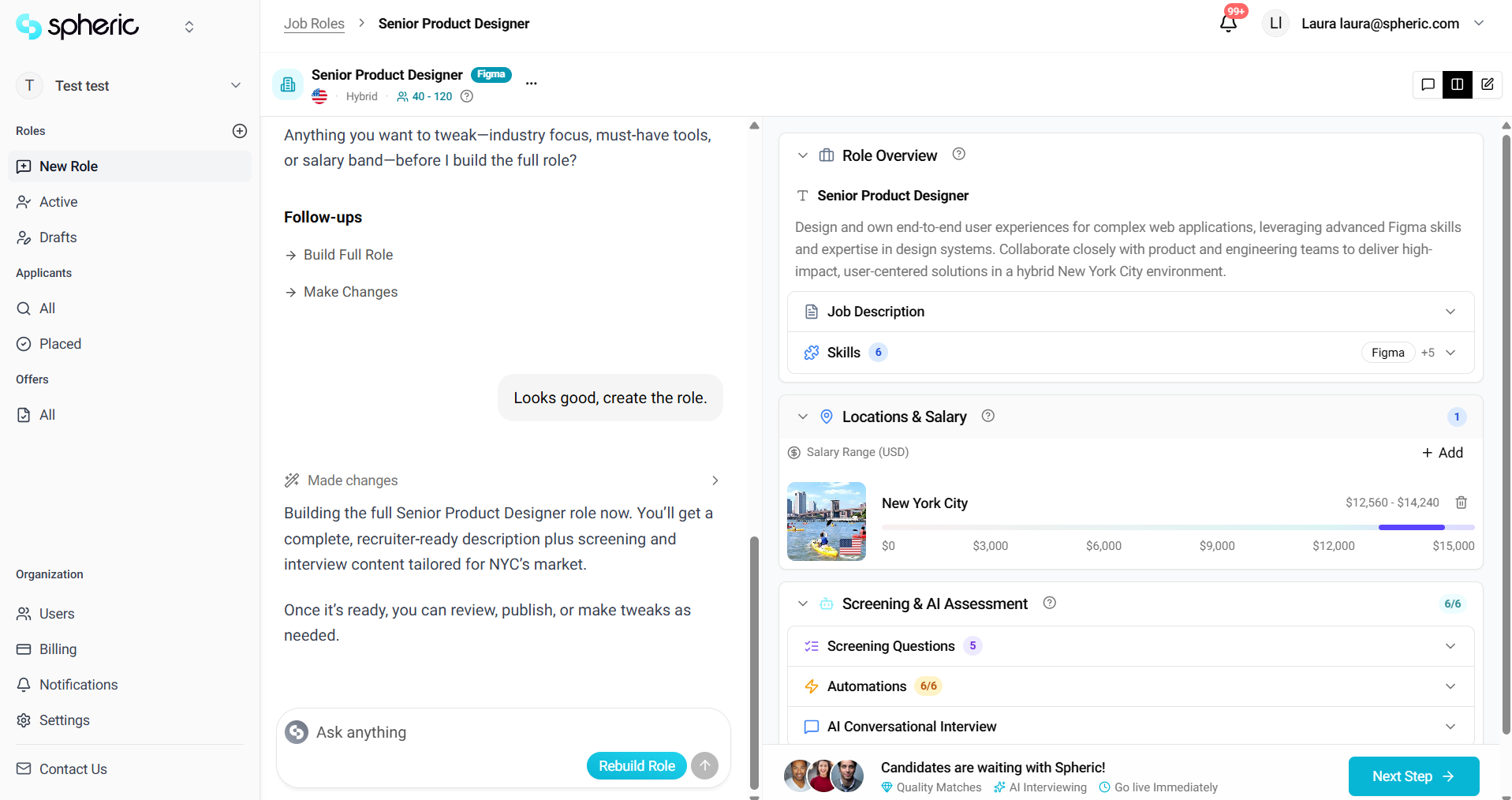
3. Go to “Screening & AI Assessment.”
Navigate to the Screening & AI Assessment section in the Role Builder.
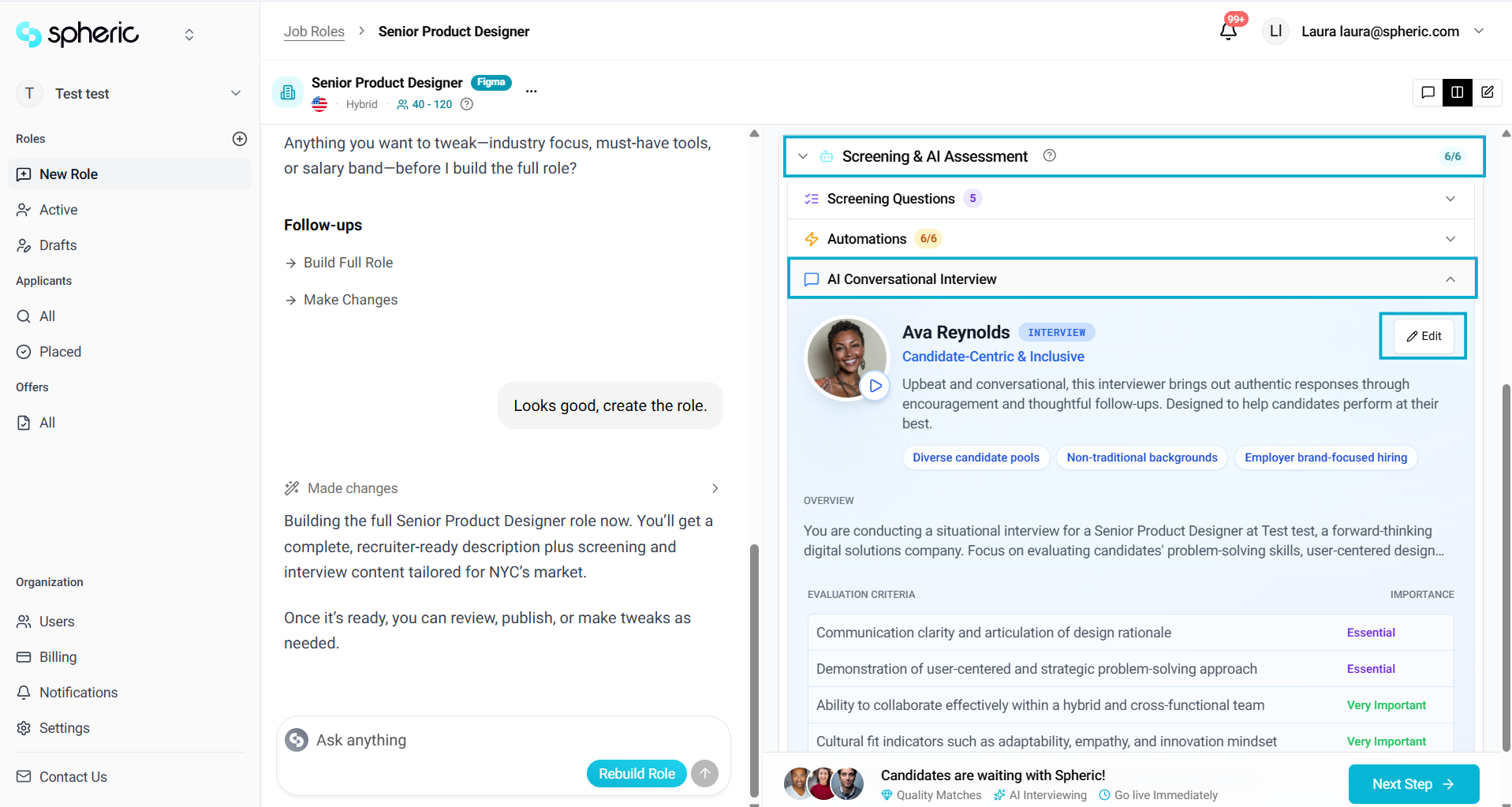
4. Configure the AI Conversational Interview
In this section, you can:
- Customize how candidates will be evaluated
- Set thresholds and criteria
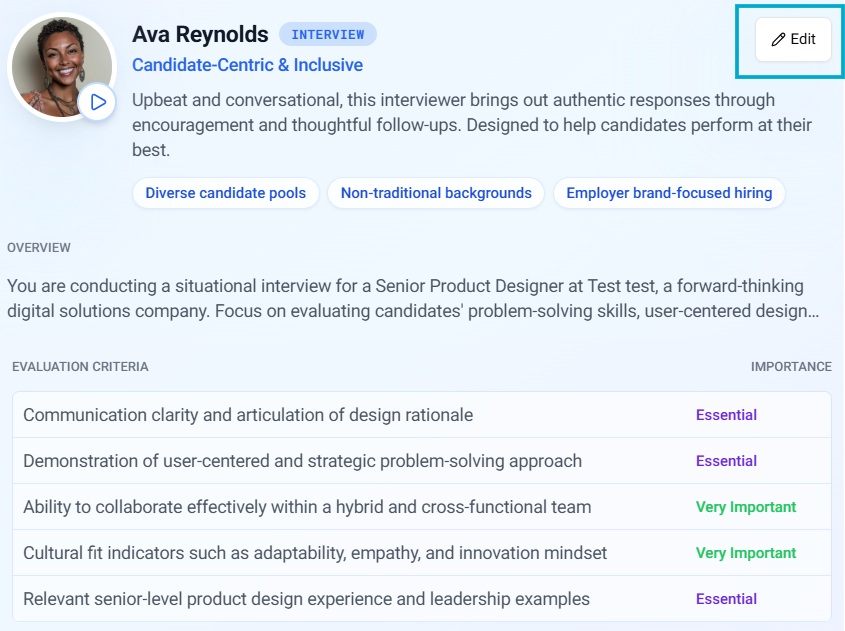
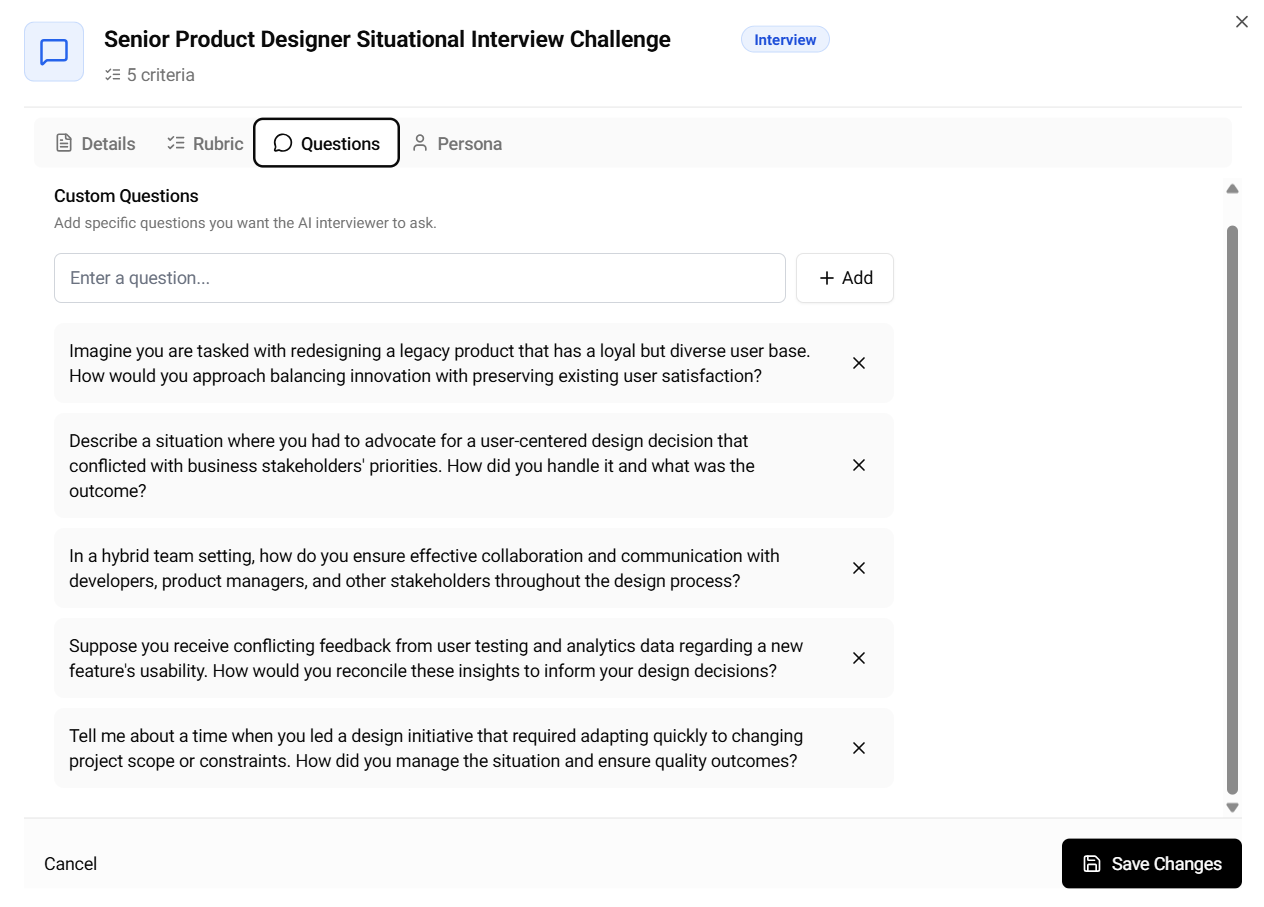
Customize interview questions
Within the Screening & AI Assessment section, you can customize the questions used in the AI interview.
You can:
- Edit existing questions
- Add new questions
- Adjust questions to better fit the role
These questions will be used during the AI interview or technical assessment.
Best practices
- Keep questions relevant to the role
- Focus on skills and experience
- Avoid overly broad or unclear questions
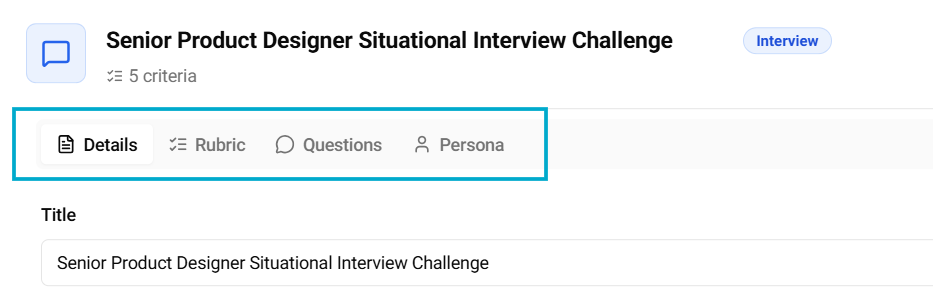
What you can configure
- Interview type (conversation or technical)
- Evaluation criteria
- Thresholds for candidate progression
- Interview questions
What happens next
- Candidates who pass earlier stages will automatically receive the AI interview
- Their responses will be evaluated based on your configuration
- Results will appear in the Applicant Board and applicant card