Connect your LinkedIn contract
Once your job is published, Spheric begins collecting and organizing candidates automatically.
Connecting your LinkedIn contract allows you to publish jobs directly to LinkedIn using your own LinkedIn account and contract.
Once connected, your jobs can be distributed through your LinkedIn job slots and managed directly from Spheric.
Before you begin
Before connecting your LinkedIn contract, make sure:
- You have an active LinkedIn contract
- You have admin access to the LinkedIn account
- Your LinkedIn Recruiter or Job Slots account is properly configured
- You are signed in to your Spheric account
💡 If you’re unsure whether you have the correct permissions, contact your LinkedIn account administrator.
How to connect your LinkedIn contract
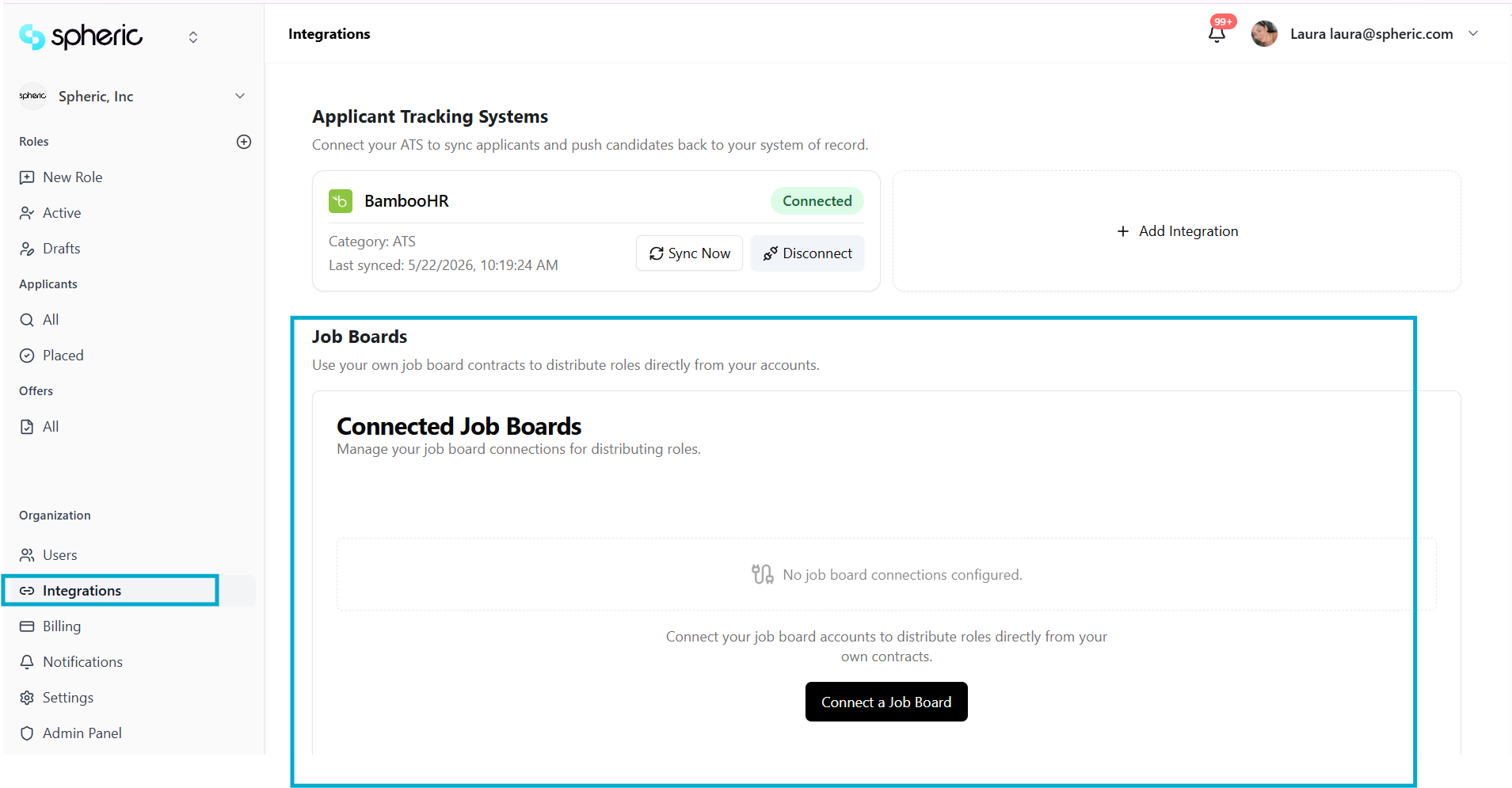
1. Go to Job Boards
From your Spheric dashboard:
- Got to the Organization section, and click on Integrations
- Navigate to Job Boards
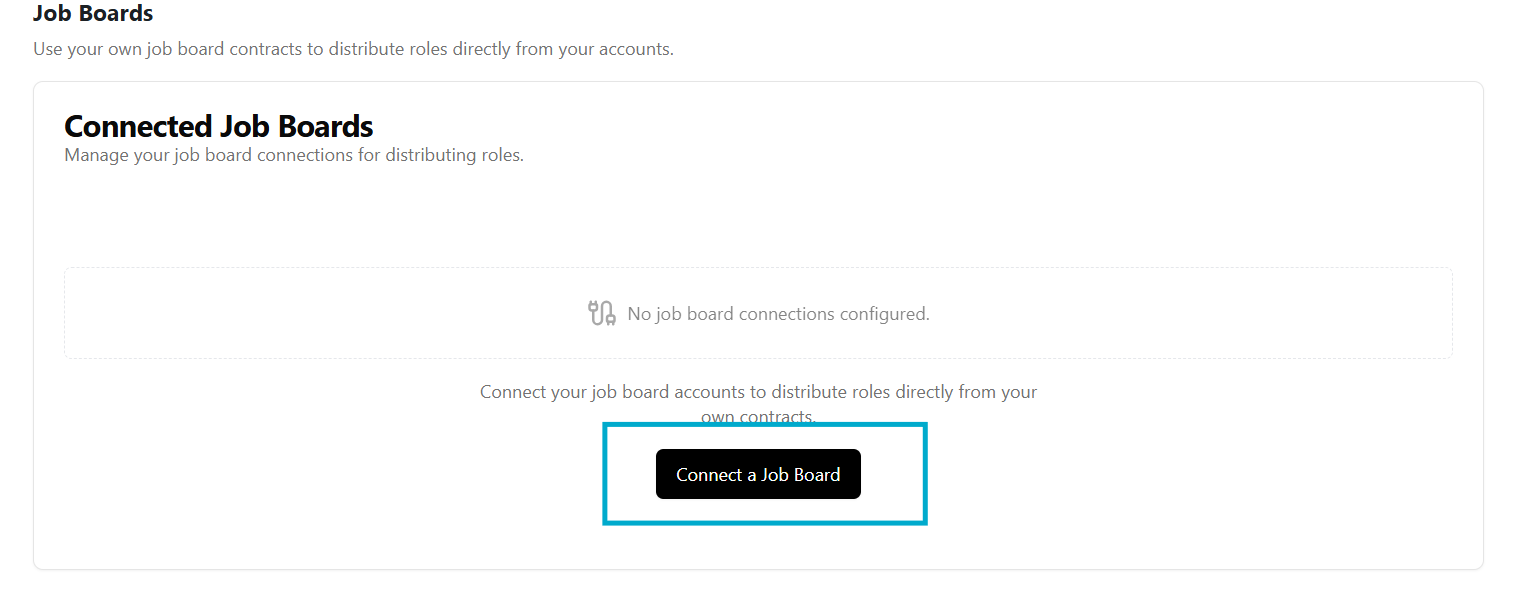
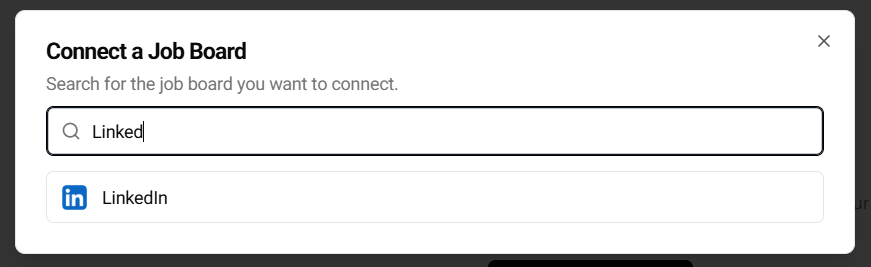
2. Select LinkedIn
Click on Connect a Job Board, and find LinkedIn in the search bar
3. Follow the LinkedIn integration setup steps
After clicking Connect, a pop-up window will appear with instructions on how to connect LinkedIn as an integration.
Follow the steps provided in the pop-up to continue the setup process.
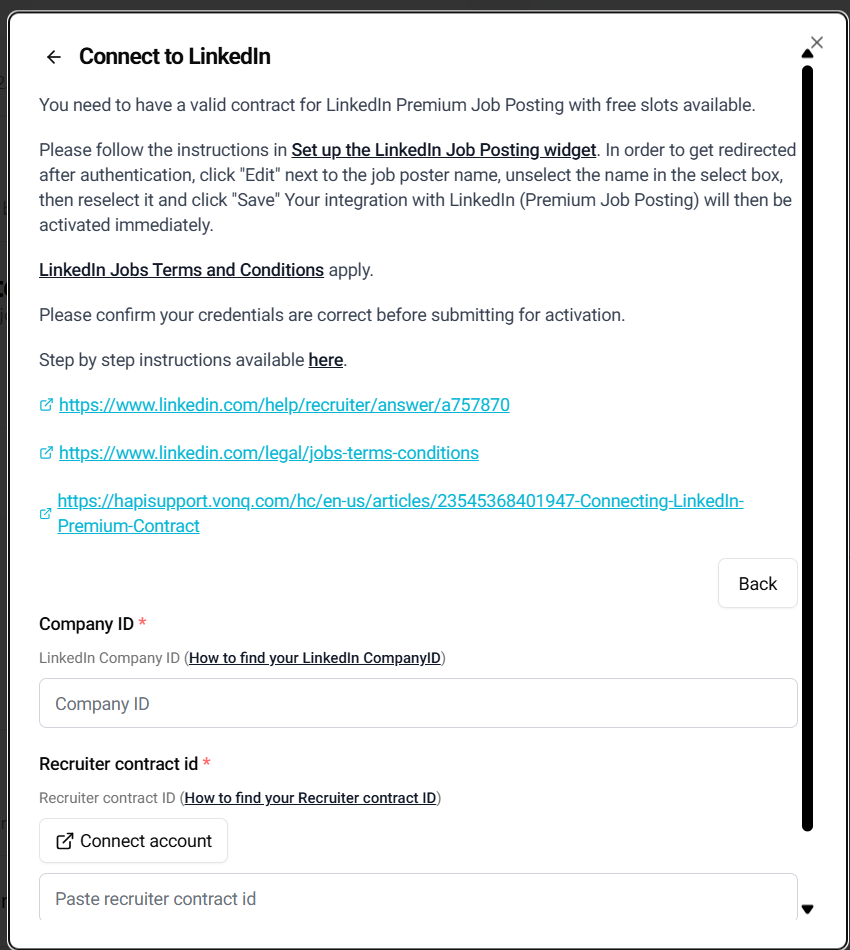
4. Enter your LinkedIn Contract ID
You’ll be asked to enter your LinkedIn Contract ID.
A LinkedIn help article is linked directly in the pop-up if you need assistance locating your Contract ID.

5. Connect your Recruiter account
Under the Recruiter Contract ID section, click Connect account and follow the steps shown in the pop-up window.
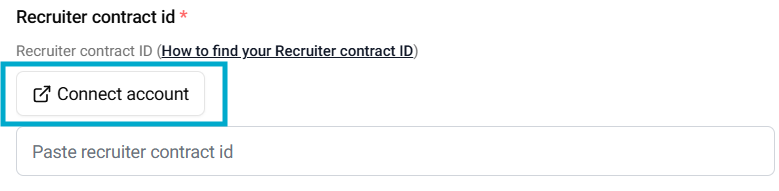
You need to have a valid contract for LinkedIn Premium Job Posting with free slots available.
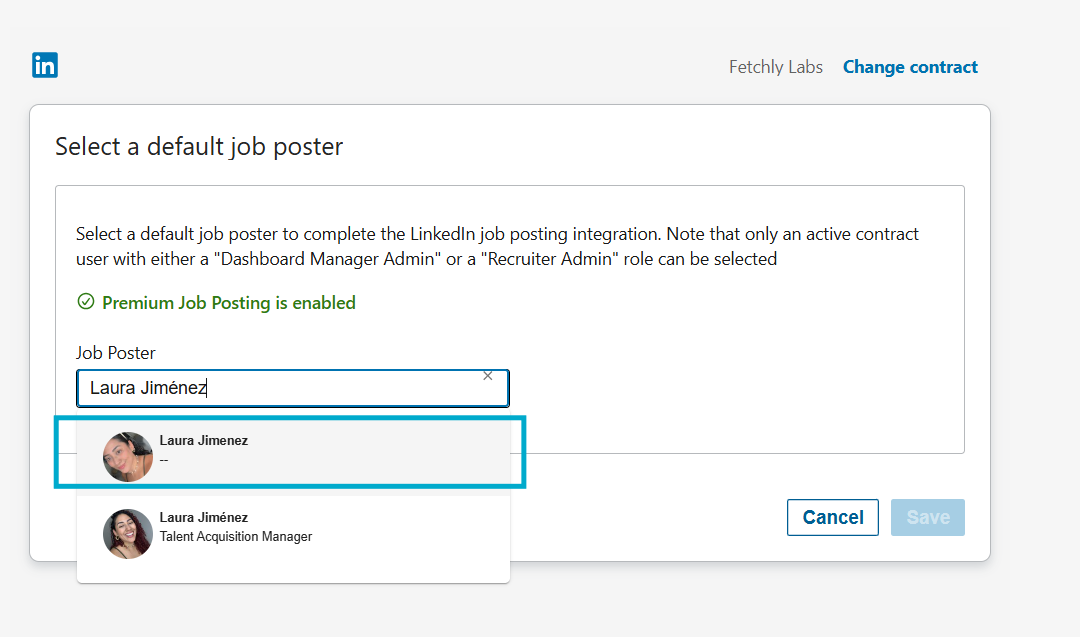
Please follow the instructions in Set up the LinkedIn Job Posting widget. In order to get redirected after authentication, click "Edit" next to the job poster name, unselect the name in the select box, then reselect it and click "Save" Your integration with LinkedIn (Premium Job Posting) will then be activated immediately.
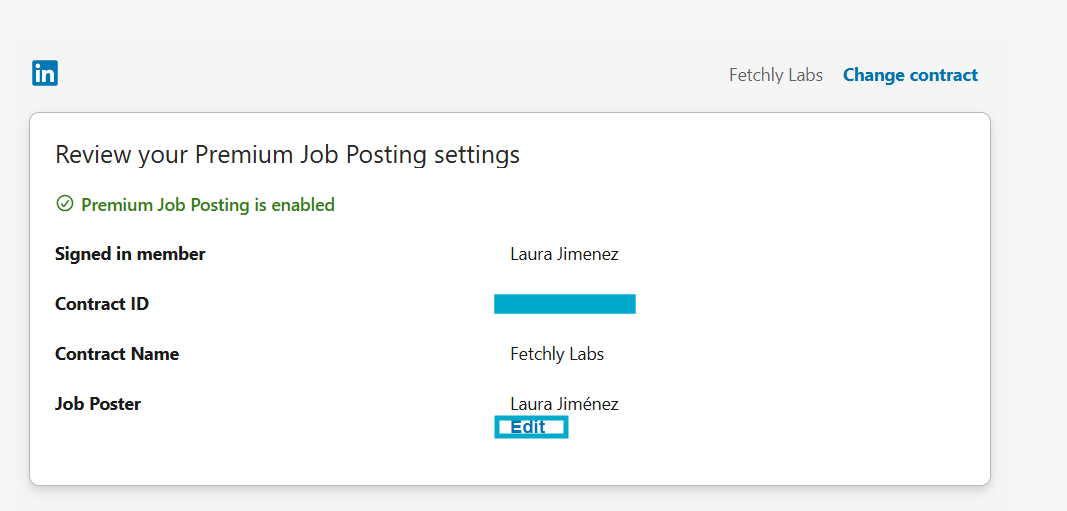
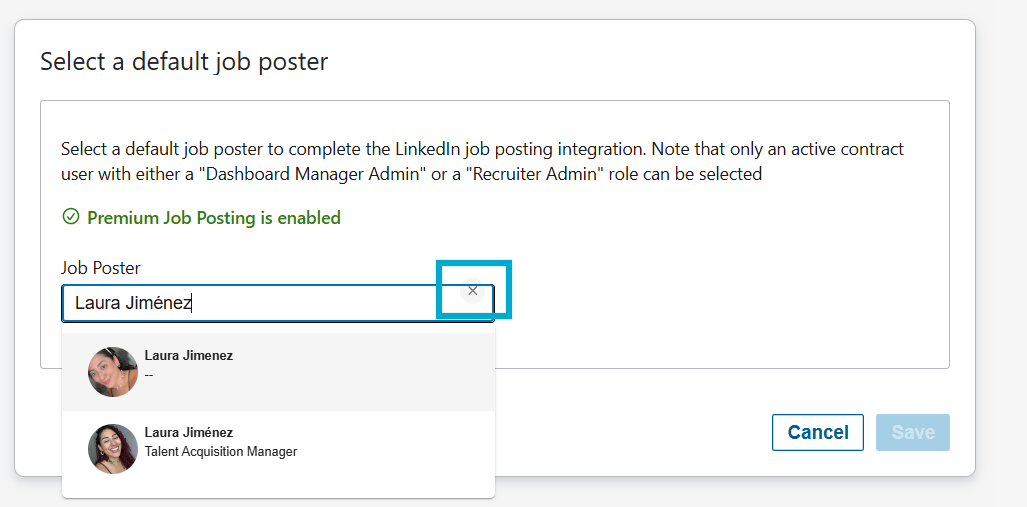
6. Confirm the connection
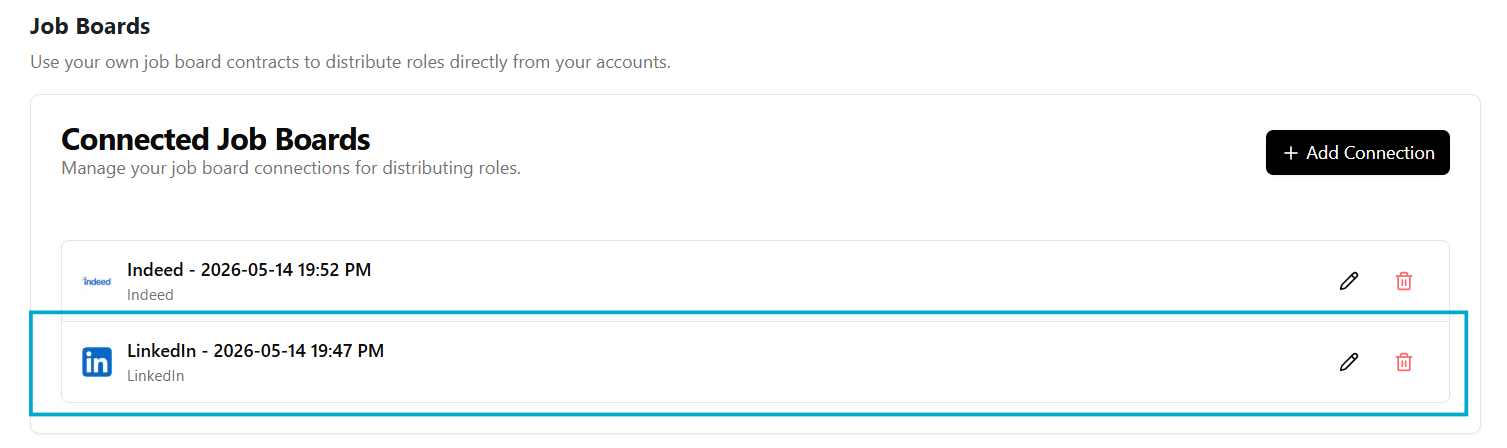
Once completed, LinkedIn will appear as Connected in your Job Boards settings.
You can now publish jobs using your LinkedIn contract directly from Spheric.