Reposting a role
If you need to repost a role, you can do it directly from your dashboard by creating a new job posting for an existing role.
If you need to repost a role, you can do it directly from your dashboard by creating a new job posting for an existing role.
Step-by-step
1. Go to your dashboard
Go to: https://app.spheric.com/
2. Open your active roles
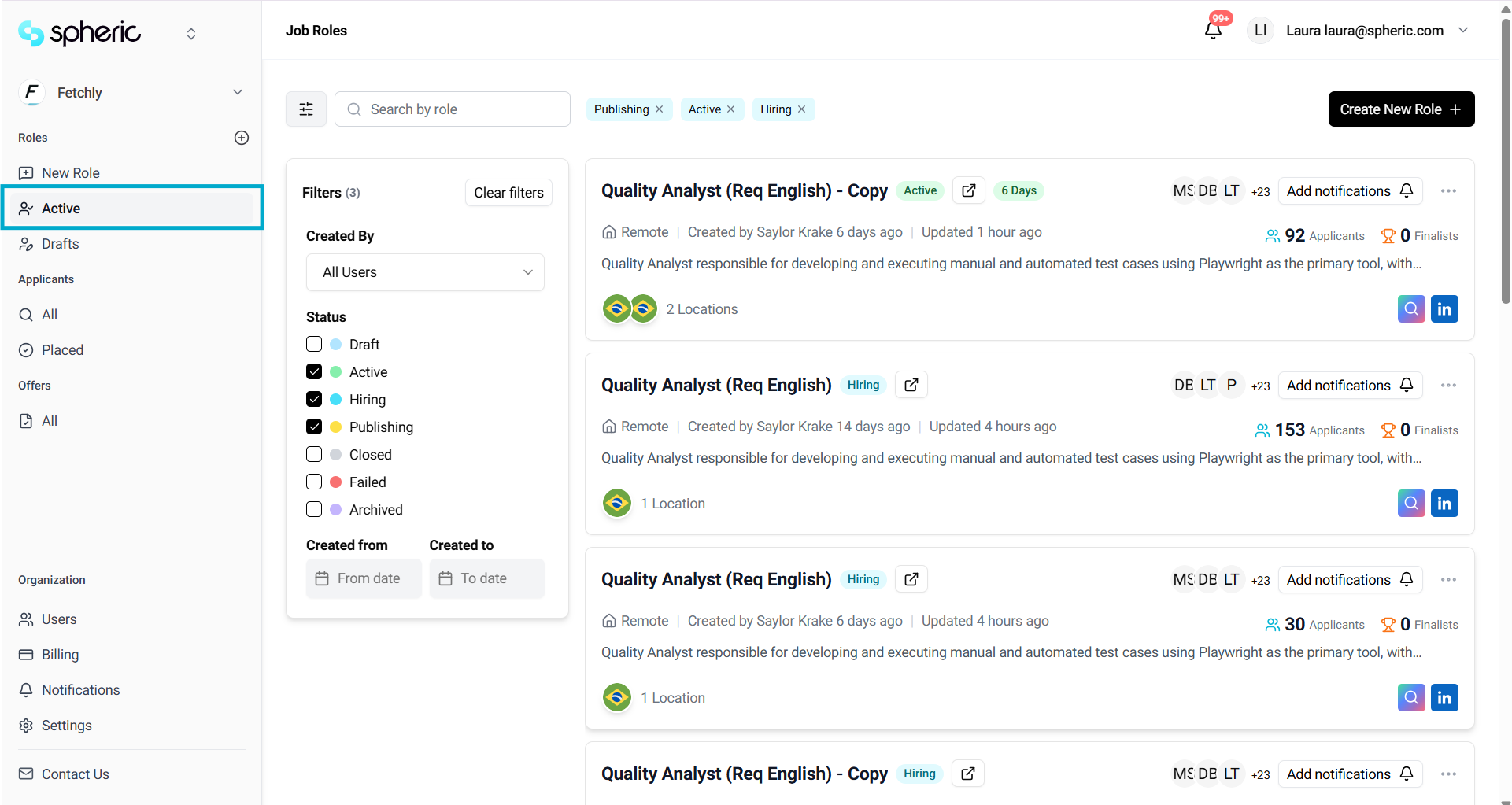
In the top left menu, go to the "Active" button in the roles section.
3. Access the Applicant Board
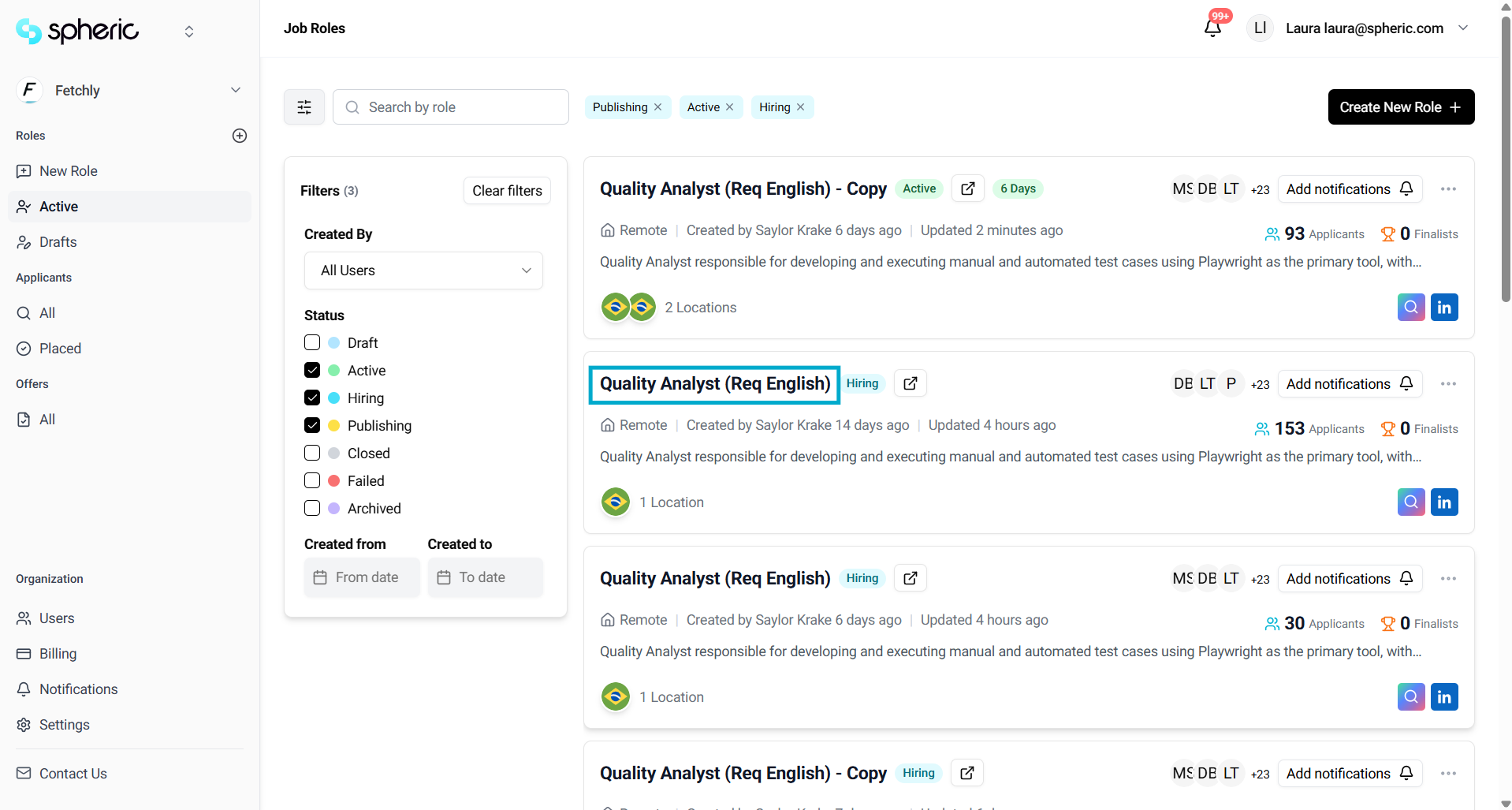
Click on the name of the role you'd like to repost.
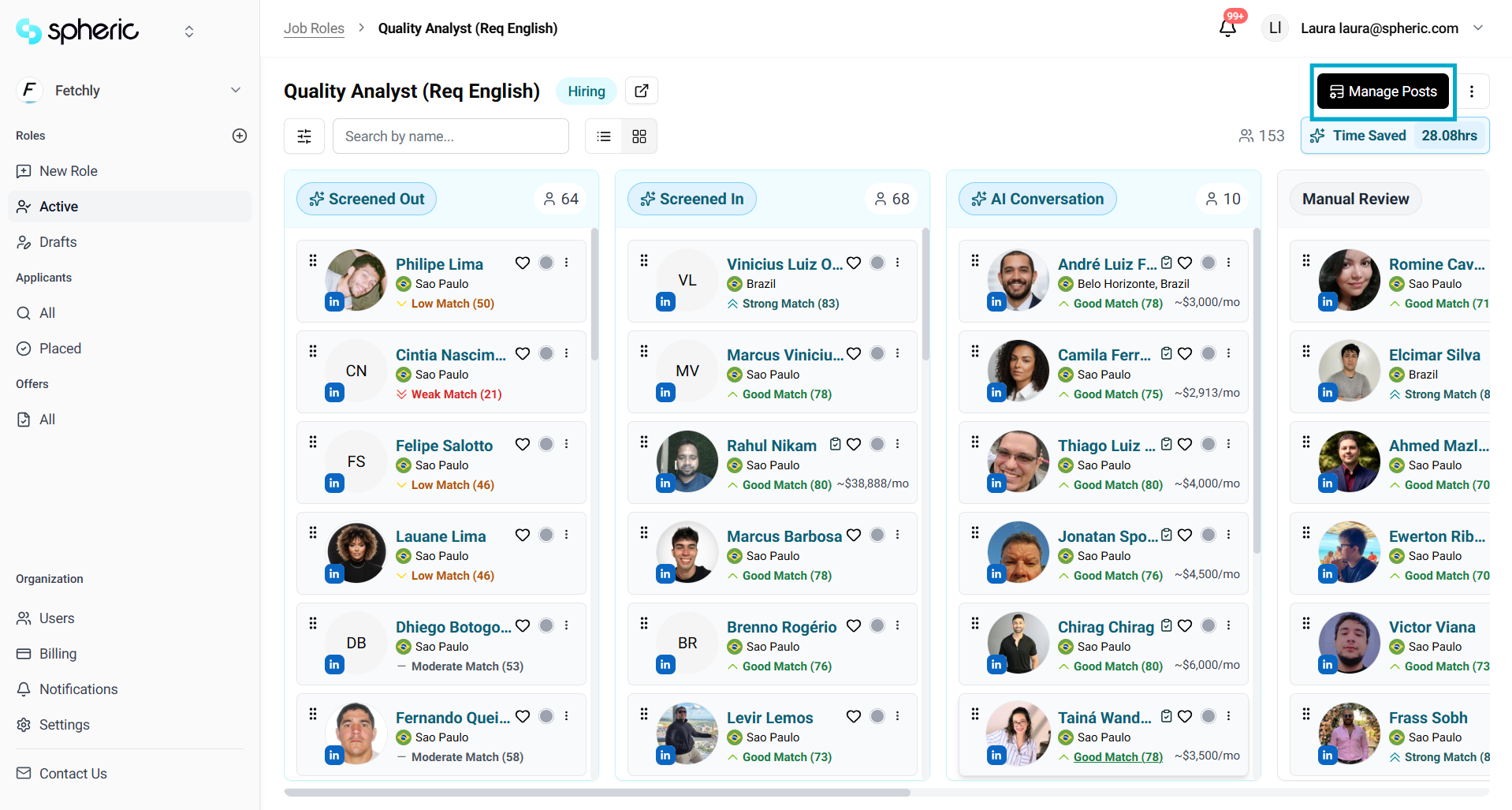
4. Open “Manage posts”
Once you're there, go to the top right corner, click “Manage posts.”
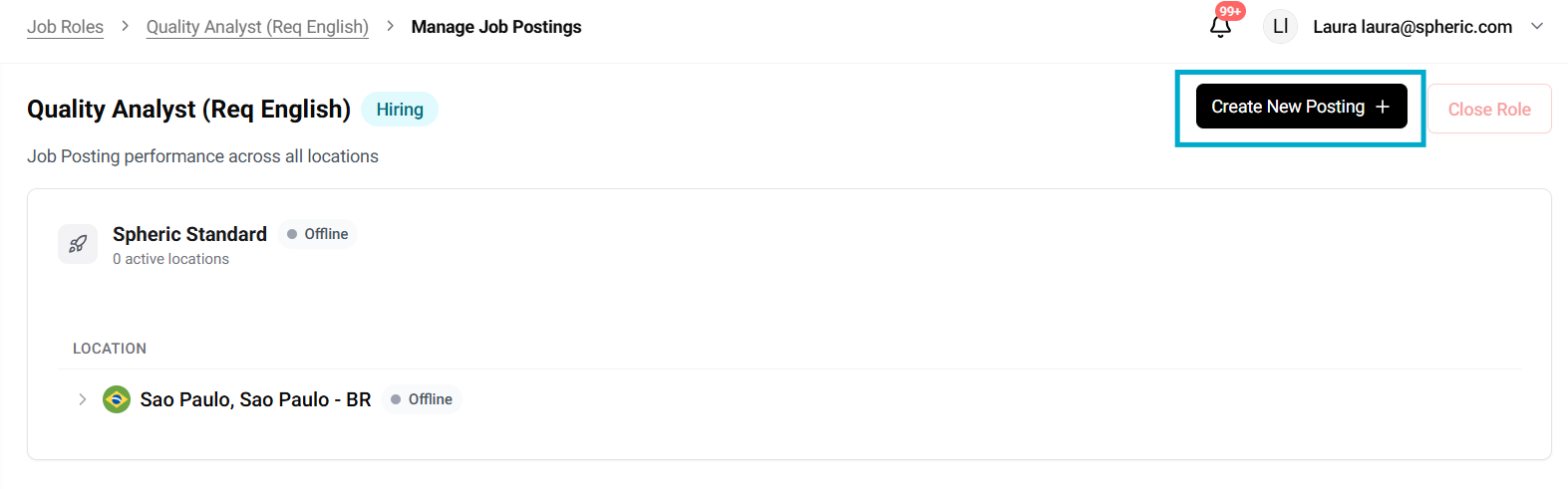
5. Click “Create new posting”
Click on “Create new posting.”
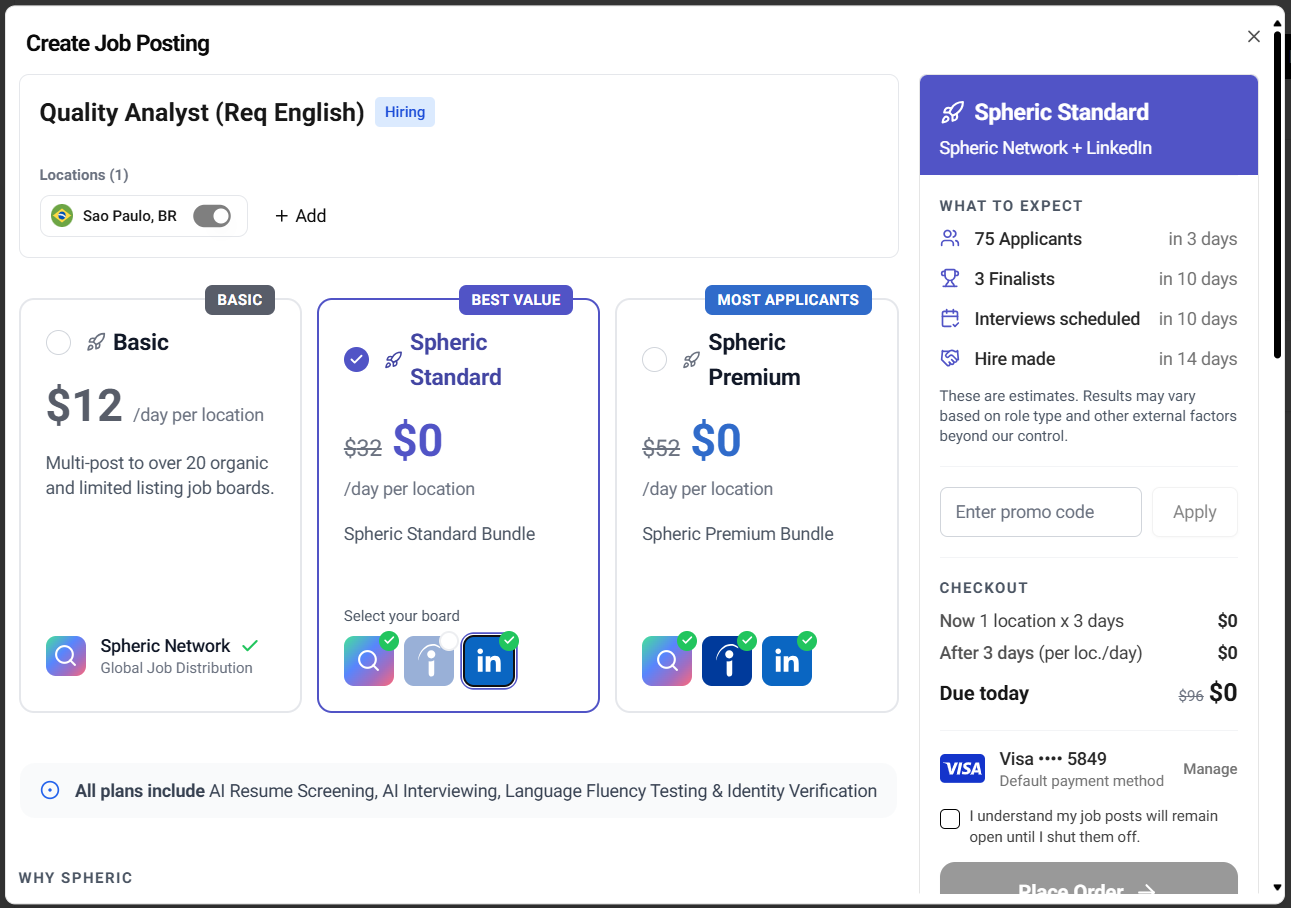
6. Complete the checkout process
You’ll be taken to the checkout screen, where you can:
- Repost the role in the same location
- Add new locations if needed.
To repost the role, complete the payment process.
7. Role goes live
Once the payment is processed, your role will be live again.
- The role status will update to Active
- This applies even if previous job postings were canceled or In Hiring
If the role was already active and you’re adding a new location:
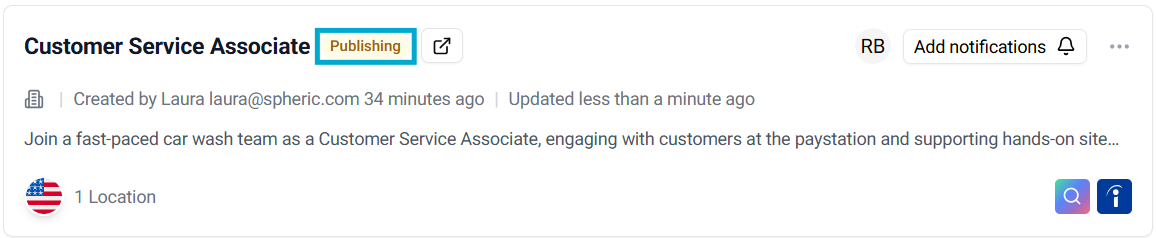
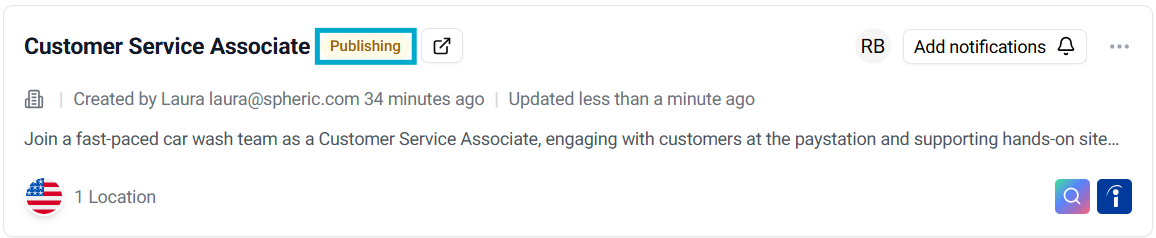
- The role status will temporarily change to Publishing
- After a few minutes, it will return to Active