Close a role
Closing a role means you’ve completed your hiring process or are ready to send rejection messages to remaining candidates.
Closing a role means you’ve completed your hiring process or are ready to send rejection messages to remaining candidates.
How to close a role
1. Go to your dashboard
Go to: https://app.spheric.com/
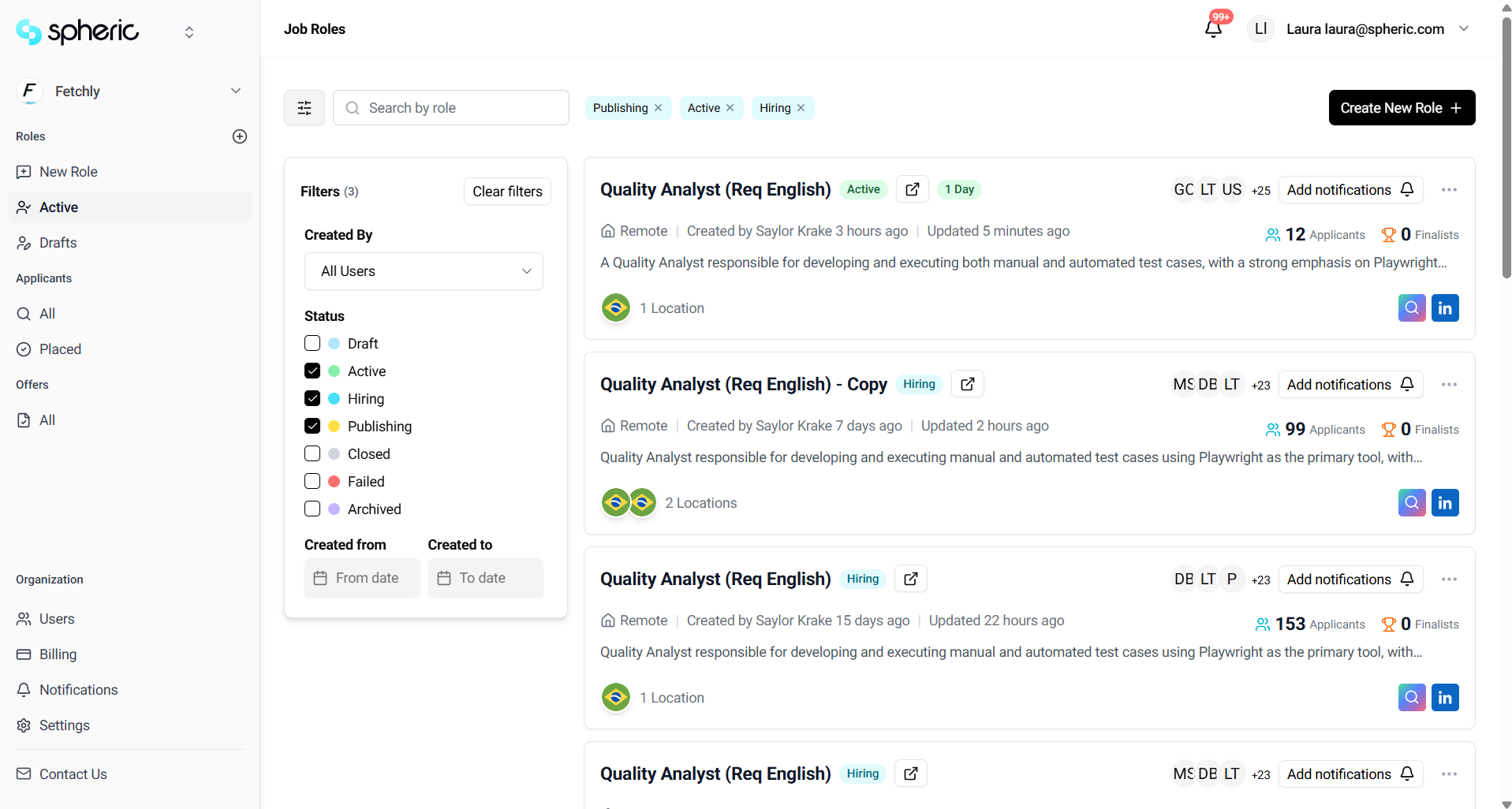
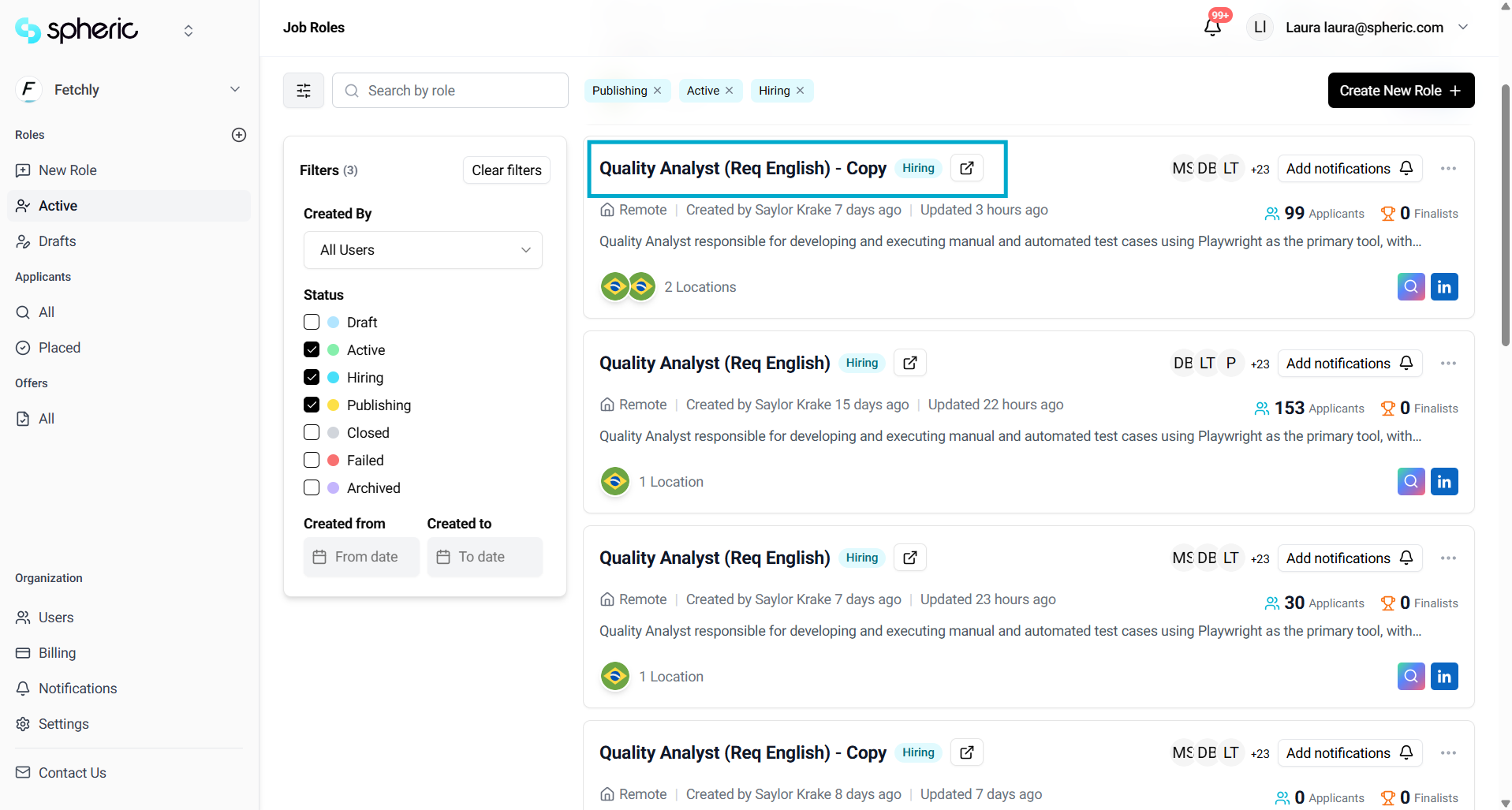
2. Select the role
Click on the role you want to close.
3. Open role options
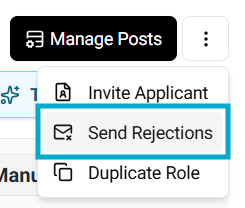
In the top right corner, click the three dots next to “Manage posts.”

4. Click “Send rejections”
Select “Send rejections” from the dropdown menu.
5. Select candidates
A pop-up will appear showing:
- Total number of candidates
- Number of candidates to reject
- A “Select all” checkbox
- A search bar to find candidates by name
Select the candidates you want to send rejection messages to.
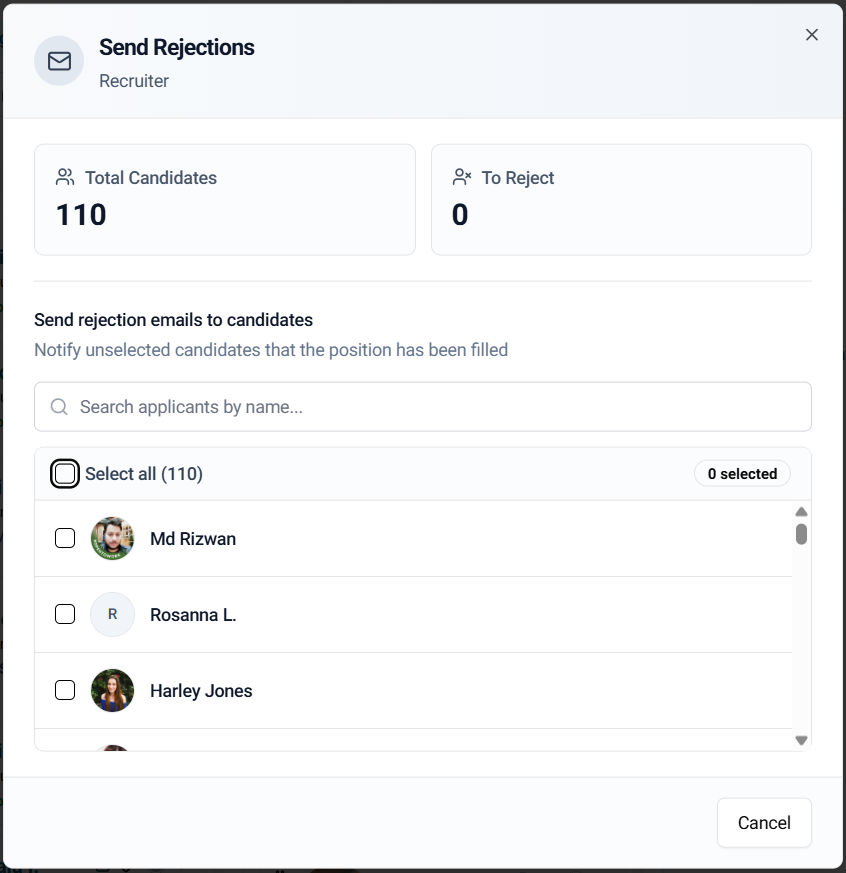
All selected candidates will receive a rejection message.
6. Role status update
Once this process is completed:
- The role status will change to Closed
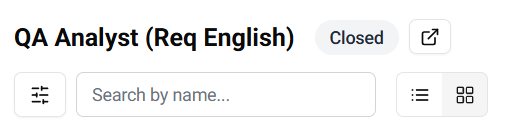
What happens after closing a role
- The role is marked as Closed
- No further hiring actions are expected for this role
- Candidates will no longer move through stages