Posting a role
Before creating a job, it helps to have a general idea of the role (e.g. Sales Representative, Developer), key skills or requirements, any preferences like…
1. Go to your dashboard
Log in and access your dashboard at https://app.spheric.com/.
2. Start a new role
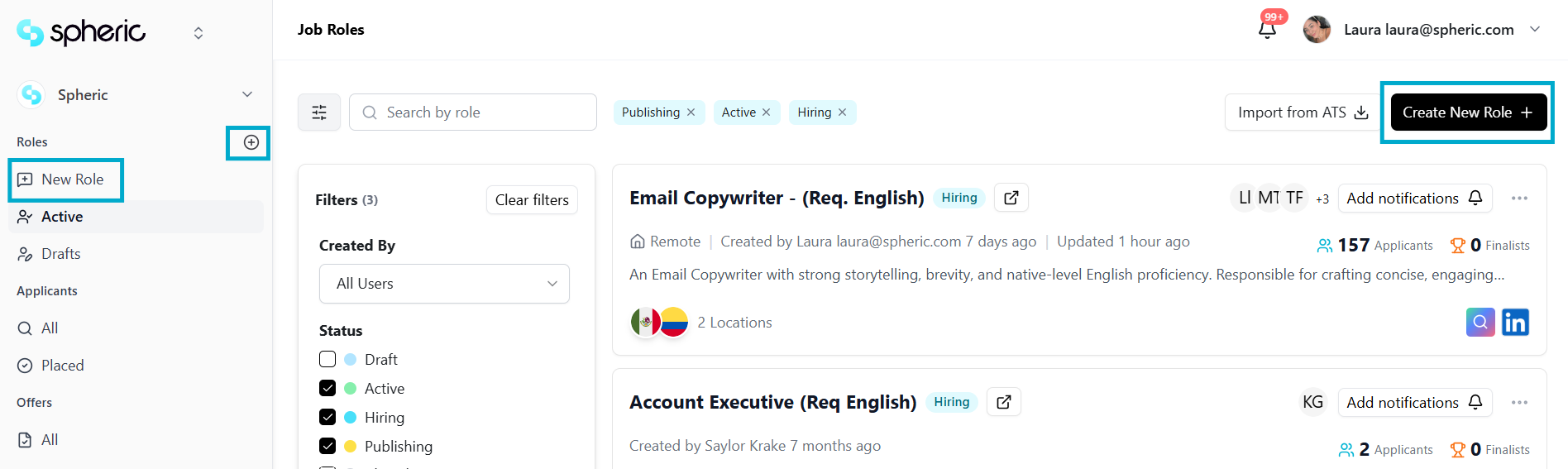
You can start creating a new role in three ways:
- Click “New Role” in the left-hand menu in the Roles section
- Click the “+” icon below your organization's name in the left-hand menu
- Click “Create New Role” in the top right corner
3. Describe the role to Spheric AI
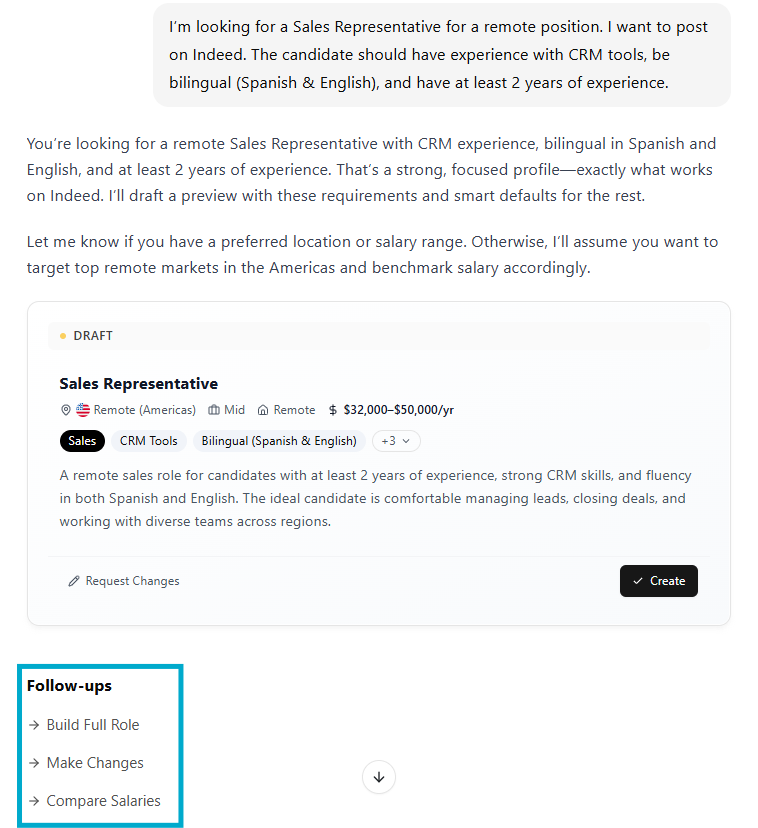
Use the chat to explain what you're looking for.
Example:
“I’m looking for a Sales Representative for a remote position. I want to post on Indeed. The candidate should have experience with CRM tools, be bilingual (Spanish & English), and have at least 2 years of experience.”

You can continue chatting to:
- Refine the job title
- Improve the job description
- Get suggestions on where to post
- Define salary ranges or requirements
4. Generate your job draft
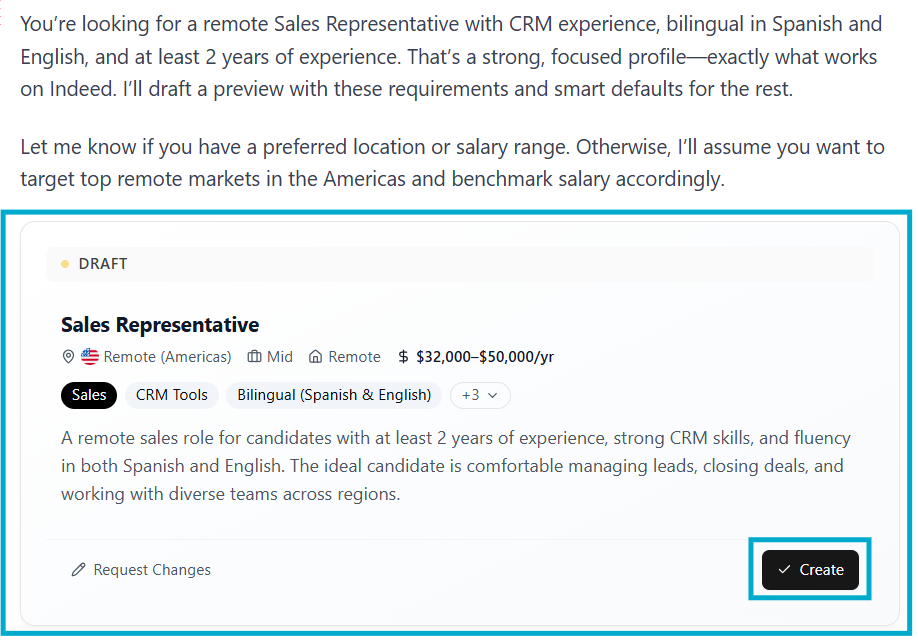
When you're ready, ask the AI to generate the role and click “Create.”
This will open the Role Builder on the left side with a complete draft.
5. Review and edit your role
The Role Builder includes three sections:
- Role Overview (title, description, responsibilities)
- Location & Salary
- Screening & AI Assessment
You can edit fields manually or ask the AI to make changes for you.
To learn more about each section in detail, see “Understanding a job post.”
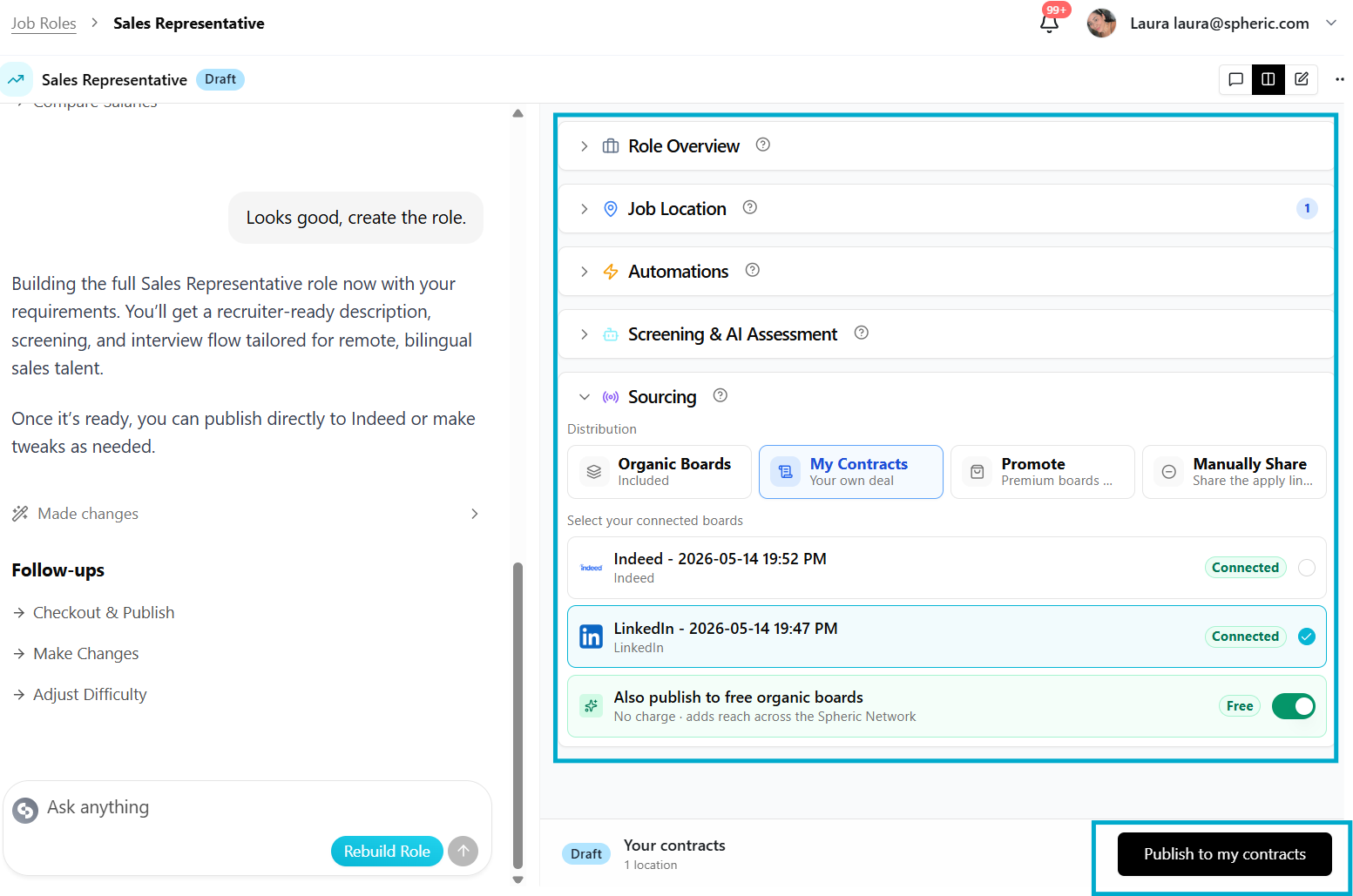
Once everything looks good, click the button at the bottom of the page to continue.
Depending on the Sourcing method you selected, the button label may vary. Options include:
- Publish to Organic Boards
- Publish to My Contracts
- Order Marketplace Boards
- Activate Role
Regardless of the label, clicking this button will move you to the next step of the role creation process.
6. Publish your job
Review and accept the confirmation pop-up.
- The information displayed in the pop-up may vary depending on the publishing method selected.
- Click Confirm or Accept to proceed.
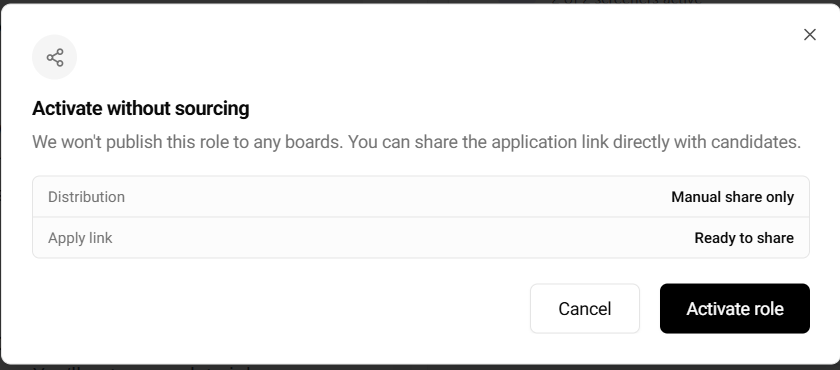
Once confirmed, your role will enter the Sourcing stage.
After a few minutes, the role should become Active and begin receiving applicants according to your selected publishing method.
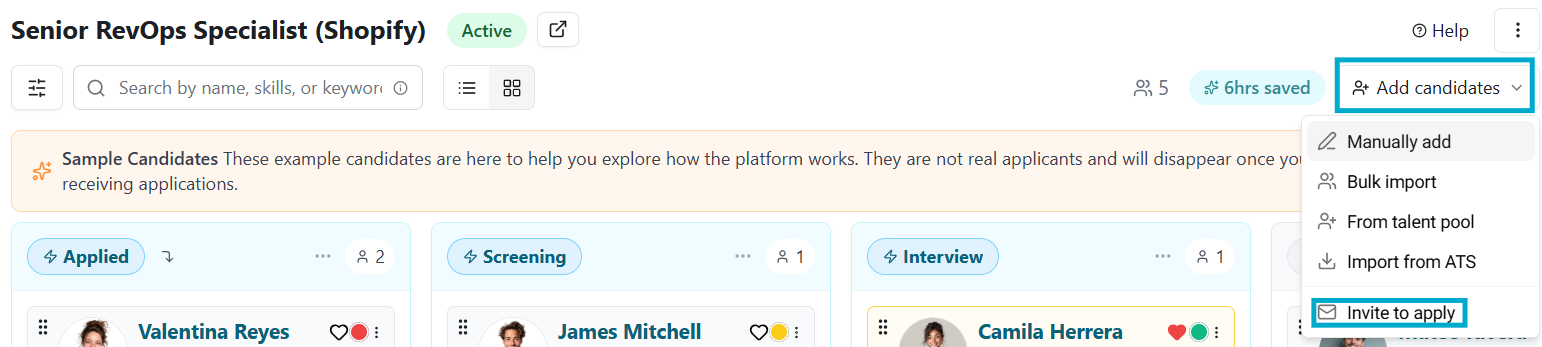
Note: If you selected the Manually Share publishing method, applicants will not automatically discover your role. To invite candidates:
- Open the Applicant Board
- Click Add candidates
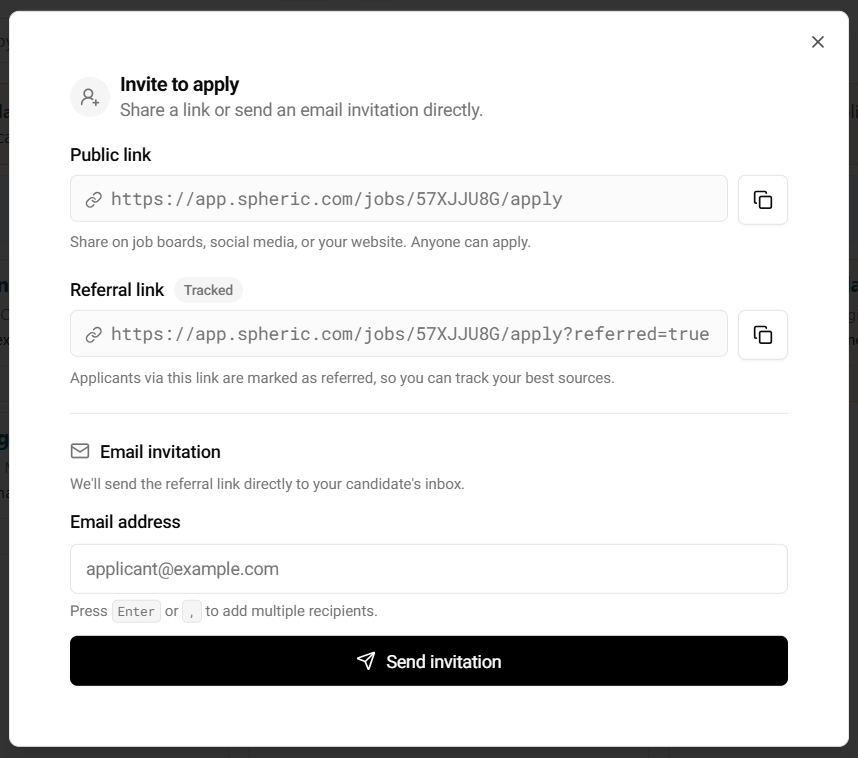
- Select Invite to apply
- Share the application link or send invitations directly to candidates
After publishing:
- Candidates will start applying
- Spheric will begin AI screening and interviews automatically
- Every time a candidate reaches the manual review stage, you will receive an email notification. This is the right moment to go through those applicants and schedule interview calls with them.
To understand how the columns and each stage of the process work within the platform, see Understanding the applicant board.