Cancel a job post
Canceling a job post is different from closing a role.
Canceling a job post is different from closing a role.
- Canceling a job post removes the role from active job boards (LinkedIn, Indeed, organic boards)
- Closing a role means you’ve completed your hiring process or are ready to send rejection communications
How to cancel a job post
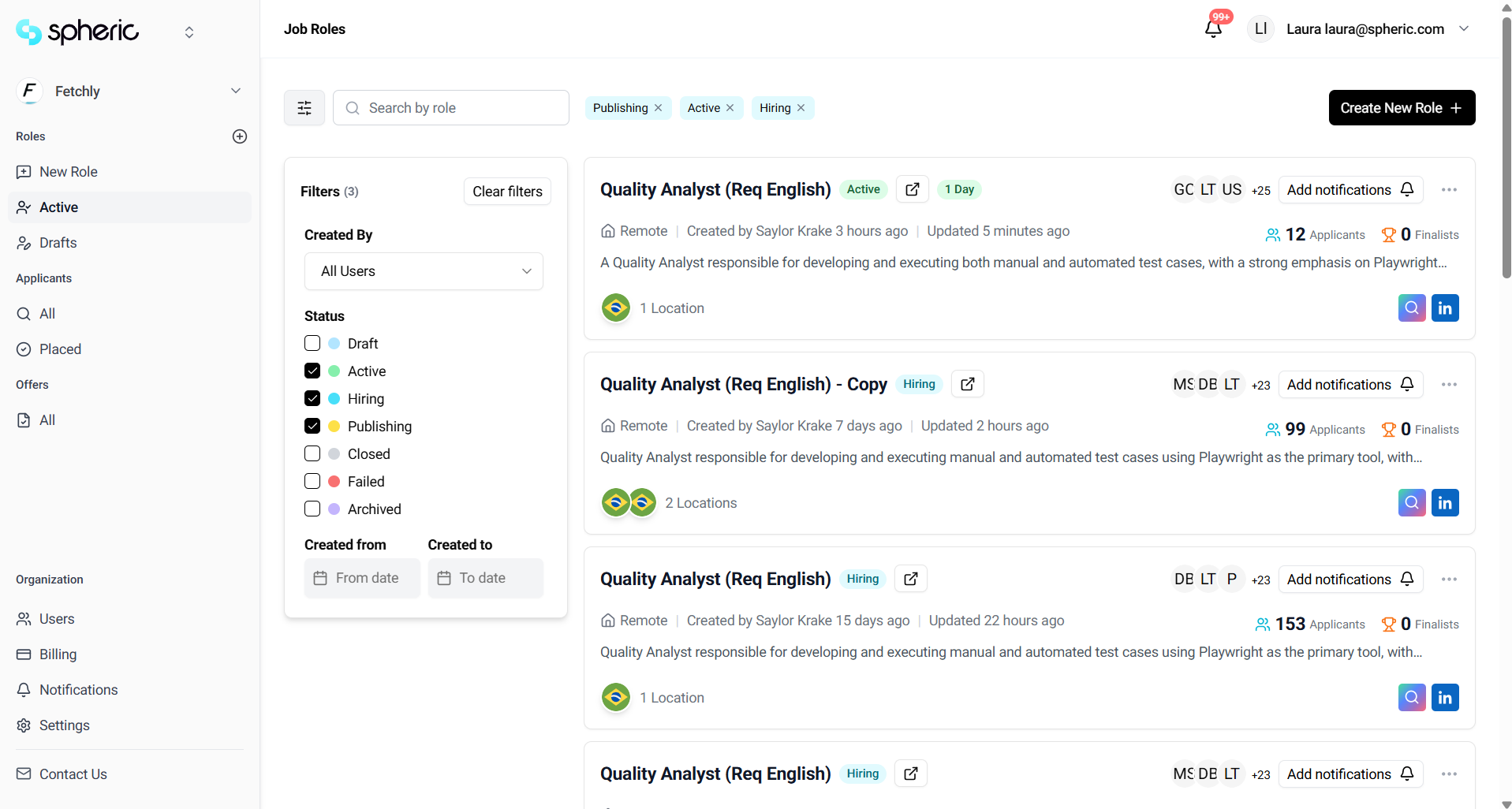
1. Go to your dashboard
Go to: https://app.spheric.com/
2. Open “Manage posts”
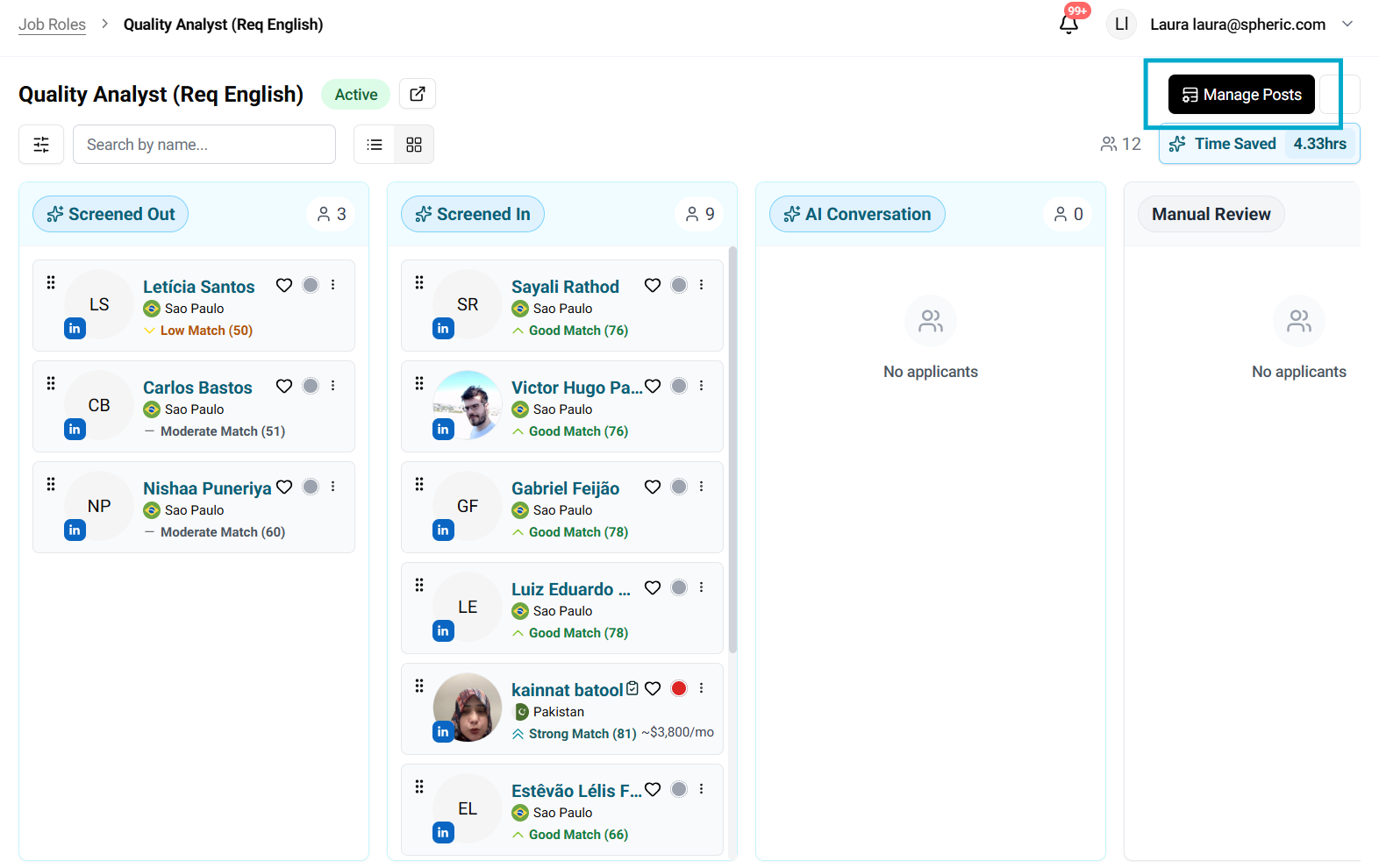
Once you are in the selected applicant board, navigate to your role and click “Manage posts” in the top right corner.
3. Cancel job postings
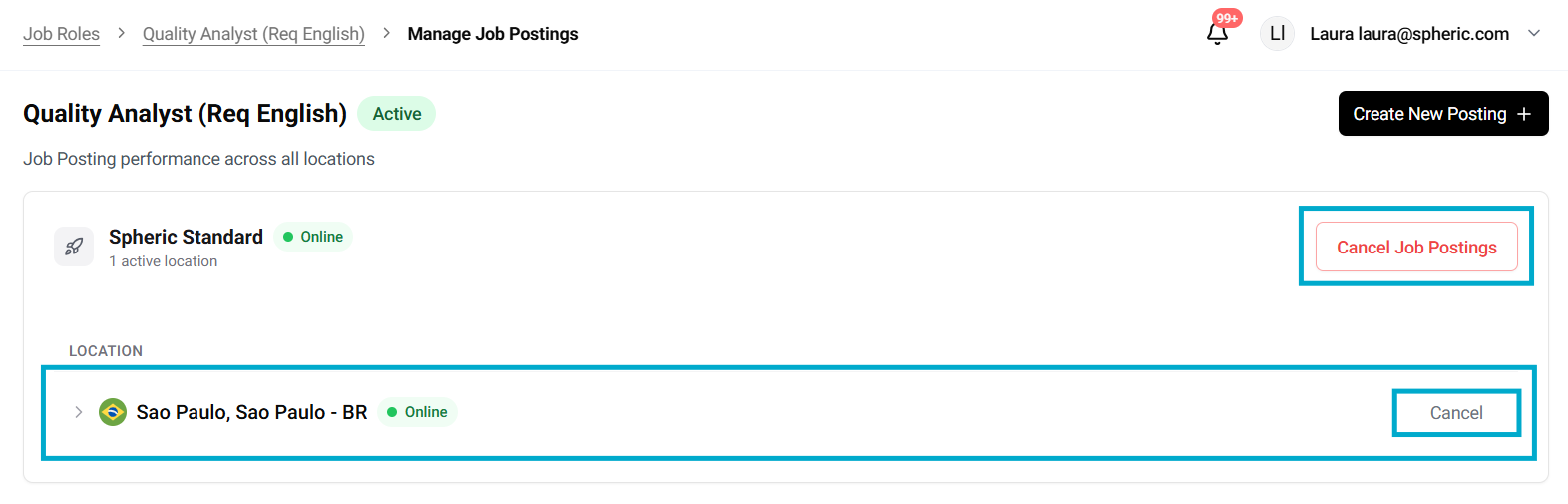
You have two options:
- Cancel all job postings
Click “Cancel job postings” to remove the role from all active locations - Cancel a specific location
Find the location you want to remove and click “Cancel” for that specific posting
4. Role status update
Once canceled:
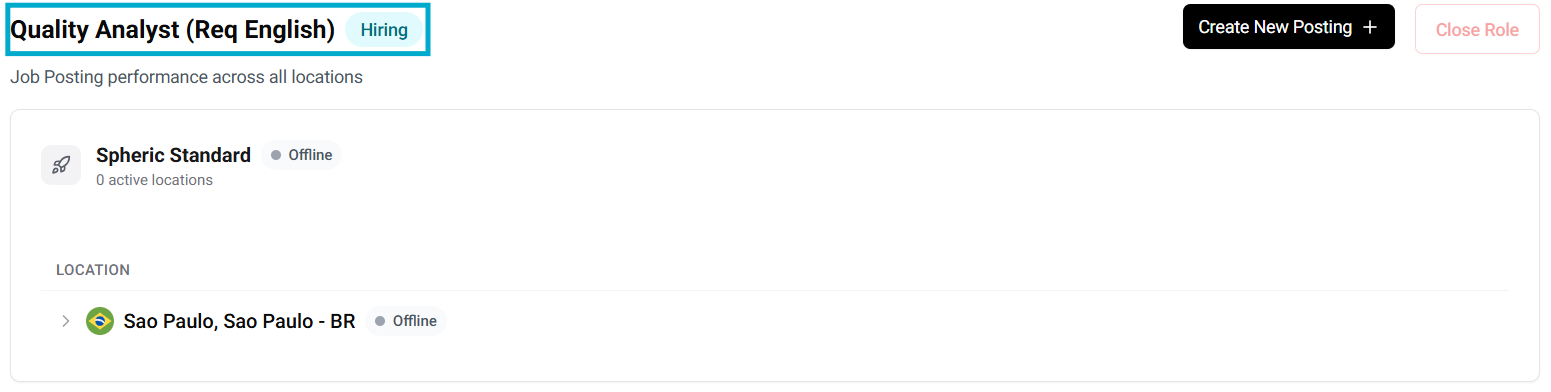
- The job post will be removed from active job boards
- The role status will change to Hiring
What happens after canceling
- Your role will no longer be visible on job boards
- You can continue reviewing and managing existing applicants
- You can repost the role later if needed