Referring a Candidate
You can refer candidates directly to a role in Spheric, allowing you to include applicants outside of job boards.
You can refer candidates directly to a role in Spheric, allowing you to include applicants outside of job boards.
This is useful when you already have qualified candidates and want them to go through your hiring process.
How to refer a candidate
1. Go to your dashboard
Go to: https://app.spheric.com/
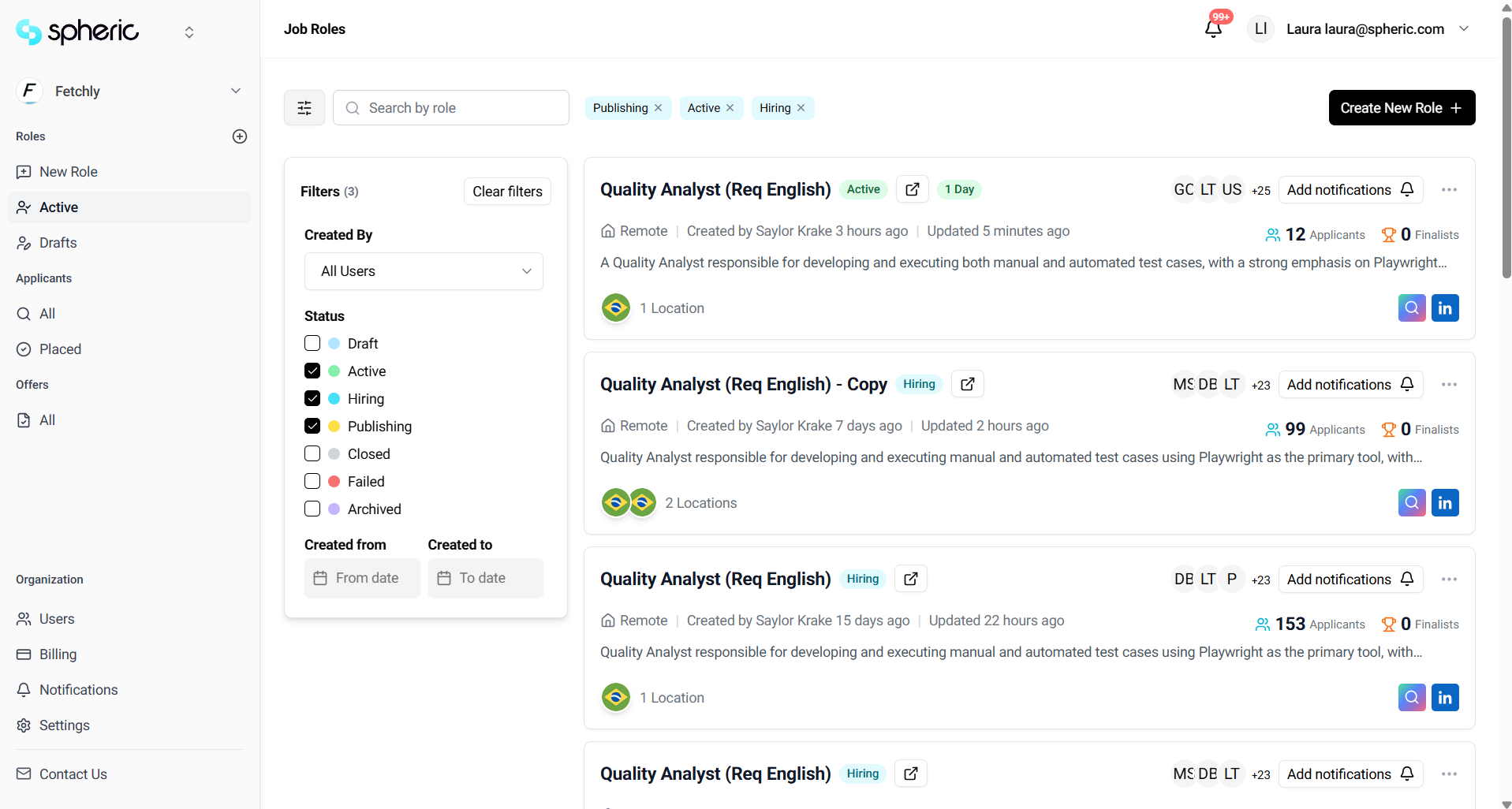
2. Select the role
Click on the role where you want to refer a candidate.
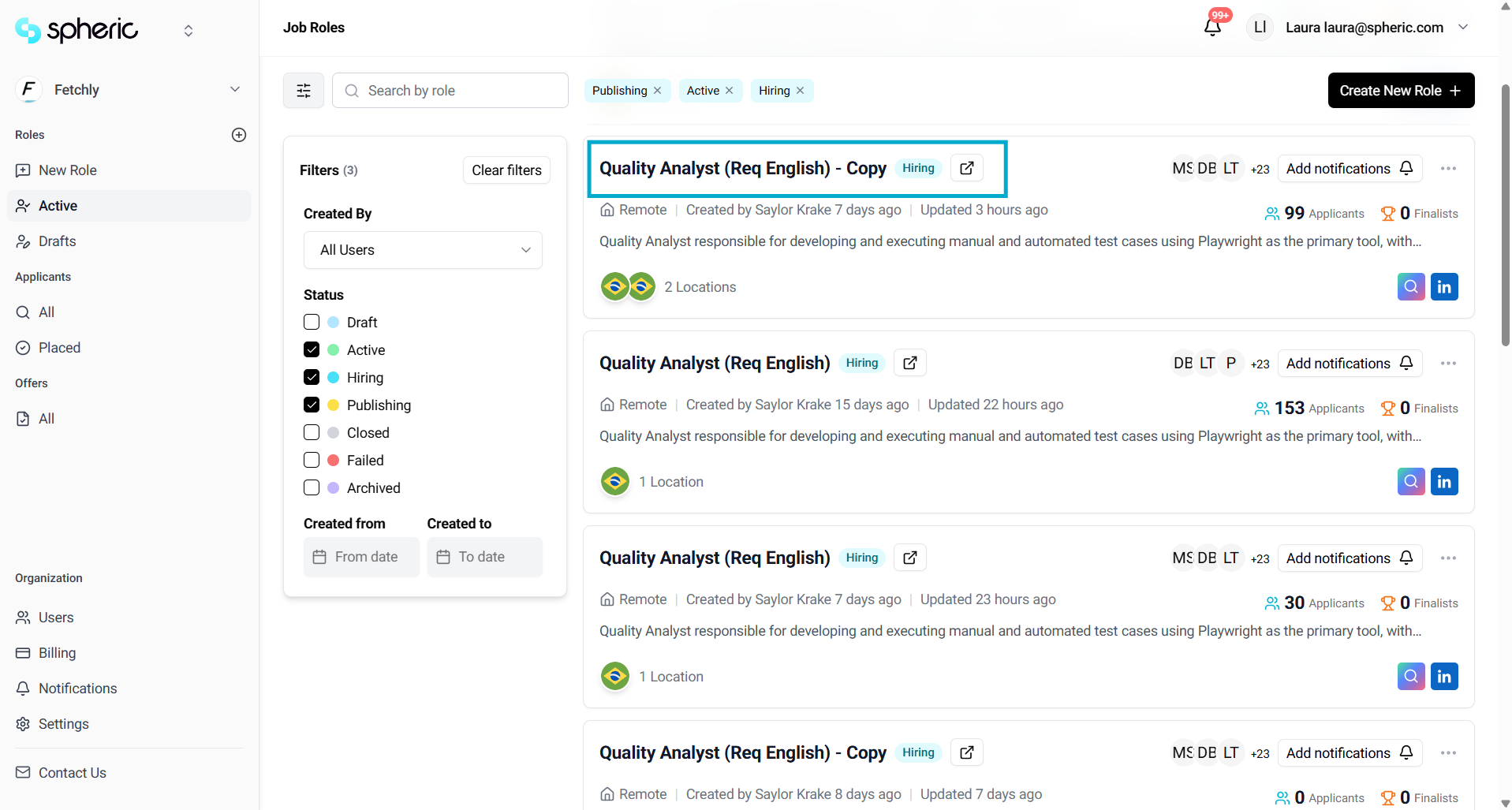
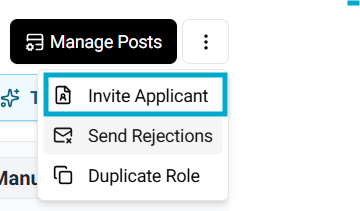
3. Open role options
In the top right corner, click the three dots next to “Manage posts.”

4. Click “Invite applicant”
Select “Invite applicant” from the dropdown menu.
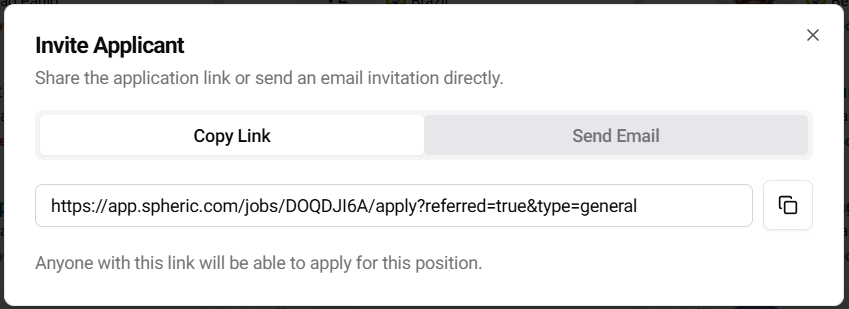
5. Choose how to invite the candidate
A pop-up will appear with two options:
- Copy link: Share the link directly with the candidate
- Send email: Enter the candidate’s email to send them an invitation
What happens next
- The candidate receives an invitation to apply
- Once they apply, they enter the hiring workflow
- They go through the same screening process as other applicants
Referred candidates are visually identified in the platform. Their applicant card will include a crown icon, and the card will appear highlighted (slightly yellow). This helps you easily distinguish referred candidates from other applicants.