Messaging a candidate
You can communicate directly with candidates from within Spheric using the Messages tab in the applicant card.
You can communicate directly with candidates from within Spheric using the Messages tab in the applicant card.
How to send a message
1. Go to your dashboard
Go to: https://app.spheric.com/
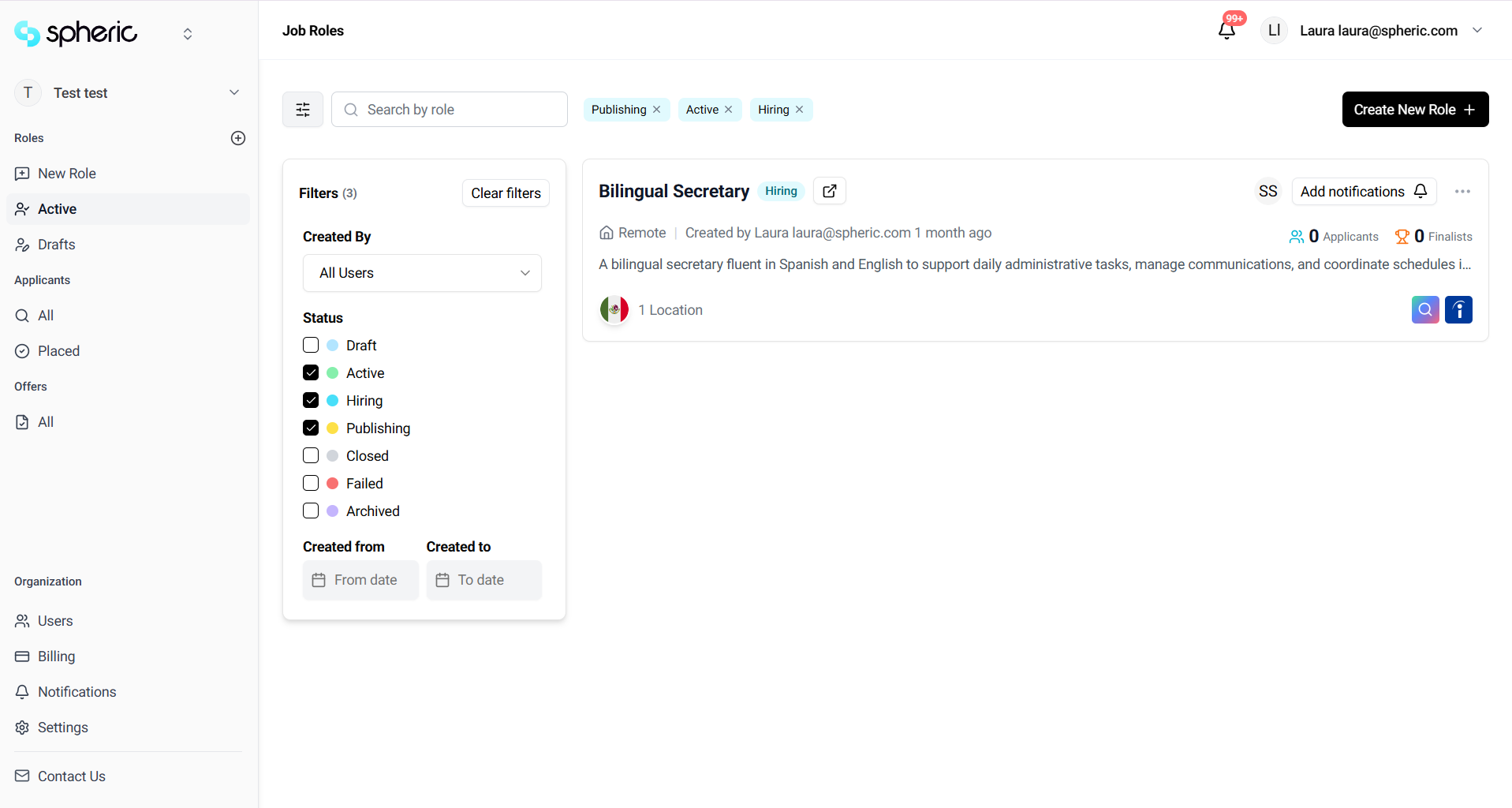
2. Select a role
Click on the role where the candidate is located.
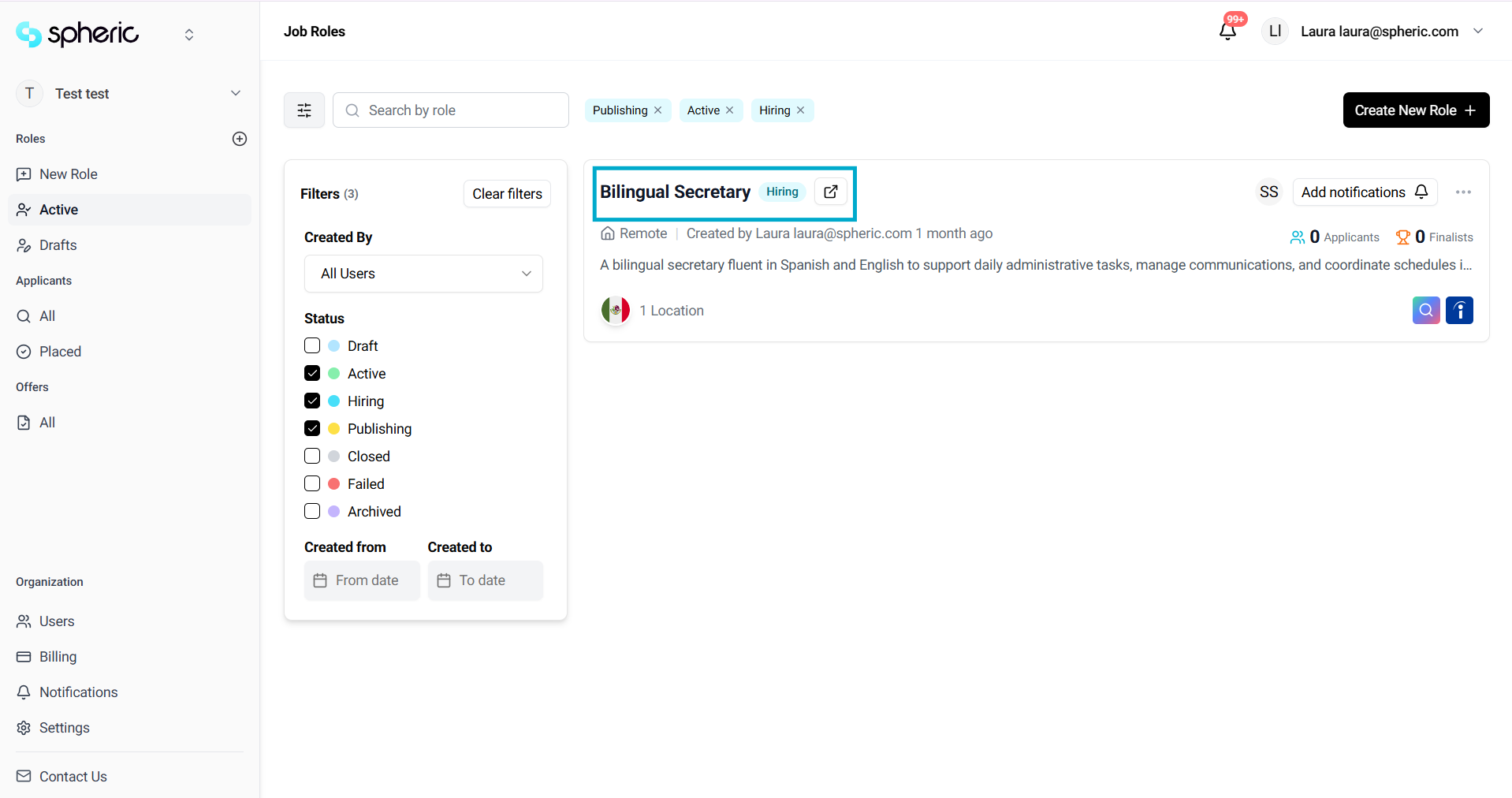
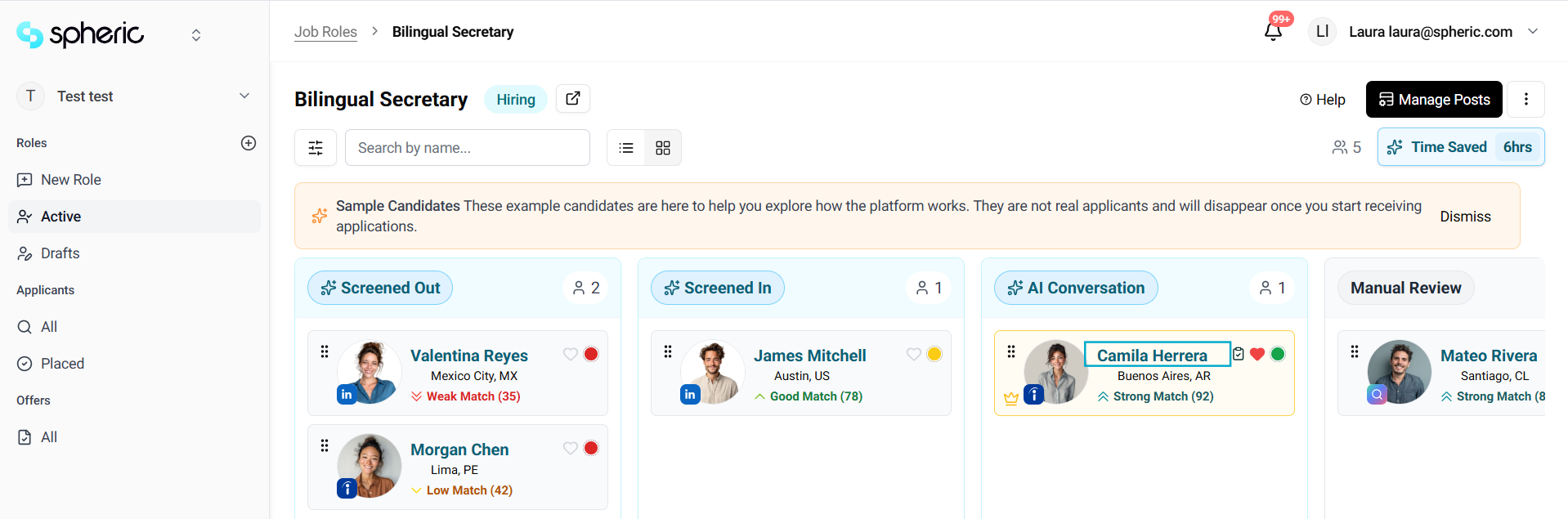
3. Open the Applicant Board
Navigate to the Applicant Board for that role.
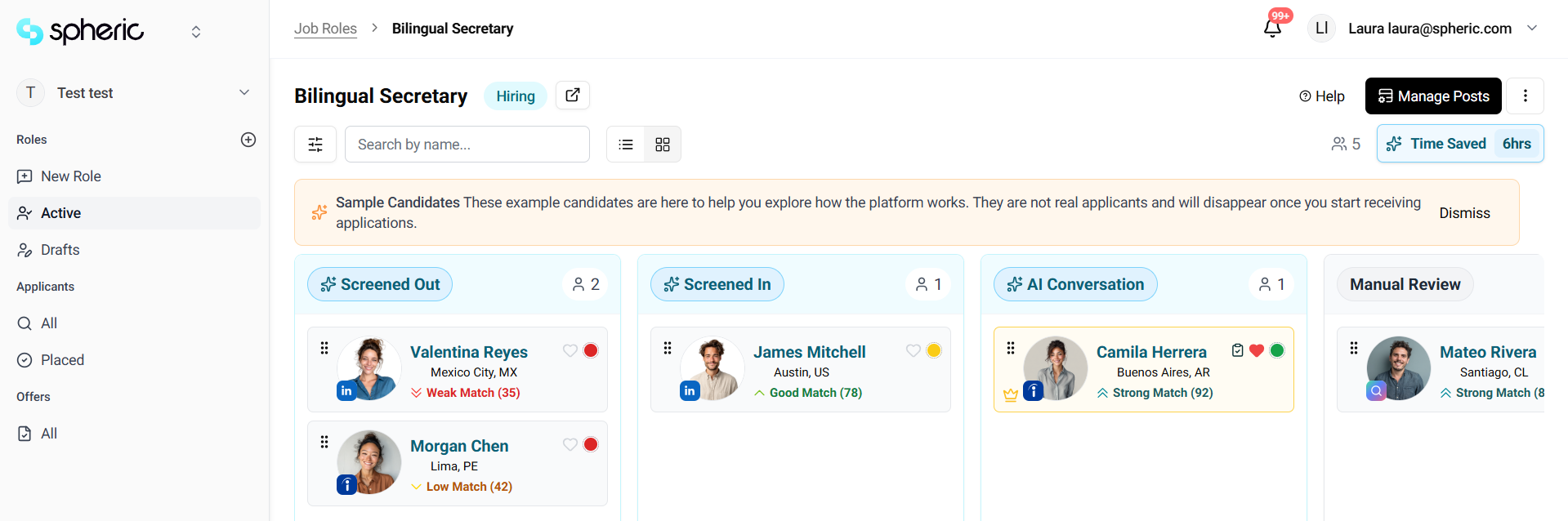
4. Open the applicant card
Click on the candidate you want to message.
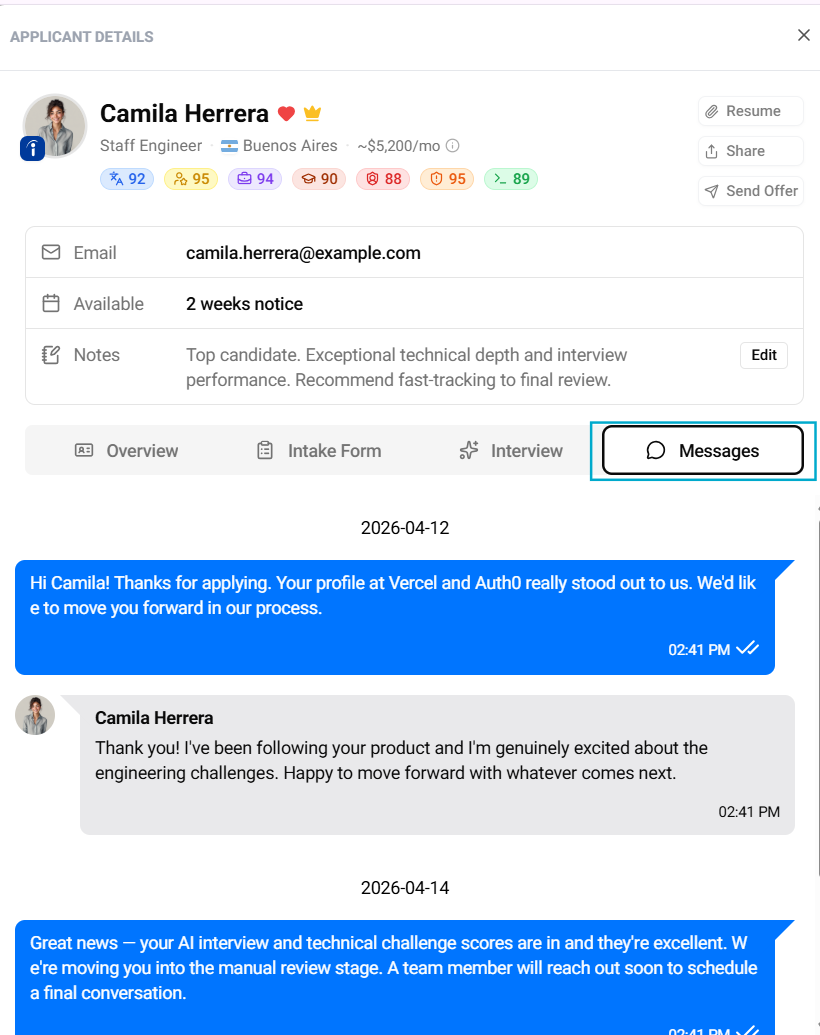
5. Go to the Messages tab
Click on the Messages tab inside the applicant card.
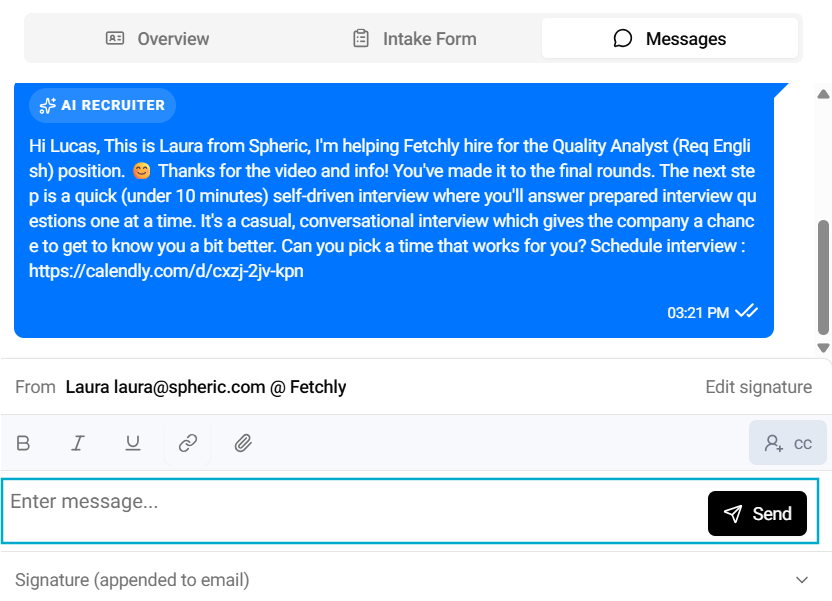
6. Send your message
Type your message and send it directly to the candidate.
All messages will appear in the conversation thread.
What you can do in Messages
- Send messages to candidates
- View the full conversation history
- Keep all communication in one place
How to know when a candidate replies
When a candidate responds:
- You will receive a notification
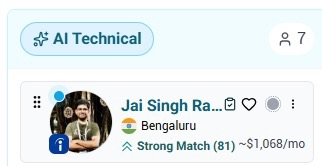
- A blue indicator/button will appear next to the candidate’s profile picture, showing that there is an unread message
- The message will also appear in the Messages section of the applicant card
This allows you to quickly identify and respond to new messages.