Connect an ATS
ATS integrations help centralize candidate management and streamline recruiting operations across platforms.
Depending on the connected platform, ATS integrations may allow you to:
- Import candidates
- Sync applicant information
- Manage hiring workflows
- Centralize recruiting activity
- Reduce manual data entry
To view the latest supported ATS platforms, visit the official Spheric website:
Spheric Integrations & Pricing Page
How to connect an ATS
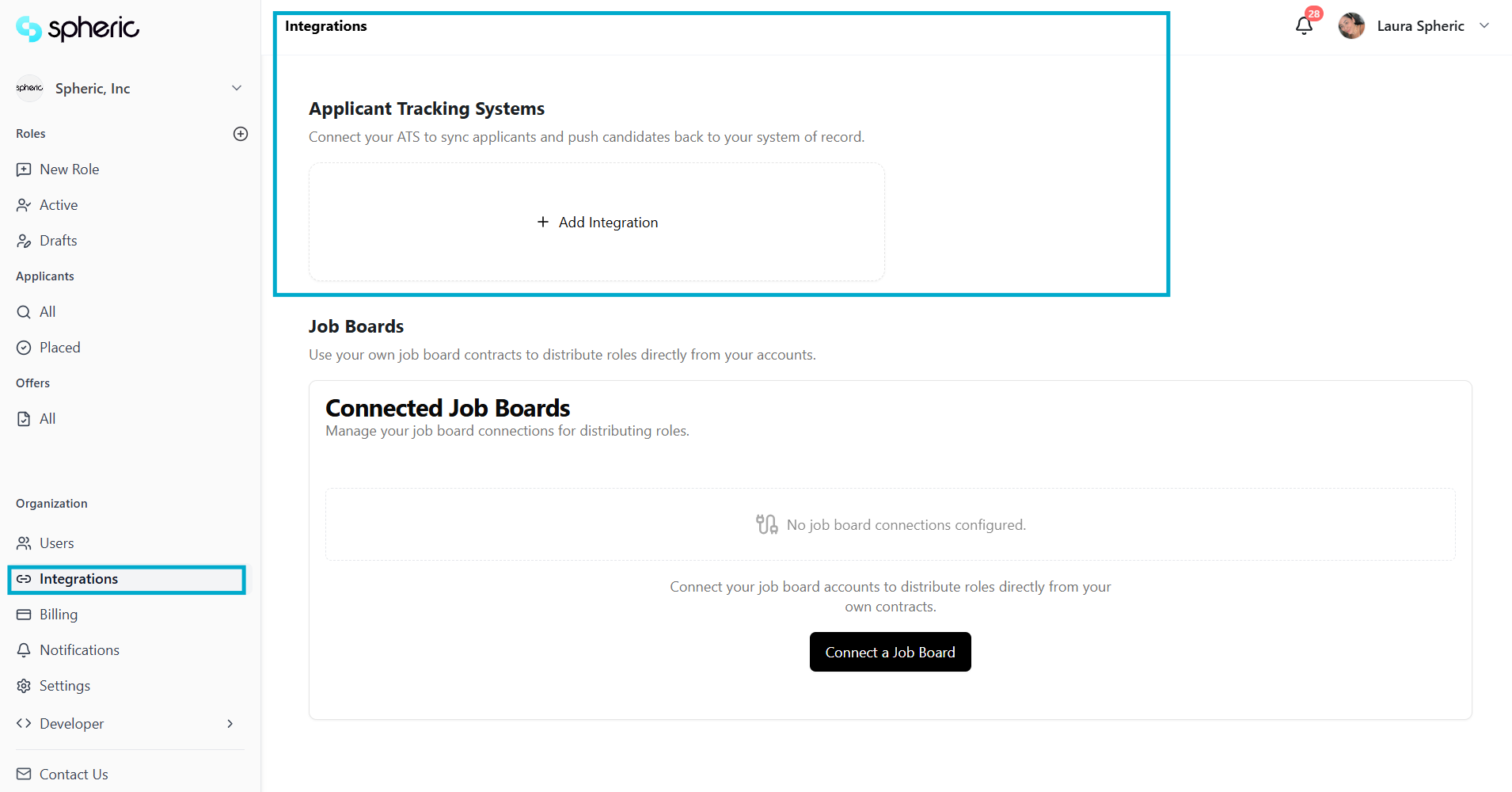
1. Open the Integrations section
Go to the Integrations section from your account settings.
2. Select your ATS
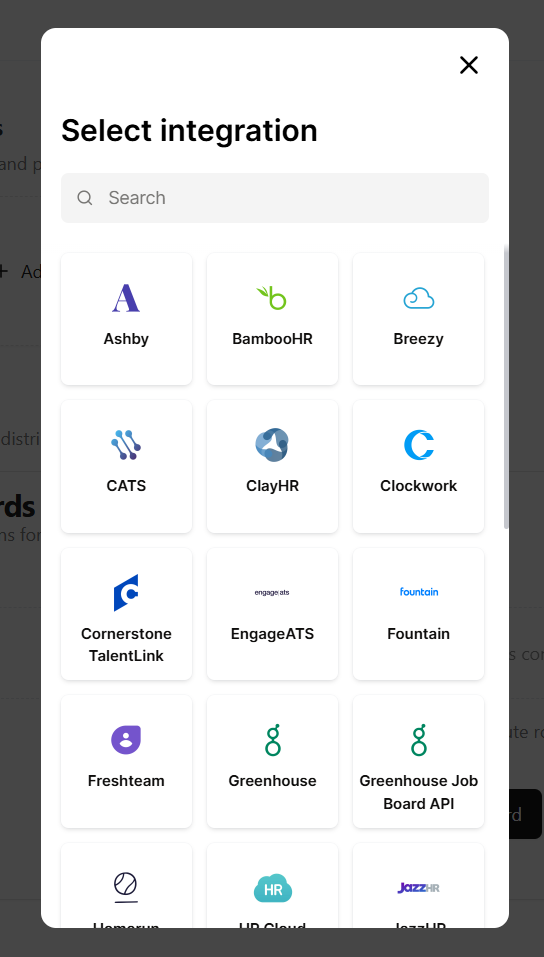
Choose the ATS platform you want to connect.
Supported integrations may include:
- JazzHR
- Greenhouse
- Ashby
- BambooHR
- Workable
- UKG
3. Confirm ATS admin access
Before connecting the ATS, Spheric will display a confirmation pop-up asking whether you have admin access to the ATS platform.
This is required because ATS integrations typically need administrator permissions to:
- Authenticate the connection
- Grant integration access
- Sync candidates and workflows properly
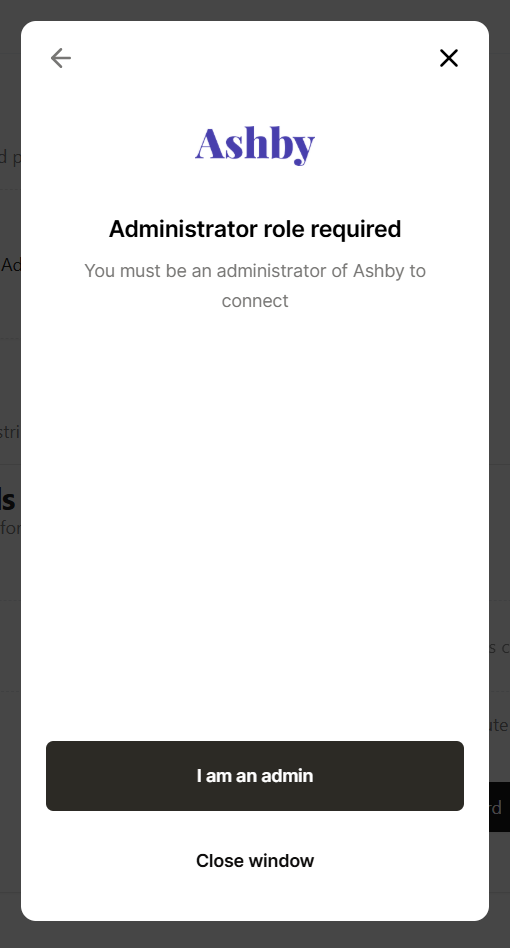
If you are not an admin in the ATS platform, you may need to contact your internal system administrator before continuing.
4. Authenticate your account
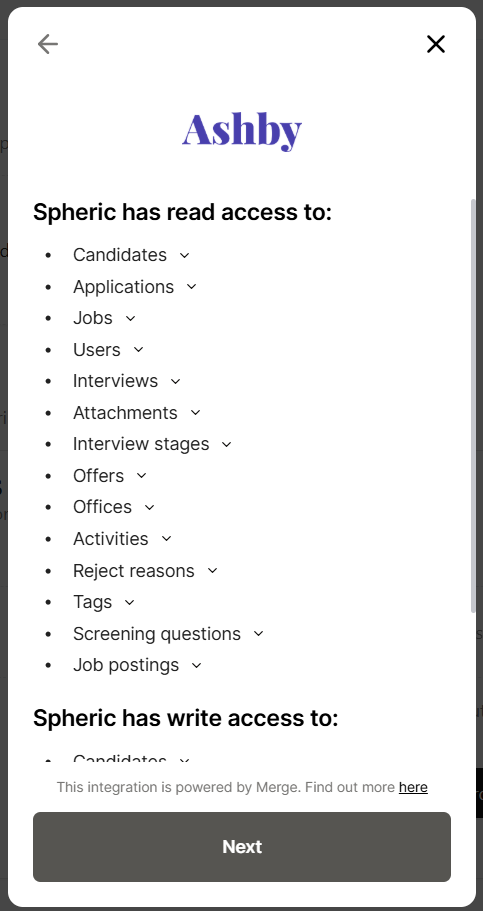
After confirming admin access, you’ll be asked to authenticate your ATS account and approve the integration.
The authentication flow may vary depending on the ATS platform being connected.
Depending on the provider, you may be asked to:
- Sign in to your ATS account
- Approve permissions
- Authorize access
- Select an organization or workspace
- Confirm syncing permissions
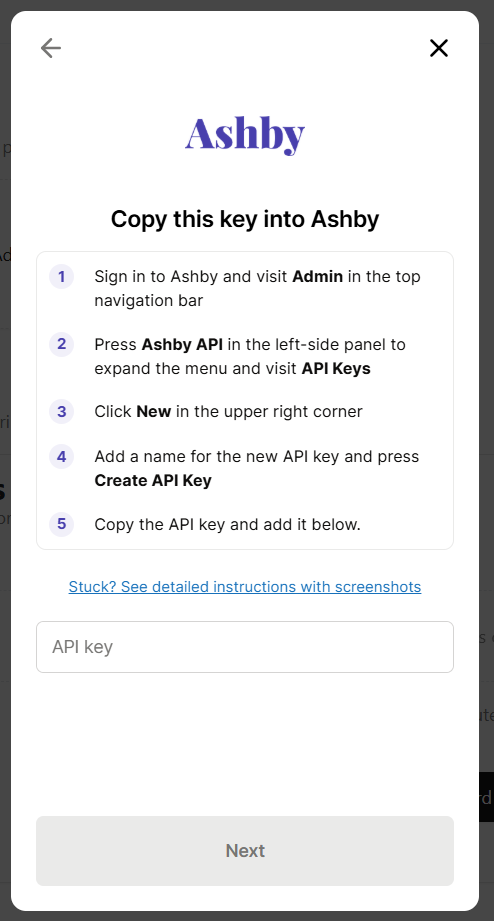
Follow the instructions provided by the selected ATS to complete the connection successfully.
5. Complete the connection
Once connected, your ATS will appear in the Integrations section as active.
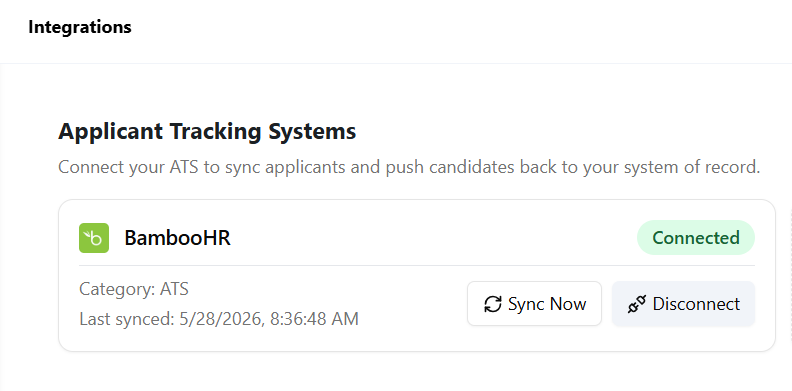
Adding candidates using ATS integrations
Once your ATS is connected, you can import and manage candidates directly from the Applicant Board.
To do this:
- Open your role
- Click Add candidates
- Select one of the available options
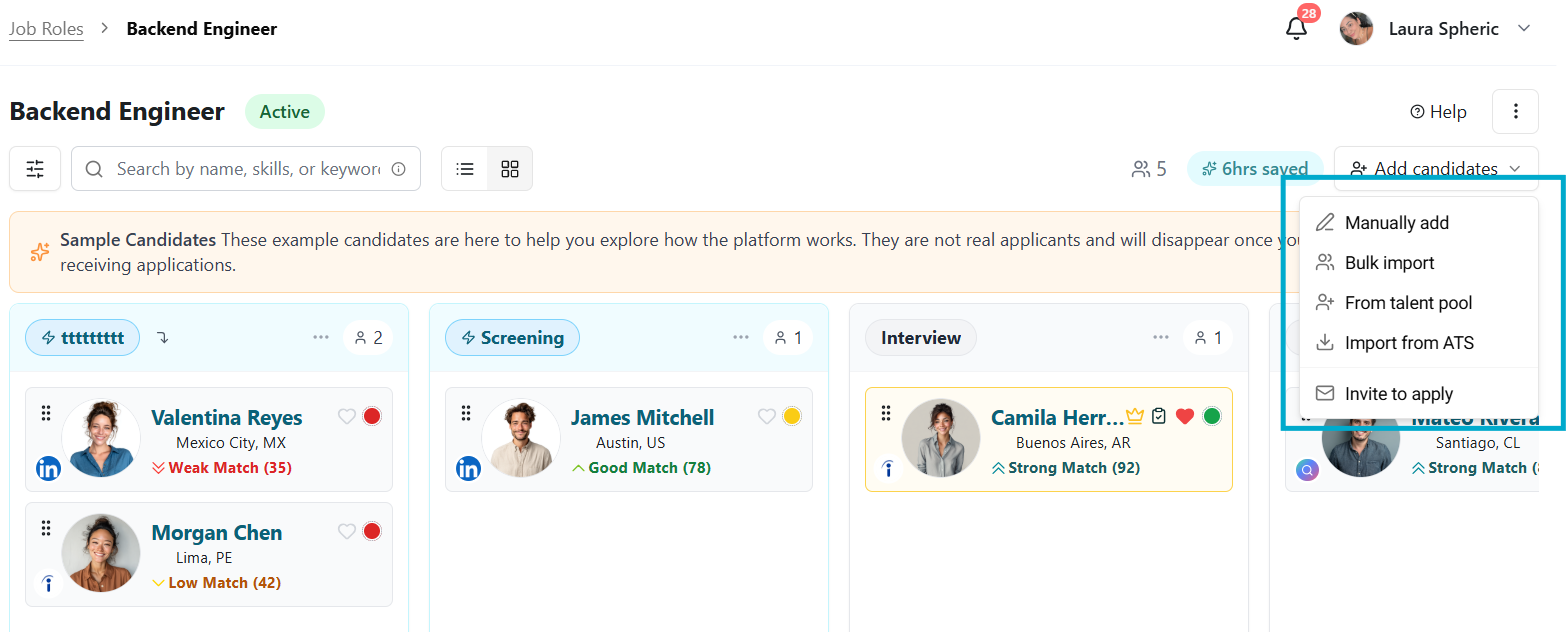
Available options include:
- Manually add → Add candidates manually
- Bulk import → Import multiple candidates at once
- From talent pool → Add candidates from your existing talent pool
- Import from ATS → Import candidates directly from your connected ATS
- Invite to apply → Send candidates an application invitation link
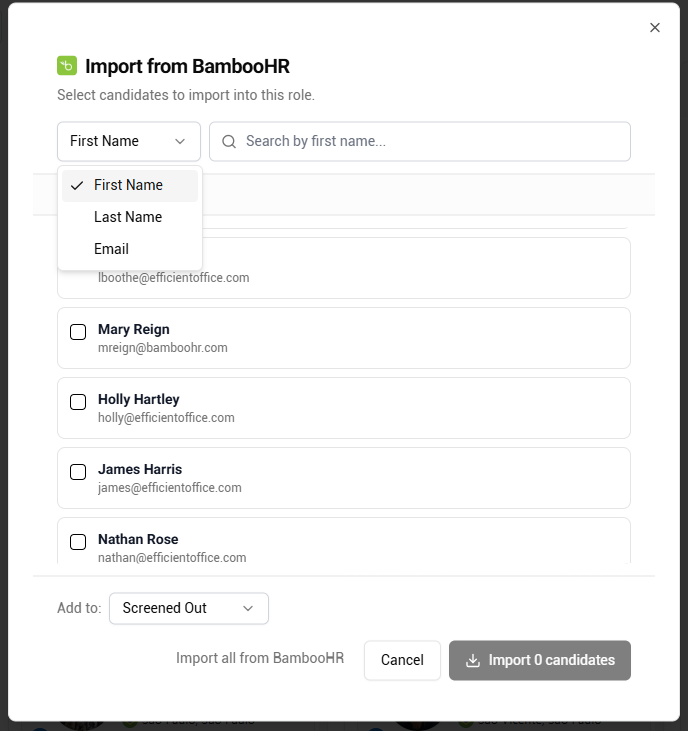
Importing candidates from an ATS
When selecting Import from ATS, Spheric allows you to pull candidates directly from your connected ATS into the selected role.
Imported candidates can then be:
- Reviewed in the Applicant Board
- Moved between stages
- Evaluated using AI workflows
- Managed like any other applicant in the platform
Managing ATS candidates inside the Applicant Board
Once imported, ATS candidates can be managed directly from the Applicant Board.
You can:
- Review applicant cards
- Move candidates between stages
- Message applicants
- Move candidates to another role
- Review AI interview results and evaluations
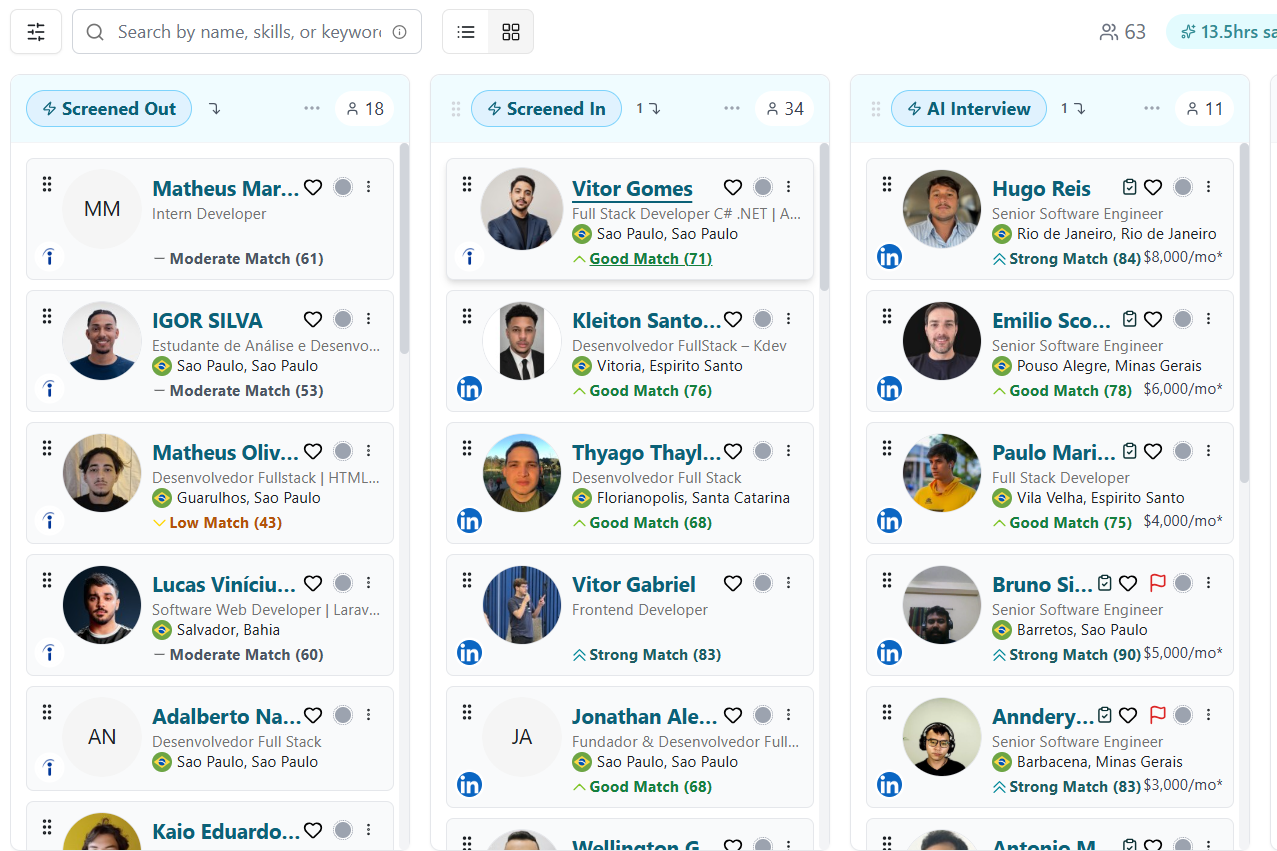
Candidates imported from an ATS may also display source indicators within the Applicant Board.
Note: Applicants imported from the ATS will be automatically saved to the talent pool (all applicants page).
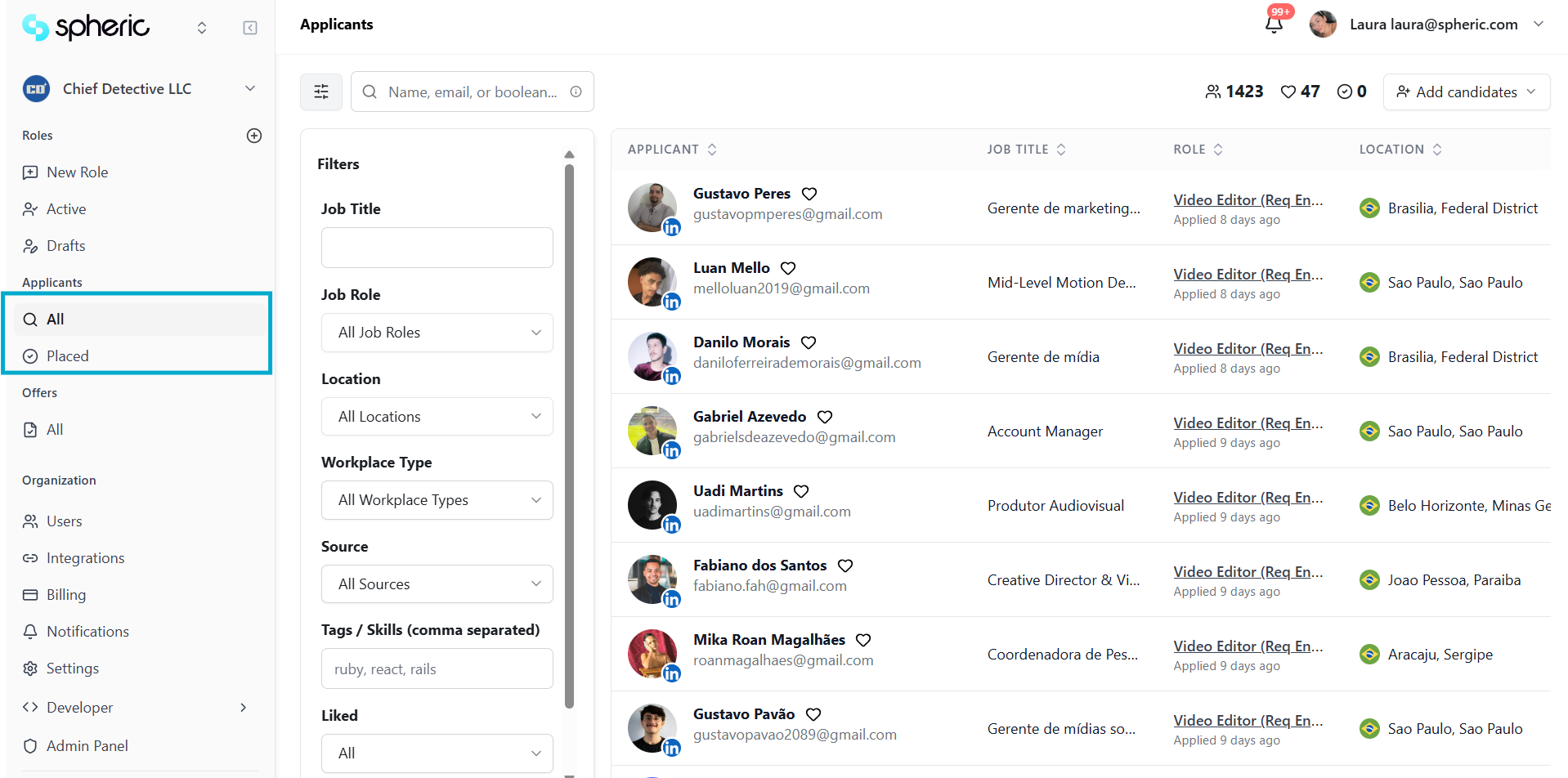
Managing ATS integrations
From the Integrations section, you can:
- Review connected platforms
- Disconnect integrations
- Reconnect accounts
- Manage permissions
Plan availability
Some ATS integrations may only be available on specific Spheric plans.
To compare plan features, visit:
Related articles
To learn more, visit:
- Integrations overview
- Applicant Board overview
- Applicant card
- Move a candidate to another role
- Messaging a candidate
Troubleshooting
Integrations overview
Only users with ATS admin access can connect integrations. If you are not an admin, ATS connection options and permissions will not appear in your account.
Connect your LinkedIn contract
Once your job is published, Spheric begins collecting and organizing candidates automatically.