Connect your Indeed Contract
Once your job is published, Spheric begins collecting and organizing candidates automatically.
Connecting your Indeed account allows you to publish jobs directly to Indeed through Spheric.
Once connected, you’ll be able to manage and distribute your Indeed job postings directly from the platform.
Before you begin
Before connecting your Indeed contract, make sure:
- You have an active Indeed contract
- You have admin access to the Indeed account
- You are signed in to your Spheric account
💡 If you’re unsure whether you have the correct permissions, contact your Indeed account administrator.
How to connect your Indeed account
1. Go to Job Boards
From your Spheric dashboard:
- Got to the Organization section, and click on Integrations
- Navigate to Job Boards
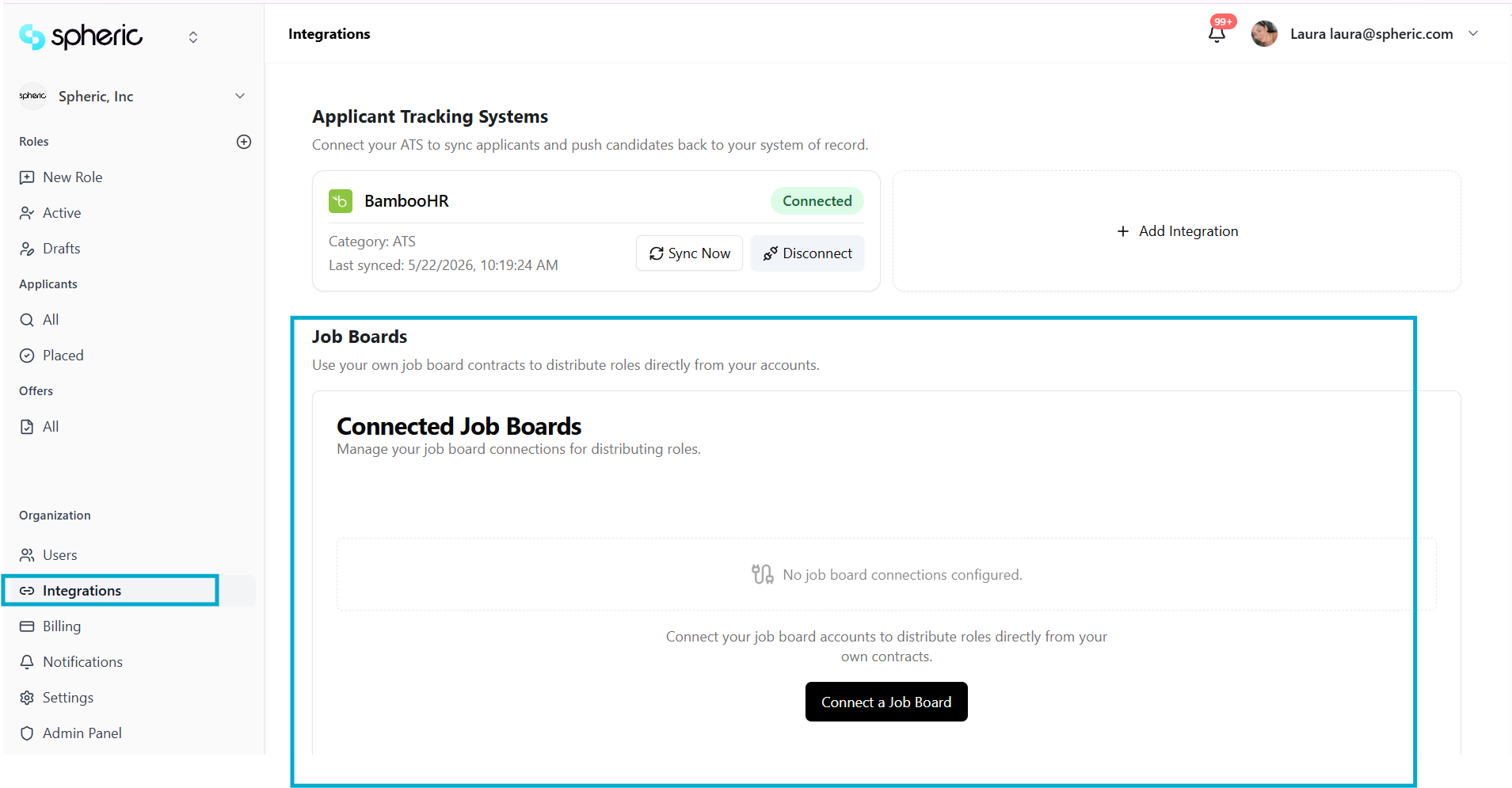
2. Select Indeed
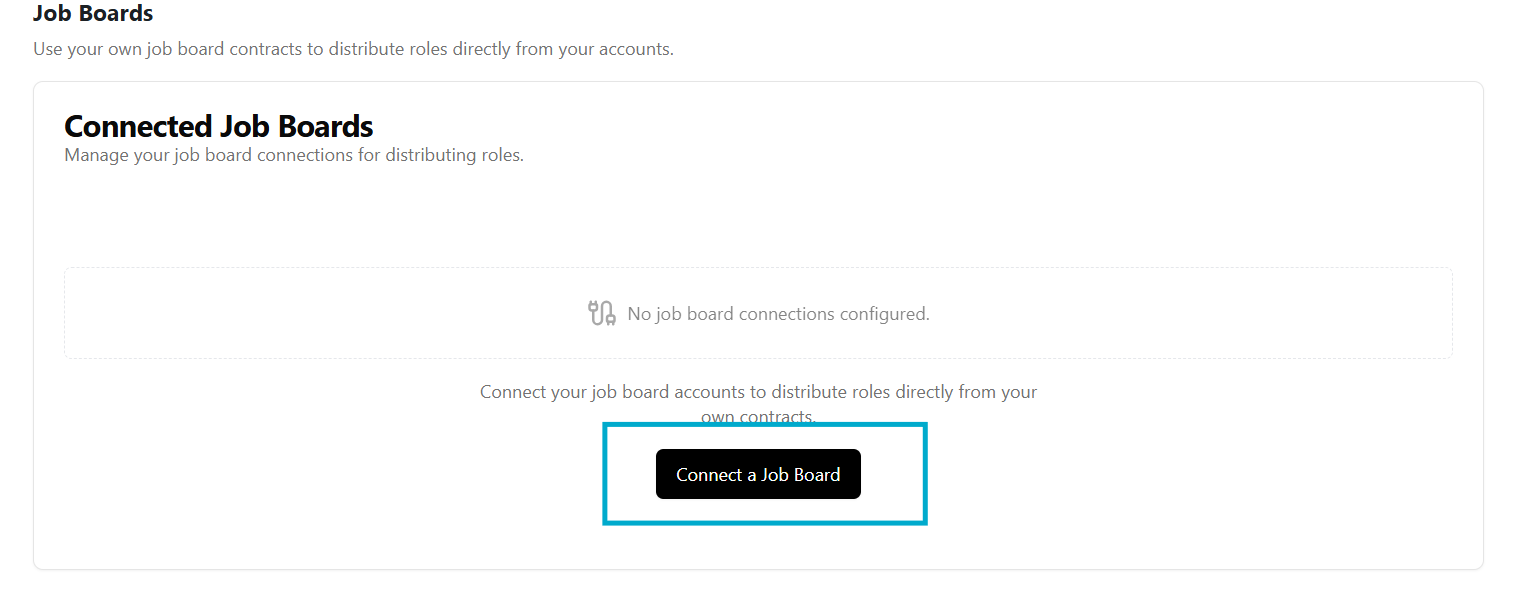
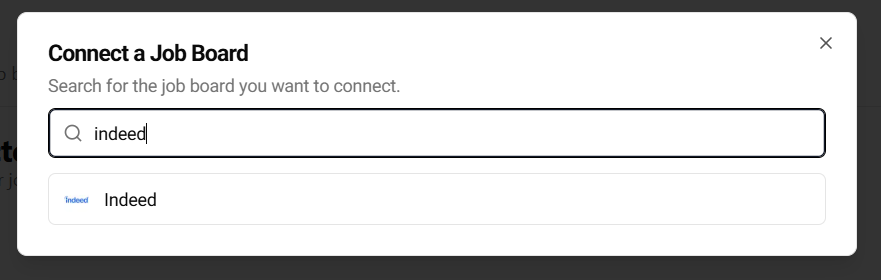
Click on Connect a Job Board, and find Indeed in the search bar
3. Complete the setup form
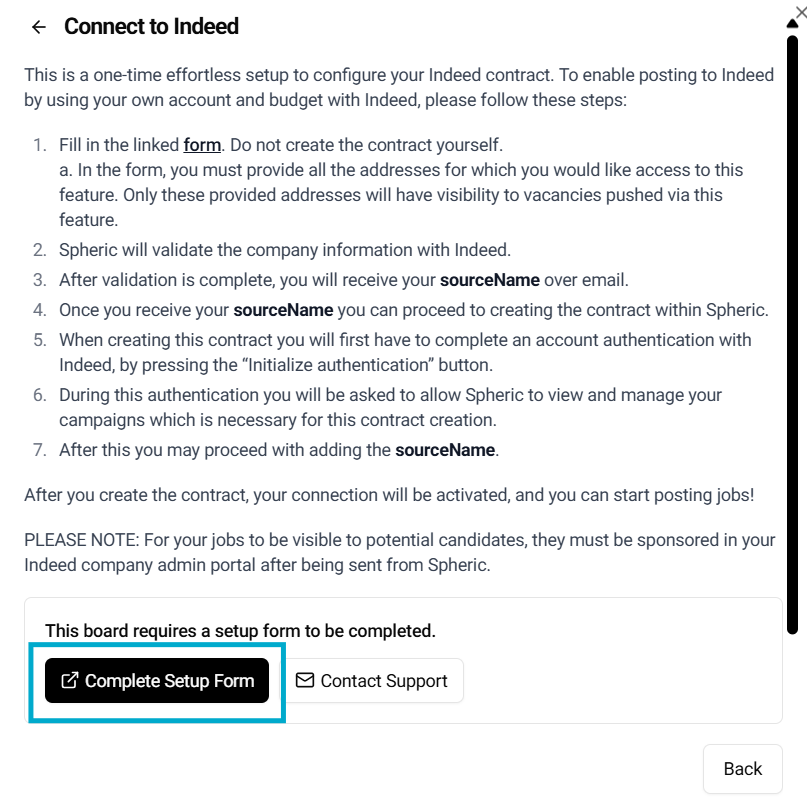
Before connecting your Indeed account, you'll need to complete the Indeed setup form.
Click Complete Setup Form and provide the required company and account information.
This step must be completed before you can connect your Indeed account.
4. Submit your company information
The setup form will ask for the following information:
- Indeed Login Email
- This email address will receive the Indeed credentials and setup communications.
- Make sure the inbox is actively monitored.
- You may enter more than one email address.
- Company Name
- Company Website URL
- Enter your company's main website URL.
- Company Location (Country)
- Name of ATS in Use
- Enter Spheric unless otherwise instructed.
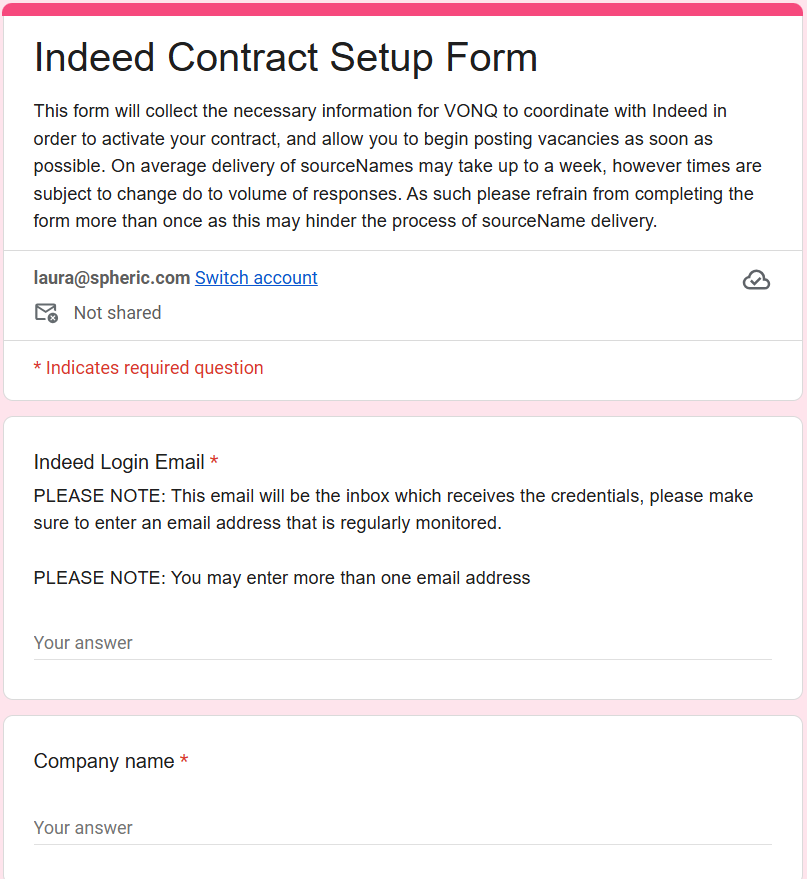
Make sure all information is accurate. Indeed will use these details during the validation process.
5. Wait for validation and receive your sourceName
Once the form has been submitted:
- The information will be reviewed and validated by Indeed.
- After approval, you'll receive your sourceName via email.
You'll need this sourceName to complete the integration setup.
📸 Recommended image: Example sourceName email
6. Configure the Indeed contract
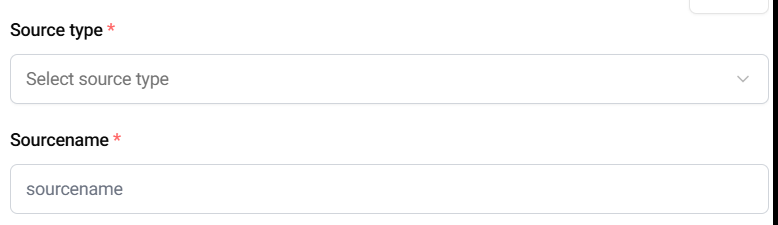
Return to the Indeed integration setup in Spheric.
Enter: Your Source Type, and sourceName.
7. Connect your Indeed account
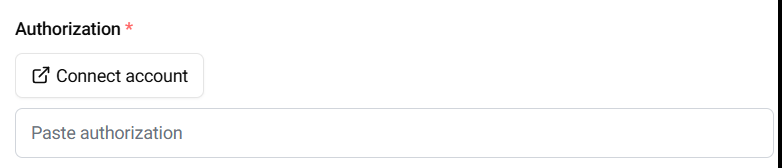
Under the Authorization section:
- Click Connect Account
- Follow the authentication steps displayed in the pop-up window
- Grant the required permissions
8. Finish the connection
Click Connect to complete the setup.
Once the integration is successfully configured, Indeed will appear as Connected in your Job Boards settings.
You can now publish jobs through Indeed directly from Spheric.
