Invite your team
You can invite team members to Spheric and manage their access from your organization settings.
You can invite team members to Spheric and manage their access from your organization settings.
Step-by-step
-
Go to your dashboard at https://app.spheric.com/login
-
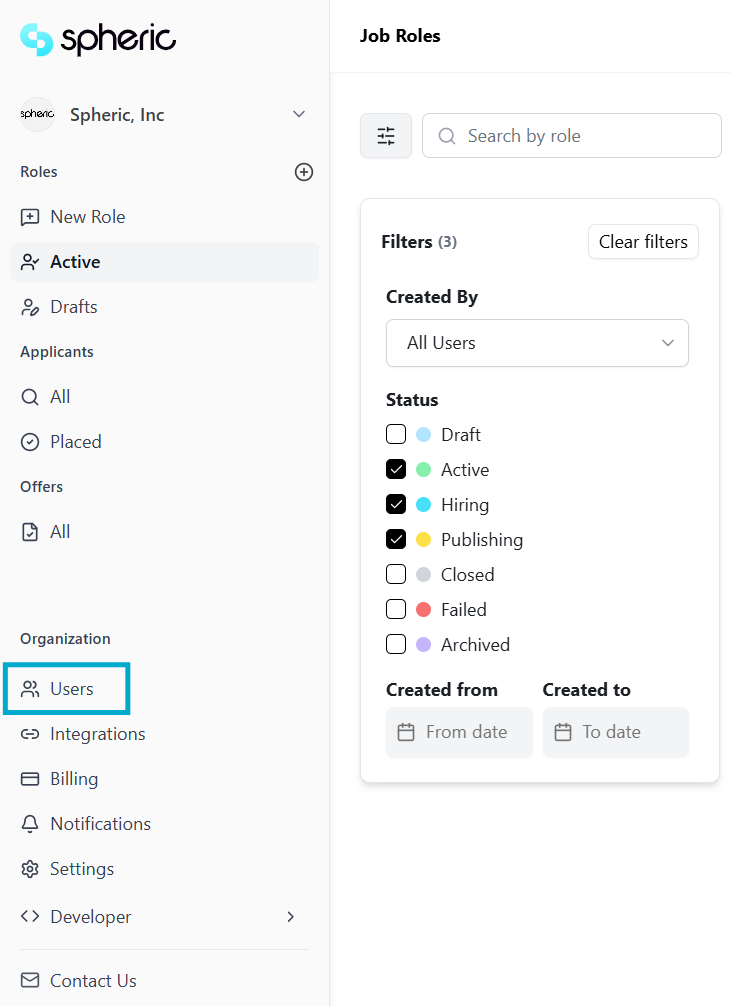
In the lower-left corner, click on your "Users."
-
Click “Invite users.”

-
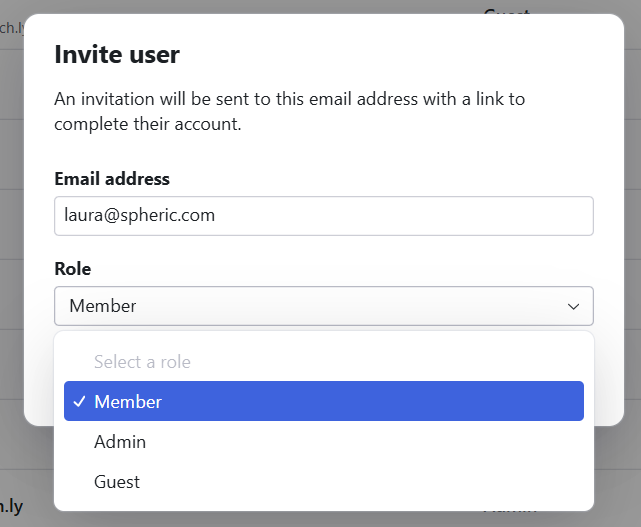
Enter the user’s email address
-
Select a role
-
Send the invitation
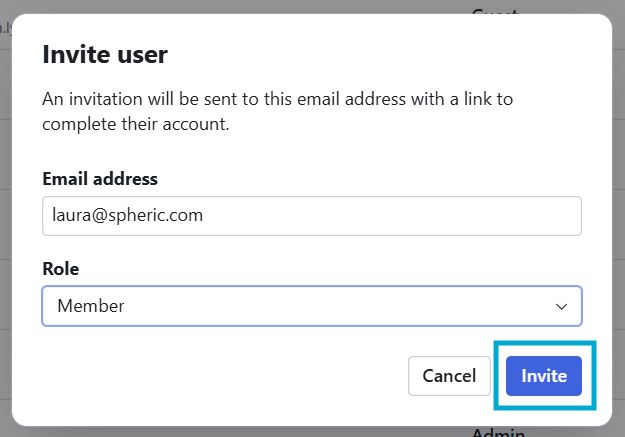
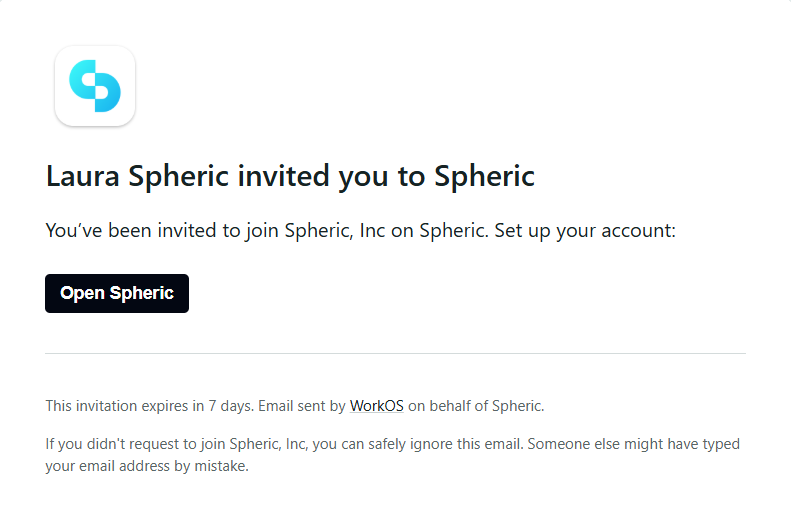
Once invited, the user will receive an email to join your organization.
User roles
Roles determine the level of access and permissions each user has within the platform. Spheric includes three roles:
- Admin: They have full control over the organization. They can invite and manage users, change roles and permissions, create and publish jobs, manage billing and plans, and access all candidates and workflows
- Member: They can actively participate in the hiring process. They create and manage jobs, review candidates and AI evaluations, and collaborate with the team during hiring. They do not have access to billing or advanced organization settings.
- Guests: They have limited access. They can view selected information (such as candidates or roles, depending on access). Guests cannot create jobs or manage organization settings.
Manage existing users
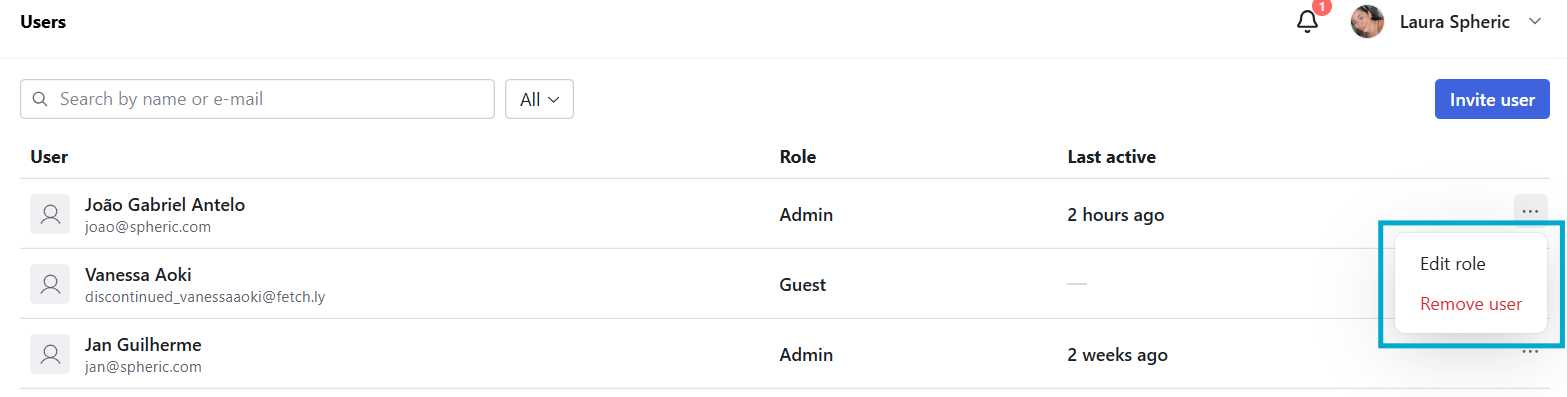
From the Users section, you can manage all team members.
You can change a user’s role, deactivate or reactivate a user, or send a password reset link. This allows you to control access and keep your team up to date.