Create your first job
You can start creating a job directly from the Spheric website, even before creating an account. This allows you to define your role with AI and only sign up…
You can start creating a job directly from the Spheric website, even before creating an account. This allows you to define your role with AI and only sign up when you're ready to move forward.
Step-by-step
1. Go to the website
Go to https://app.spheric.com/ and click “Start for free.”

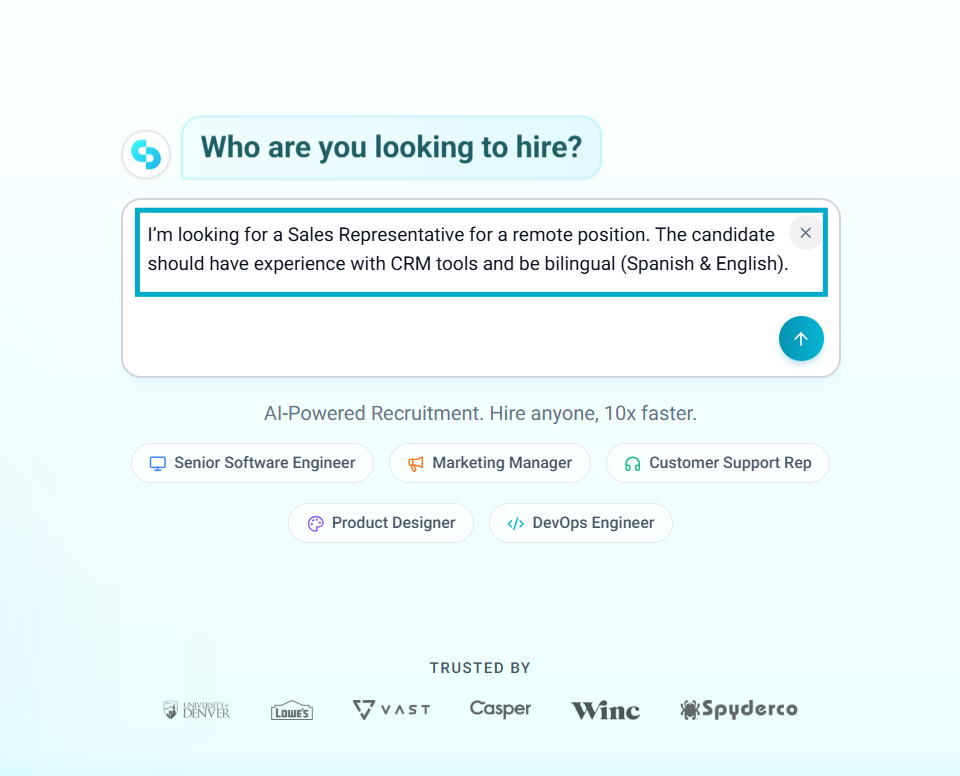
2. Describe the role in the chat
You’ll be redirected to the chat experience, where you can describe the role you’re hiring for.
Example: “I’m looking for a Sales Representative for a remote position. The candidate should have experience with CRM tools and be bilingual (Spanish & English).”
You can continue interacting with the chat to refine the job title, improve the job description, or add requirements, skills, or salary expectations.
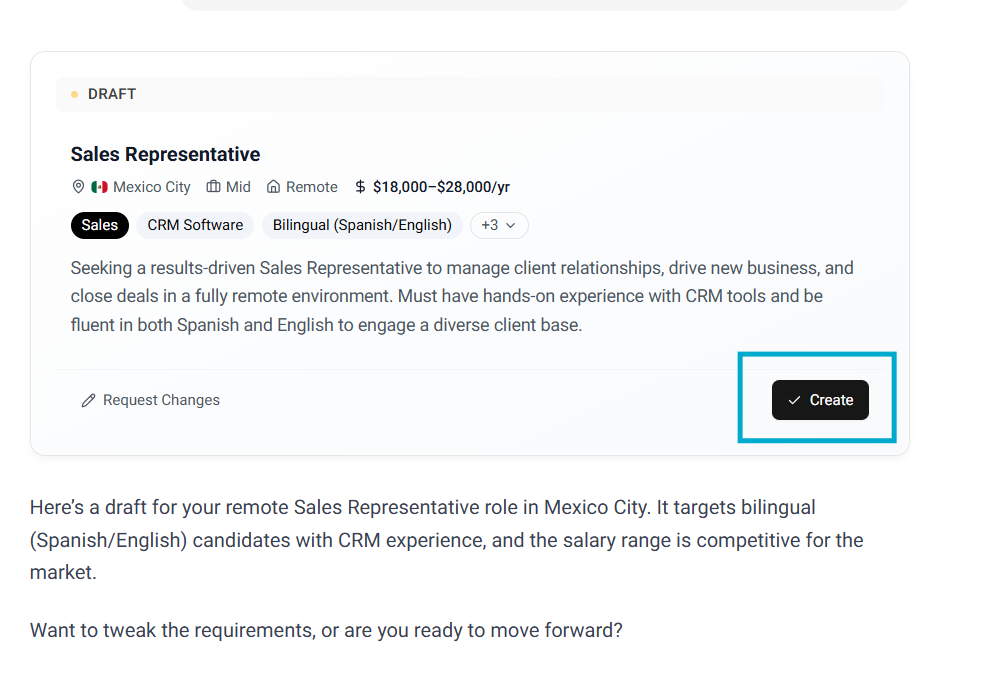
Once you're satisfied with the role details, click Create to proceed to the draft.
3. Generate your job draft
Before generating your job draft, you’ll be asked to sign in or create an account. Follow the steps to continue.
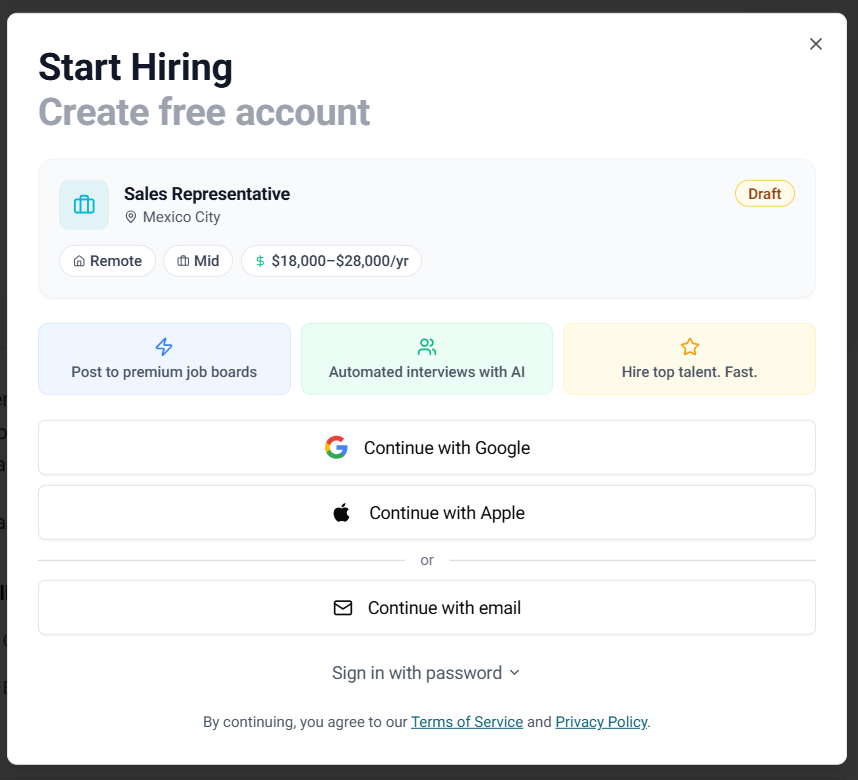
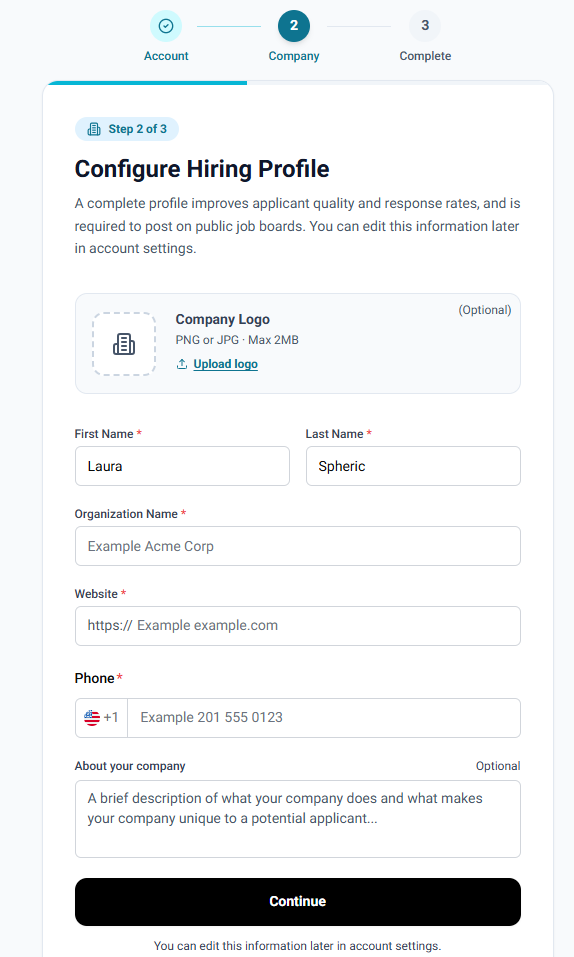
4. Create your account and organization
After signing in, you’ll be asked to provide basic information about your organization.
This step is required to generate and save your job draft.
5. Review and edit your role
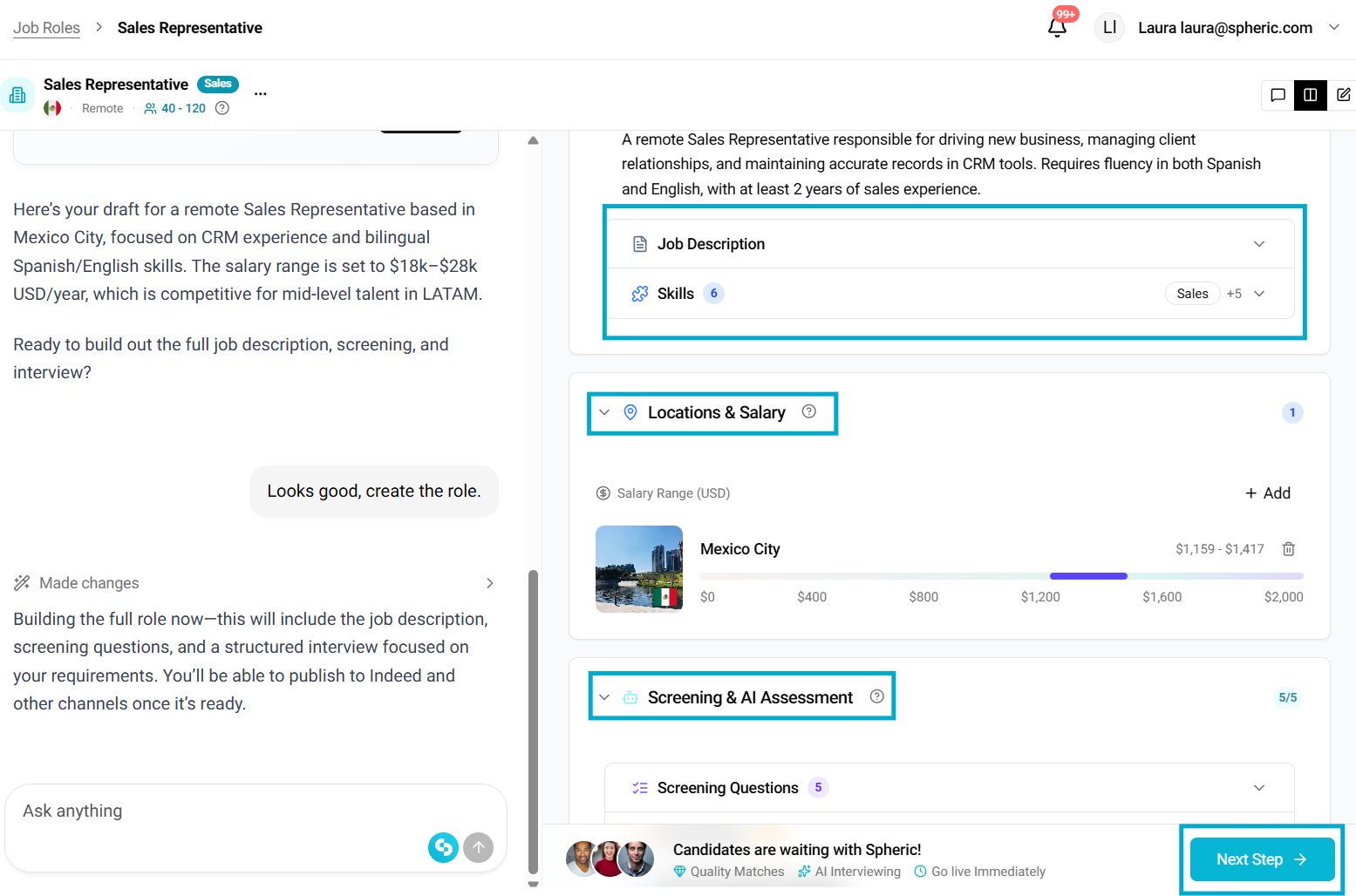
Once your setup is complete, your role will be generated in the Role Builder. Here you will find three sections: Role Overview (title, description, responsibilities), location & Salary, screening & AI Assessment. In the Role Builder You can edit fields manually, or ask the AI chat to make changes for you.
Once everything looks good, click “Next step.”
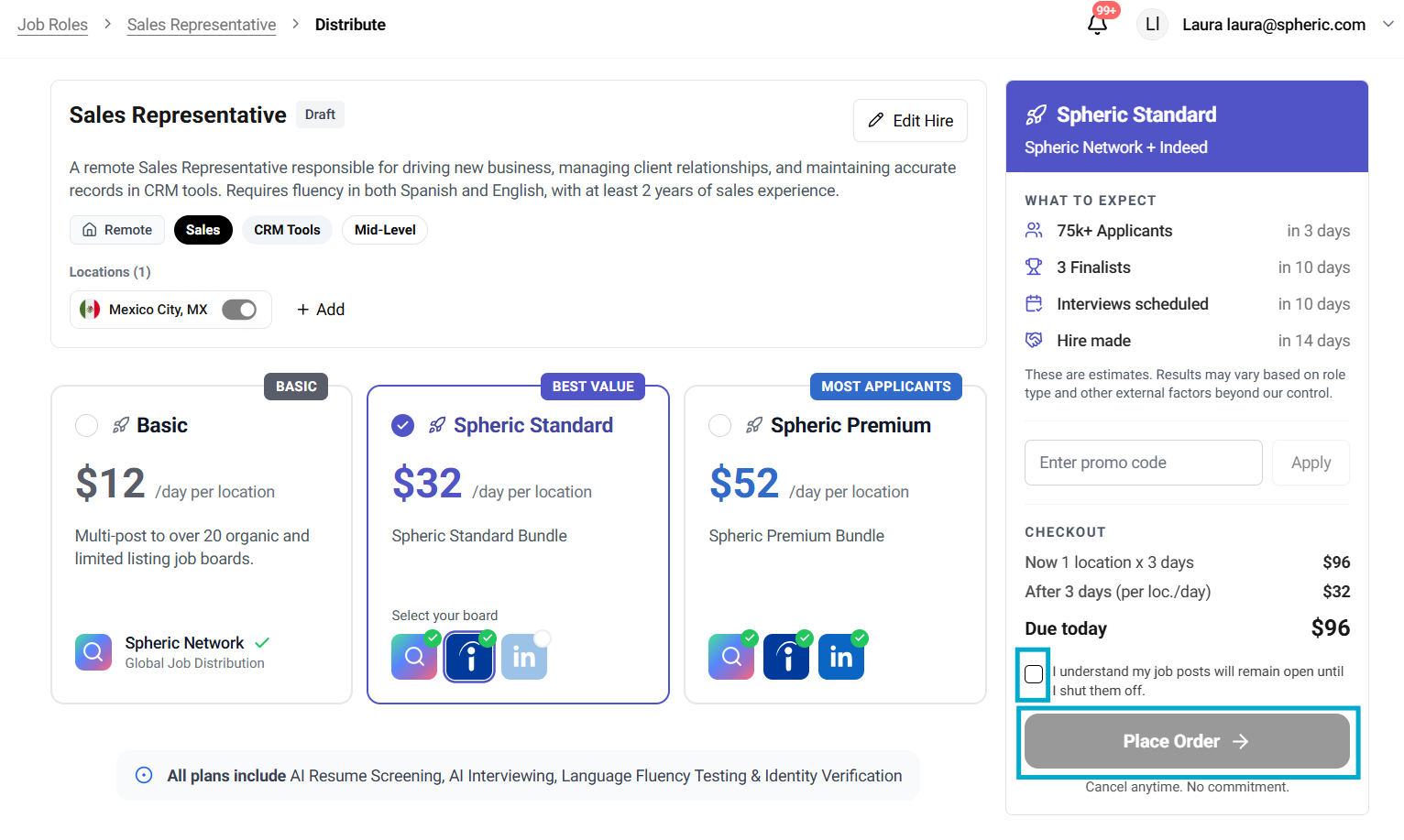
6. Publish your job
To publish your role:
- Select a plan:
- Basic
- Spheric Standard
- Spheric Premium
Not sure which plan to choose?
Learn more about each option in Understanding plans & pricing.
- Accept terms and conditions
- Click “Place order”
- Enter your payment details
Once payment is processed, your job will be live on the selected job board(s)