Editing an AI interview
You can edit the AI interview at any time, even after your role has been published.
You can edit the AI interview at any time, even after your role has been published.
This allows you to update questions, adjust evaluation criteria, or refine how candidates are assessed.
How to edit an AI interview
1. Go to your dashboard
Go to: https://app.spheric.com/
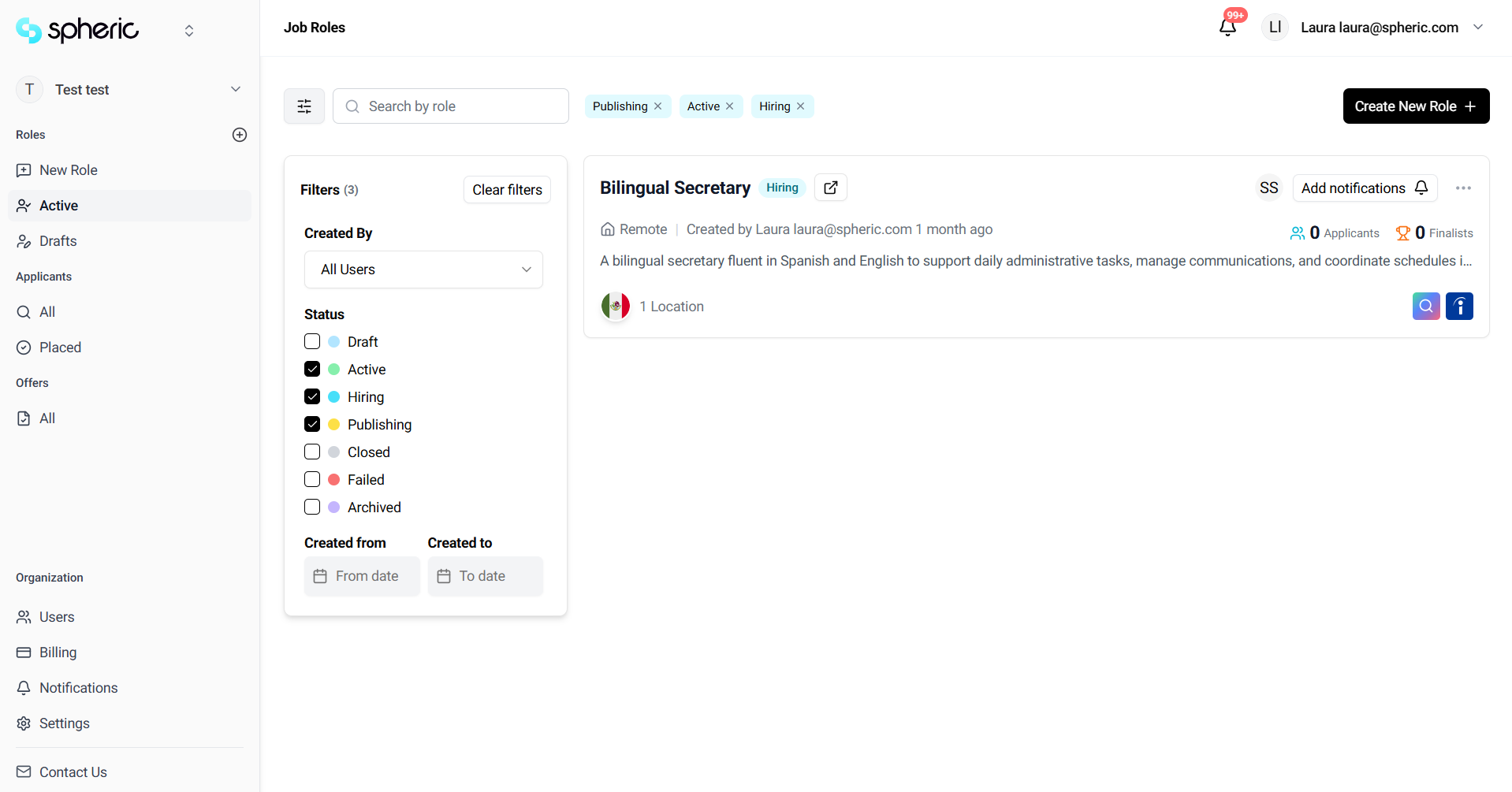
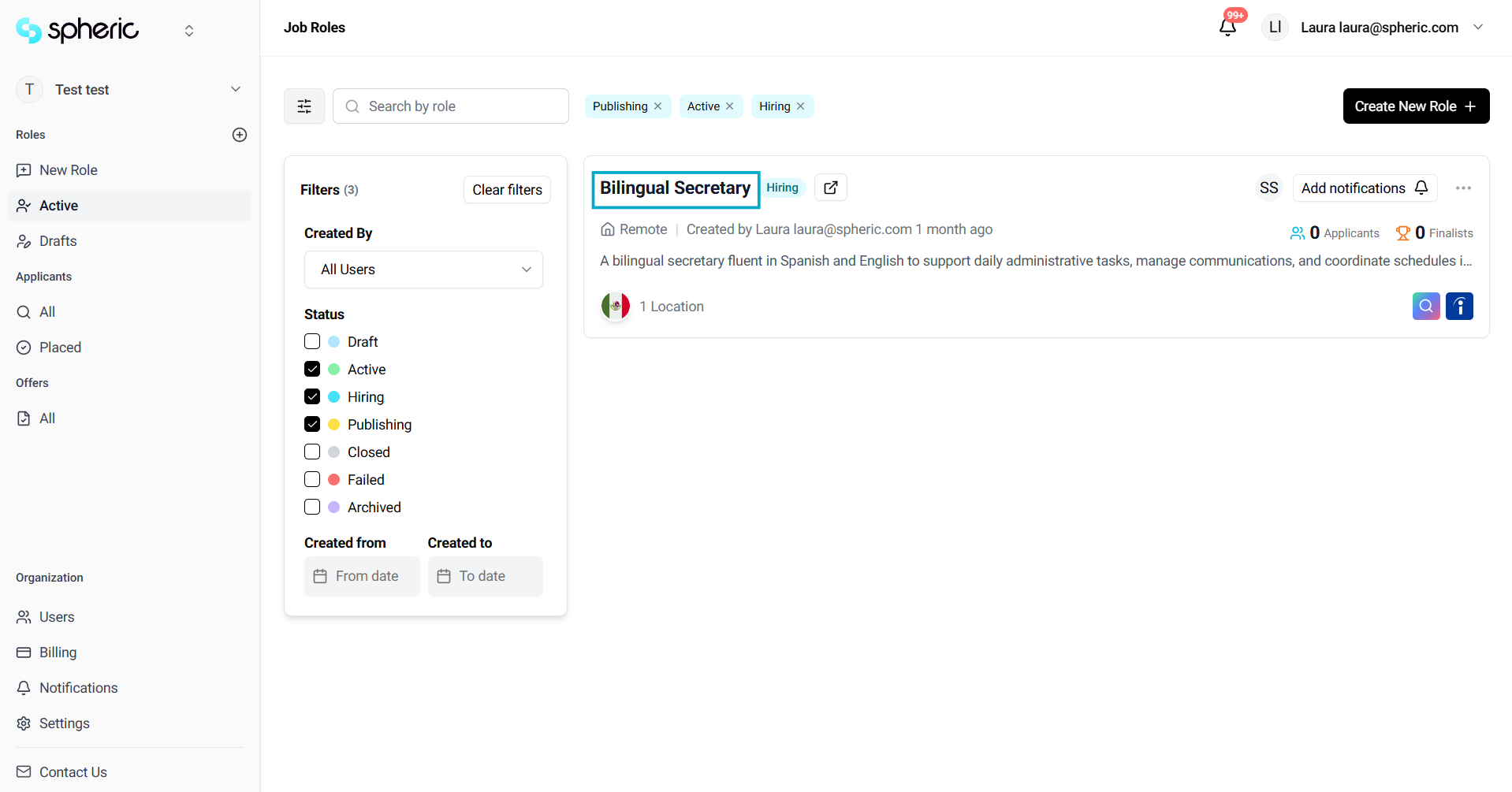
2. Select a role
Click on the role you want to update.
3. Open the Applicant Board
Navigate to the Applicant Board for that role.
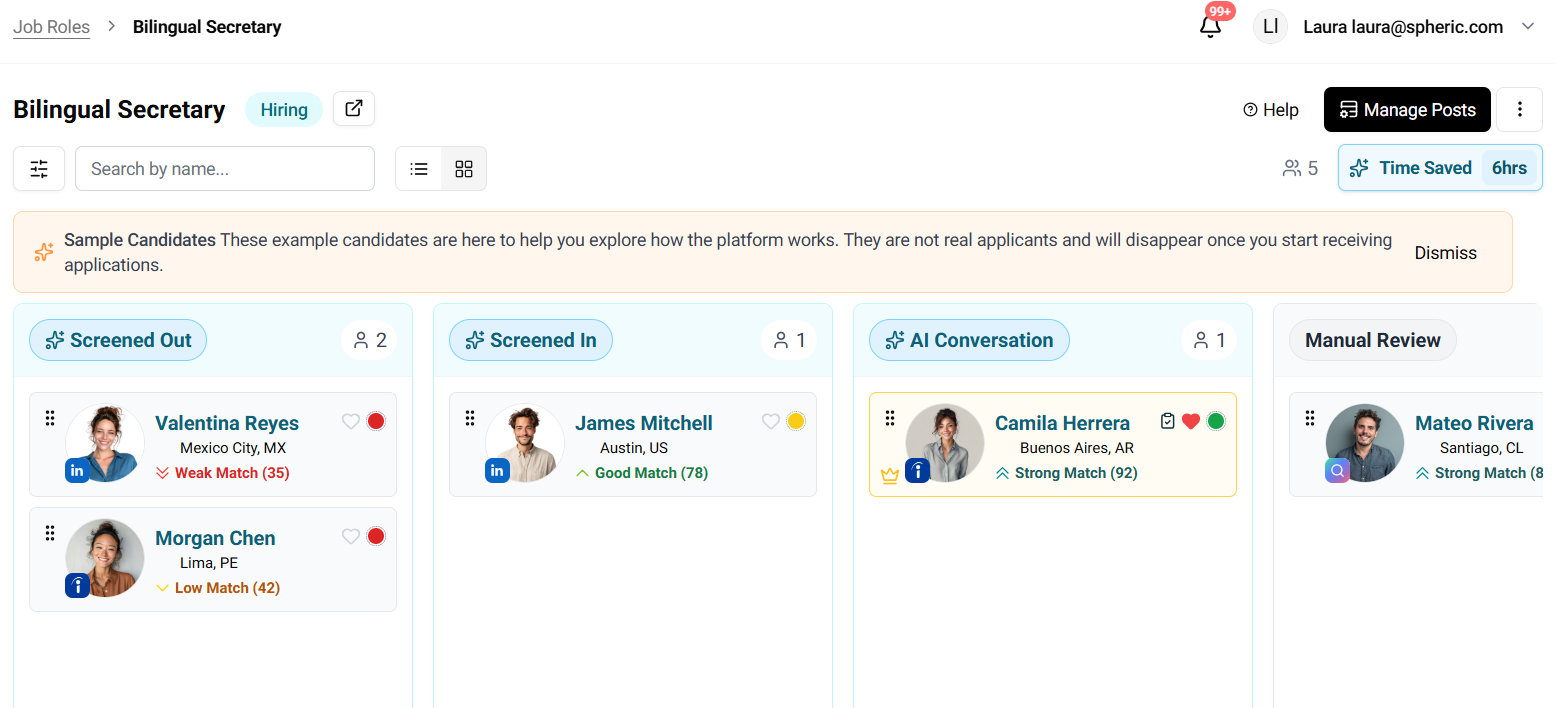
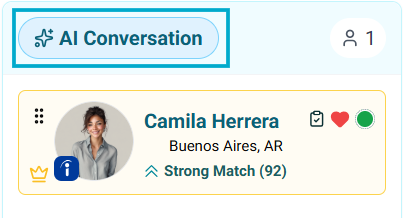
4. Locate the AI interview stage
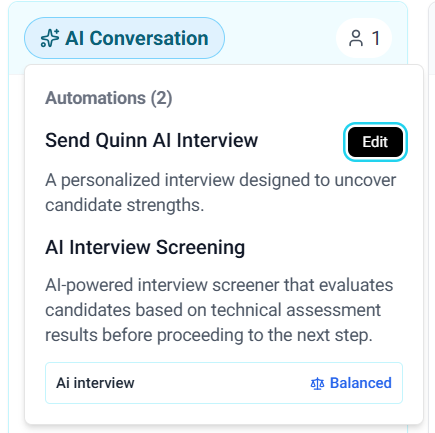
Find the AI Conversation or AI Technical Interview column and click on it. Click on the column to access and edit the AI interview settings.
5. Edit the interview
Click on the edit button and start editing what you need.
What you can edit
- Interview questions
- Evaluation criteria
- Thresholds for candidate progression
- Interview type (AI Conversation or Technical Challenge)
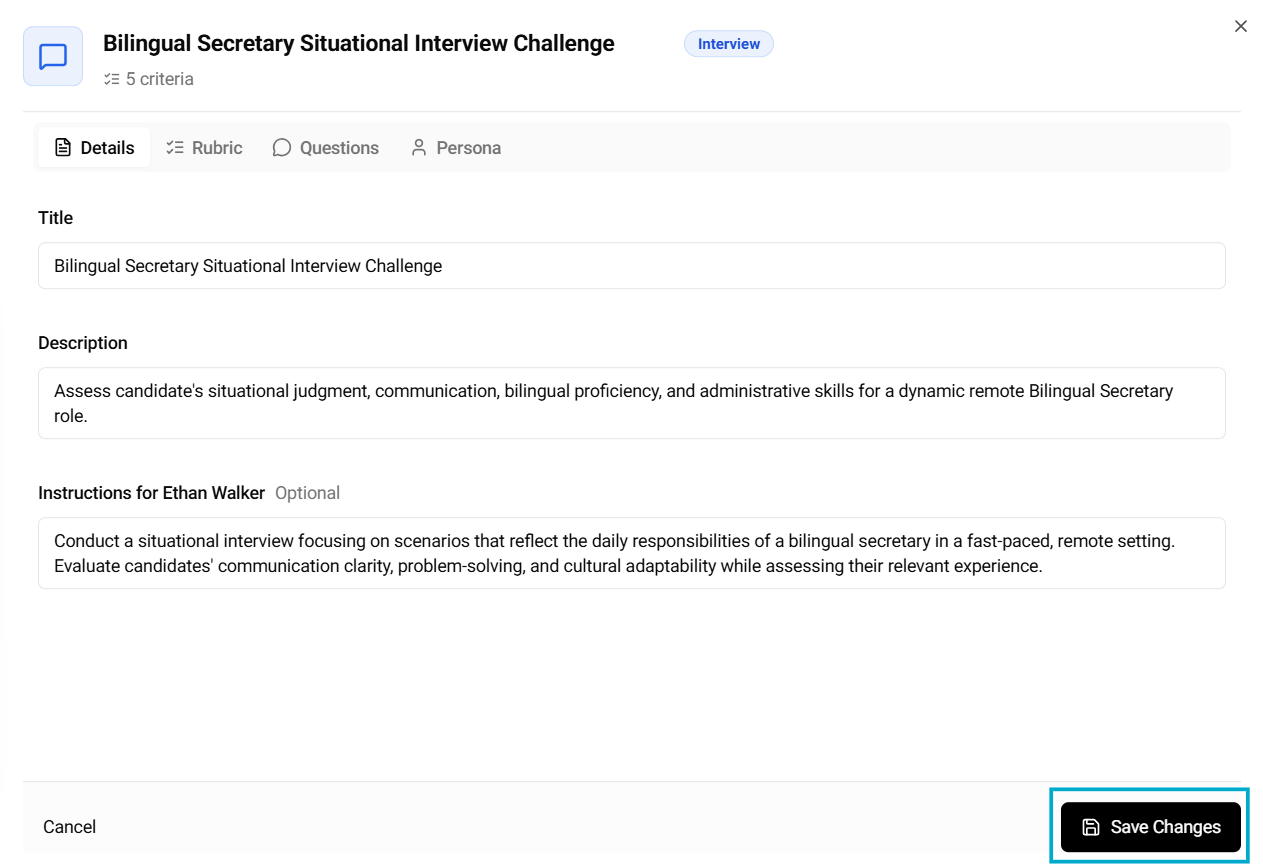
Don't forget to hit "Save Changes" to proceed.
What happens after editing
- Changes will apply to new candidates or future interview sessions
- Candidates who have already completed the interview will not be affected